
Microsoft Copilot in Word
Demo Setup
The sample documents can be found in the MS-4008 GitHub repository here.
The specific files being used in this exercise are:
- ContosoLearn App Overview.docx
- ContosoLearn Competitor SWOT.docx
- ContosoLearn Value Proposition.docx
- (Optional - see instructions below) Microsoft FY24 Second Quarter Earnings Conference Call
NOTE: It can take up to 10 minutes for these files to sync to your OneDrive. To expedite this process, you can open the document and then close it, which will add it to your Most Recently Used (MRU) list.
Talking Points
In the Interactive Experience, we brainstormed new app or service ideas, created brand identity and marketing assets, and analyzed the competitive landscape. But how can we take this a step further?
With Copilot in Word, we can transform the process of document creation and refinement, enabling you to produce compelling content with ease.
In this demo, we'll take the documents we created and transform them together to create a strategic analysis report. Additionally, we'll adjust the format and tone to ensure the content aligns perfectly with our objectives.
Demo Steps
Launch Microsoft Word either on the desktop or by typing Word.new in a new Microsoft Edge tab.
Click into the body of the document and select the Copilot icon displayed.
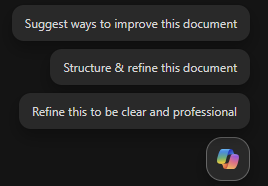
In Word, the Let's edit your document window should now be displayed. In the prompt field, enter the following prompt:
textCreate a comprehensive strategic analysis report for ContosoLearn using the following files as references: /ContosoLearn App Overview, /ContosoLearn Competitor SWOT, and /ContosoLearn Value Proposition. The strategic analysis report should include the following sections: Executive Summary App Overview Market Research Competitor SWOT Analysis Value Proposition ConclusionIMPORTANT: You will need to re-type “/” and select the correct files from the Most Recently Used (MRU) list for this to function properly.
Copilot will now generate a draft of the strategic analysis report based on the prompt you provided. Once Copilot has finished, the following prompt window is displayed:

In the prompt field, enter the following:
textRemove the "Market Research" section and add a "Competitive Landscape" section. Ensure the content is concise and aligns with the overall tone of the document.NOTE: If Copilot for Word is not cooperating with you, you can use the following link to access the generated document: ContosoLearn Example Word Output.
Optional Demo Steps
Summarize a large document
Download and open the following file in Word on your desktop: Microsoft FY24 Second Quarter Earnings Conference Call.
Whith the Copilot pane open, switch from Allow editing to Chat Only mode.
In the message copilot field, copy and paste the prompt or type:
textBased on the document, how did AI impact Microsoft's earnings this year?Select Send.
One finished, run the following prompt:
textCopilot, generate a FAQ based on this document.Select Send.