
Cowork Project Tracker Demo
Scenario:
You're responsible for a project with work spread across several workstreams. You'll use Copilot Cowork to analyze a project tracker, identify the items that need attention, and build an interactive HTML Kanban board. Cowork will also send a summary email and prepare a Teams update for review.
Demo Setup
The sample file can be found in the MS-4021 GitHub repository here:
Download project-tracker.csv before the demo.
NOTE: The prompts in this demo are suggestions. You can adjust them for your audience or use a project tracker from your own organization.
PRESENTER NOTE: Cowork tasks are available under My tasks. If time is limited, run the main prompt before the session and keep the completed conversation available. During the demo, submit the prompt live to show Cowork starting the task, then switch to the completed conversation to review the finished output.
Demo
Copilot Cowork
Open Microsoft Copilot.
Select Cowork.
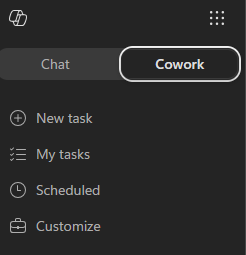
Start a New task. The Cowork task view includes the prompt window and a list of recent tasks.
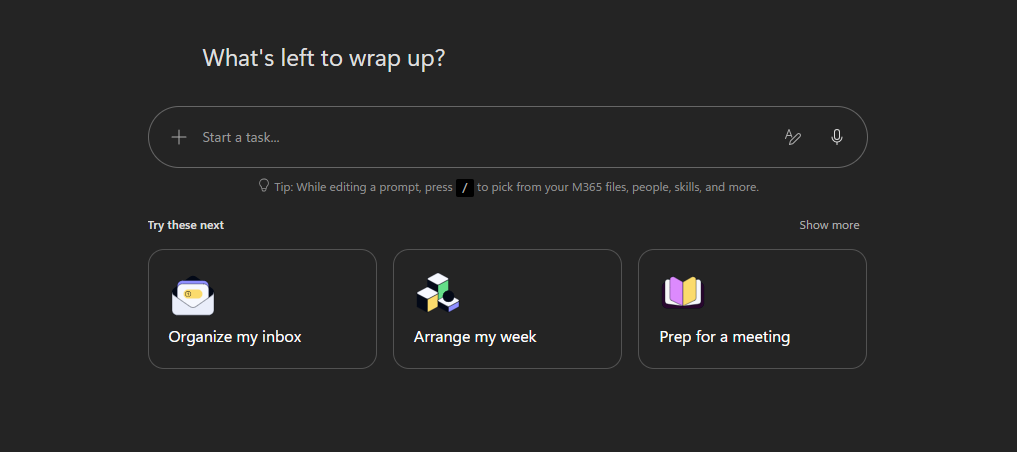
Attach project-tracker.csv by dragging it into the conversation or selecting + > Upload images and files.
After the attachment, use Shift + Enter to add new lines, then enter the following prompt:
Sample Prompt:
textHelp me get a clear picture of where this project stands. 1. Read through the file I've shared and sort the items into what's open, in progress, and done. Call out the few that most need attention. 2. Build an interactive HTML Kanban board with three lanes - Open / Needs Action, In Progress / Monitoring, and Done - plus a compact header showing the total item count, how many are open, how many are done, and the single item that most needs attention. 3. Send me a summary report via email. 4. Write a brief Teams update for a project channel. Don't post it - I just want the draft to review. If anything's unclear or missing, ask me one focused question before you start.Submit the prompt.
As Cowork works, point out the progress log and the side panel:
- The skills Cowork loads, such as HTML and Communications
- The files Cowork produces
- The references Cowork uses
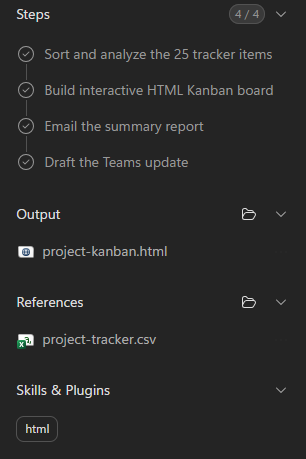
Point out the thinking indicator while Cowork breaks the request into steps.

NOTE: Work IQ is the intelligence layer that helps Cowork reason across the user's emails, meetings, files, chats, and calendar within the organization's permissions.
Approve any actions Cowork presents that are required to complete the demo.
When Cowork finishes, open the generated HTML Kanban board and preview it in the conversation.
Confirm that the board separates the work into Open / Needs Action, In Progress / Monitoring, and Done, and that its header shows the requested project counts and priority item.
Open Outlook and confirm that the summary email was received.
Return to the Cowork conversation and show the Teams update draft. Do not post it.
Key Takeaway
In one request, Copilot Cowork analyzed a project file, built an interactive tracker, sent a summary email, and prepared a Teams update for review. The progress log shows how Cowork plans the work, loads the required skills, and asks for approval before taking actions.