
Immersion Experience – Agents (Business Users)
Discover how Microsoft 365 Copilot and Agent builder can help you solve everyday productivity challenges by designing a simple retrieval-based agent. This streamlined exercise will walk you through identifying a common issue, exploring how AI could help, and then creating a simple agent to test.
You'll perform three tasks:
- Identify a productivity pain point
- Explore how AI could help with retrieval and organization
- Build and test a simple agent with Agent builder
NOTE: Sample prompts are provided to help you get started—feel free to personalize them to fit your situation.
If you’d like help generating or refining prompts, try the Prompt Coach agent, which can suggest, improve, and evaluate prompts so you get better results with Copilot.
Task 1: Identify a Productivity Challenge
Think about a common issue in your day-to-day work—something that slows you down or makes it harder to find or organize information. You can reflect individually, or use Copilot Chat as a partner to help generate ideas and surface common pain points.
Examples:
- Finding the latest version of a document
- Gathering updates from multiple emails or chats
- Remembering details from past projects or meetings
Steps:
Open a new browser tab and navigate to m365.cloud.microsoft/chat.
Ensure the Work mode tab is selected in Copilot Chat.

Sample Prompt:
textSummarize the top challenges I face in my daily work, based on recent emails, chats, and documents. Show results in a simple list with: - Title (short label for the issue) - Description (1–2 sentences)
Task 2: Explore AI Solution Ideas with Researcher
Use the Researcher Agent to explore how Copilot or agents might help with your chosen challenge.
Steps:
In the Copilot Chat menu, expand Agents (if necessary) and select Researcher.
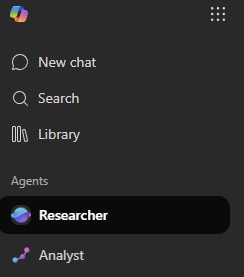
Try a sample prompt like this:
textExplore possible AI solutions to help with [insert productivity issue]. Focus on retrieval-based approaches using Microsoft Copilot or Agent builder agents. Summarize two or three ways an agent could help me find, organize, or summarize information more efficiently.TIP: Keep the focus on practical, everyday use cases—like quickly surfacing a doc or pulling updates from multiple sources.
NOTE: Researcher may take 5–10 minutes (or more) to complete, depending on your request. Its responses are highly detailed, so while it’s working, try running the same prompt in Copilot Chat. Comparing the two outputs is a great way to see how each tool approaches the task.
Task 3: Build and Test Your Agent
Now, create a simple retrieval agent in Agent builder to address your challenge.
Steps:
In the Copilot Chat menu, select New agent from the navigation pane to open agent builder.

In the Describe the agent you want to create prompt box, draft your agent’s role. For example:
textYou’re a virtual assistant that helps me with [key task]. Be concise and always reference my recent files or resources when possible.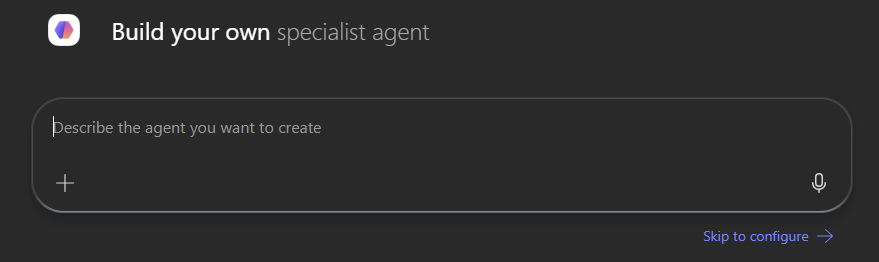
Select the Configure tab and add one knowledge source (e.g., My Emails or My Teams chats and meetings).
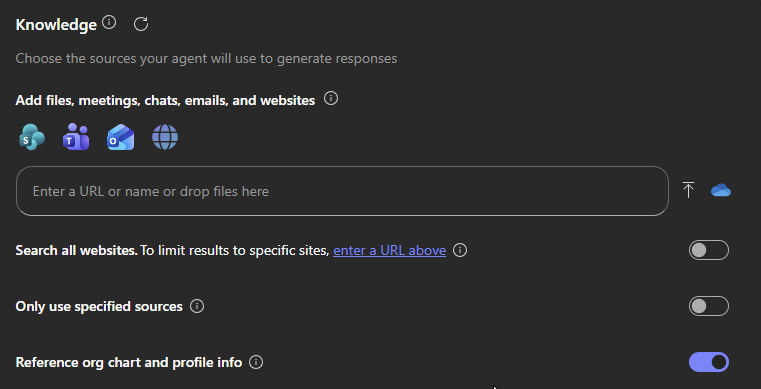
Test your agent using the Preview pane and refine as needed.
Select Create to publish your agent and start using it.
TIP: Even a very simple agent—like one that helps you find recent project files—can show the power of retrieval in your daily work.