Explore the Visual Studio Code PostgreSQL Extension and GitHub Copilot
As the lead developer for Margie’s Travel, you’re tasked with improving your team’s productivity when working with Azure Database for PostgreSQL. You want to learn how the PostgreSQL extension for Visual Studio Code, together with GitHub Copilot, can help you write and refine SQL more efficiently. In this exercise, you deploy the required Azure resources, connect to your database, and prepare sample data so you can use the extension and Copilot in later steps.
Before you start
You need an Azure subscription with administrative rights.
Deploy resources into your Azure subscription
This step guides you through using Azure CLI commands from the Azure Cloud Shell to create a resource group and run a Bicep script to deploy the Azure services necessary for completing this exercise into your Azure subscription.
-
Open a web browser and navigate to the Azure portal.
-
Select the Cloud Shell icon in the Azure portal toolbar to open a new Cloud Shell pane at the bottom of your browser window.

If prompted, select the required options to open a Bash shell. If you previously used a PowerShell console, switch it to a Bash shell.
-
Clone the GitHub repo containing the exercise resources.
git clone https://github.com/MicrosoftLearning/mslearn-postgresql.git -
Define variables for the Azure region, resource group name, and PostgreSQL admin password.
REGION=eastusRG_NAME=rg-learn-postgresql-ai-$REGIONa=() for i in {a..z} {A..Z} {0..9}; do a[$RANDOM]=$i done ADMIN_PASSWORD=$(IFS=; echo "${a[*]::18}") echo "Your randomly generated PostgreSQL admin user's password is:" echo $ADMIN_PASSWORD -
If necessary, switch to the correct Azure subscription.
az account set --subscription <subscriptionName|subscriptionId> -
Create a resource group.
az group create --name $RG_NAME --location $REGION -
Run the Bicep deployment.
az deployment group create --resource-group $RG_NAME --template-file "mslearn-postgresql/Allfiles/Labs/Shared/deploy.bicep" --parameters restore=false adminLogin=pgAdmin adminLoginPassword=$ADMIN_PASSWORD databaseName=rentals -
Close the Cloud Shell when the deployment completes.
Troubleshooting deployment errors
(Full troubleshooting text remains unchanged from your original source.)
Connect to your database using psql in the Azure Cloud Shell
In this task, you connect to the rentals database on your Azure Database for PostgreSQL flexible server using the psql command-line utility.
-
In the Azure portal, navigate to your PostgreSQL flexible server resource.
-
Under Settings, select Databases, then select Connect next to the
rentalsdatabase. Review the connection instructions for Connect from browser or locally and follow the steps for connecting using the Azure Cloud Shell.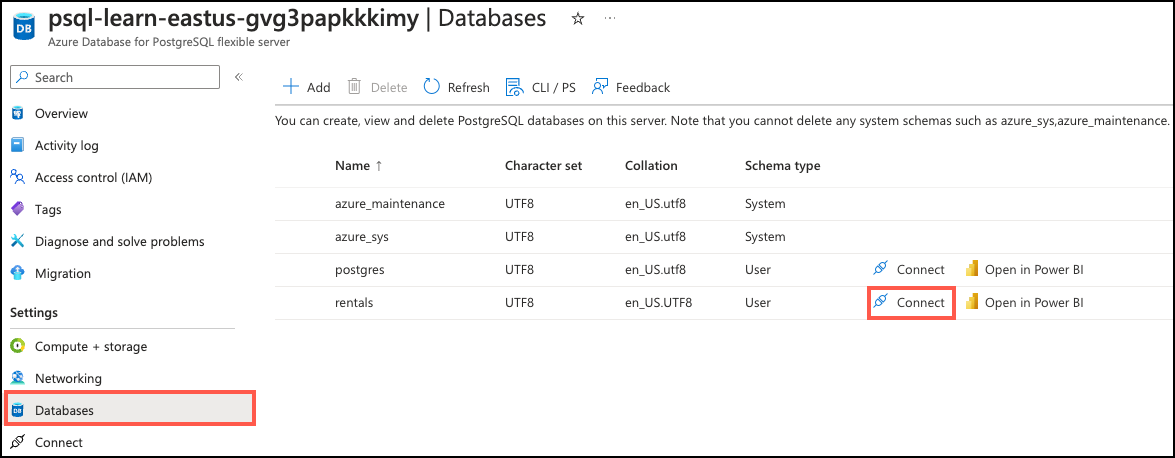
-
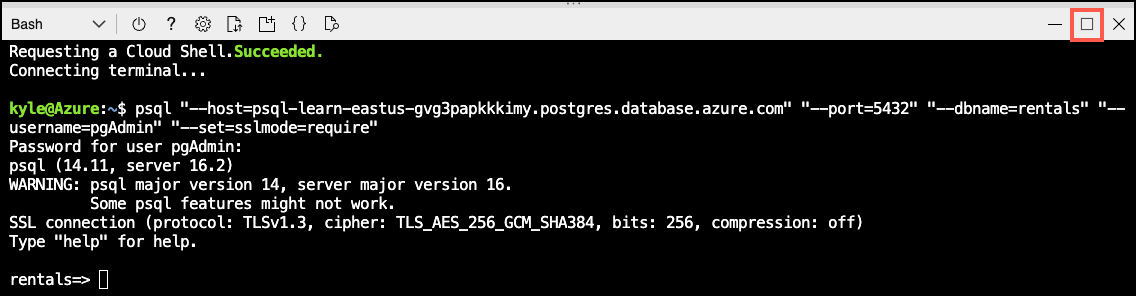
When prompted, enter the randomly generated password for the
pgAdminsign in. -
After sign in, ensure you’re connected to the
rentalsdatabase. -
Select Maximize in Cloud Shell to create more space.
Populate the database with sample data
Before you explore the PostgreSQL extension and use GitHub Copilot in Visual Studio Code, add sample data to your database.
-
Create the
listingstable.DROP TABLE IF EXISTS listings; CREATE TABLE listings ( id int, name varchar(100), description text, property_type varchar(25), room_type varchar(30), price numeric, weekly_price numeric ); -
Create the
reviewstable.DROP TABLE IF EXISTS reviews; CREATE TABLE reviews ( id int, listing_id int, date date, comments text ); -
Load listings data.
\COPY listings FROM 'mslearn-postgresql/Allfiles/Labs/Shared/listings.csv' CSV HEADER -
Load reviews data.
\COPY reviews FROM 'mslearn-postgresql/Allfiles/Labs/Shared/reviews.csv' CSV HEADER
Use the PostgreSQL extension and GitHub Copilot in Visual Studio Code
With your Azure Database for PostgreSQL server deployed and sample data loaded, you’re now ready to use the PostgreSQL extension and GitHub Copilot in Visual Studio Code. Follow the steps in the subsequent units to connect to your database, explore database objects, generate SQL queries with Copilot, and validate query results.
Install the Visual Studio Code PostgreSQL extension
This section assumes you already installed Visual Studio Code on your development machine. If you haven’t, download and install it from here.
Once you have Visual Studio Code installed, follow these steps to install the PostgreSQL extension (if you haven’t already):
-
Open Visual Studio Code.
-
Select the Extensions icon in the Activity Bar on the side of the window.
-
In the Extensions view, search for PostgreSQL and select the extension named PostgreSQL published by Microsoft.
-
Select the Install button to add the extension to Visual Studio Code.
After installing the PostgreSQL extension, you can proceed to connect to your Azure Database for PostgreSQL server and start exploring the database objects and using GitHub Copilot for SQL generation and assistance.
Connect to your Azure Database for PostgreSQL server
Earlier in this exercise, you deployed an Azure Database for PostgreSQL flexible server and created a rentals database with sample data. Now, you connect to that database using the PostgreSQL extension in Visual Studio Code. You need the server name, admin username, and password generated during deployment.
-
Open Visual Studio Code (if it isn’t already open).
-
In the Activity Bar, select the PostgreSQL icon to open the PostgreSQL extension view.
-
In the PostgreSQL extension view, select the Add New Connection button (represented by a plug icon with a plus sign).
-
In the New Connection dialog, enter the following details:
-
Server name:
<your-server-name>.postgres.database.azure.com(replace<your-server-name>with the actual server name from your deployment) - Authentication type: Password
-
Username:
pgAdmin -
Password:
<your-generated-password>(use the password generated during deployment) - (Optional) Save password: Select this box if you want Visual Studio Code to remember your password for future connections.
-
Database name:
rentals - Connection name: (any name you prefer)
-
Server name:
-
Select the Test Connection button to verify that the connection details are correct.
-
Select the Save & Connect button to save and establish the connection to your Azure Database for PostgreSQL server.
After completing these steps, you should be connected to your rentals database in Azure Database for PostgreSQL. You can now explore the database objects, write SQL queries, and use GitHub Copilot to assist with your PostgreSQL development tasks within Visual Studio Code.
Test the PostgreSQL extension
With the PostgreSQL extension installed and connected to your Azure Database for PostgreSQL server, you can now test its functionality by exploring database objects and executing SQL queries.
-
In the PostgreSQL extension view, expand the connection you created to see the list of databases (if not already expanded).
-
Expand the
rentalsdatabase to view its schemas, tables, and other objects. -
Expand the
schemasnode, then thepublicschema, and finally theTablesnode to see thelistingsandreviewstables you created earlier. -
Right-click on the
listingstable and select Select Top 1000 to return the first 1,000 rows from thelistingstable. A new SQL query editor tab opens with the generated SQL query and its results. -
Review the results in the Results pane below the query editor to verify that the data loaded correctly.
-
Right-click on the
rentalsdatabase and select New Query to open a new SQL query editor tab. -
In the new query editor, write and execute a SQL query, such as:
SELECT COUNT(*) AS total_listings FROM listings;Your query should return the total number of listings in the
listingstable.
By following these steps, you successfully tested the PostgreSQL extension by exploring database objects and executing SQL queries against your Azure Database for PostgreSQL server. You can now proceed to use GitHub Copilot to assist with generating and refining SQL queries in Visual Studio Code.
Install GitHub Copilot in Visual Studio Code
To use GitHub Copilot with the PostgreSQL extension in Visual Studio Code, you first need to install the GitHub Copilot extension. Follow these steps to install and set up GitHub Copilot (if you haven’t already):
-
Open Visual Studio Code (if it isn’t already open).
-
Select the Extensions icon in the Activity Bar on the side of the window.
-
In the Extensions view, search for GitHub Copilot and select the extension named GitHub Copilot published by GitHub.
-
Select the Install button to install the GitHub Copilot extension.
After installing the GitHub Copilot extension, you may need to sign in to your GitHub account and enable Copilot if prompted. Once set up, you can start using GitHub Copilot to assist with generating and refining SQL queries while working with your PostgreSQL database in Visual Studio Code.
Use GitHub Copilot with the PostgreSQL extension
Now that you have both the PostgreSQL extension and GitHub Copilot installed in Visual Studio Code, we can inject GitHub Copilot into your PostgreSQL development workflow.
You start by applying GitHub Copilot from the PostgreSQL extension.
-
In the PostgreSQL extension view, let’s create a new query. Right-click on the
rentalsdatabase and select New Query. -
lets add a query to get GitHub Copilot started. Type the following SQL query in the new query editor:
SELECT * FROM listings WHERE price < 100; -
Now, highlight the SQL query you typed, right-click on the highlighted text, and select Explain from the context menu. Note how the GitHub Copilot Chat pane opens with an explanation of the SQL query you provided.
Let’s try something slightly more interesting.
-
Using the same query, highlight the SQL query again, right-click on the highlighted text, and select Generate Code and then Review from the context menu.
-
This step returns a Code Review response from GitHub Copilot with suggestions on how to improve the SQL query.
-
You can choose to Apply or Discard the suggestions provided by GitHub Copilot. Select Apply to update your SQL query with the suggested improvements.
-
Notice how the SQL query in the editor was updated based on GitHub Copilot’s suggestions.
While the context menu options are a great way to use GitHub Copilot, the real power comes from using Copilot Chat directly.
-
In the PostgreSQL extension view, right-click on the
rentalsdatabase and select Chat with this database to open the Copilot Chat pane. -
Notice how
@pgsqlis prepopulated in the chat input box, indicating that GitHub Copilot uses the context of your PostgreSQL database for this chat session. -
In the chat input box, type the following prompt:
Generate a SQL query to find the top 5 most expensive listings. -
Notice that it not only generates the query but it also returns the results of the query executed against your connected PostgreSQL database.
Let’s try to troubleshoot a couple of queries we might have issues with.
-
In the PostgreSQL extension view, let’s create a new query. Right-click on the
rentalsdatabase and select New Query. -
Type the following SQL query in the new query editor but don’t execute it yet:
SELECT id, title, price FROM listings WHERE price < 100; -
Go back to the Copilot Chat pane and type and run the following prompt.
There is an error in the query in the query editor. Can you help me identify and fix it?Use this prompt without the @pgsql prefix. Although the question relates to a SQL query, @pgsql limits Copilot to database context and excludes the query editor context provided by the extension.
-
It should identify that the
titlecolumn doesn’t exist in thelistingstable and provide a corrected version of the SQL query. It should recommend changingtitletoname. -
Fix the query in the query editor and execute it.
Let’s try one more complex query.
-
Replace the previous query for the following SQL query in the new query editor and execute it:
 WITH listing_stats AS (
     SELECT
         name,
         price,
         description,
         LENGTH(description) AS desc_length,
         AVG(price) OVER () AS avg_price
     FROM listings
     WHERE price IS NOT NULL
 ),
 expensive_listings AS (
     SELECT
         name,
         price,
         desc_length,
         avg_price,
         price - avg_price AS price_diff,
         CASE
             WHEN price > avg_price THEN 'Above Average'
             ELSE 'Below Average'
         END AS price_category
     FROM listing_stats
     WHERE price > avg_price * 1.5
 ),
 categorized AS (
     SELECT
         price_category,
         COUNT(*) AS listing_count,
         AVG(price) AS category_avg_price,
         SUM(desc_length) AS total_desc_length
     FROM expensive_listings
     GROUP BY price_category
 )
 SELECT
     price_category,
     listing_count,
     category_avg_price,
     total_desc_length / listing_count AS avg_desc_length,
     ROUND(listing_count / SUM(listing_count) OVER () * 100, 2) AS pct_of_total
 FROM categorized
 WHERE avg_desc_length > 50
 ORDER BY category_avg_price DESC;
This query analyzes listings to identify expensive items (those items priced more than 150% of the average). The query then categorizes them as “Above Average” or “Below Average” and calculates statistics for each category. Finally, the query filters to show only categories where the average description length exceeds 50 characters.
-
Now, go back to the Copilot Chat pane and type and run the following prompt.
This query is erroring out. Can you help me fix it and explain what I did wrong? -
It should identify any errors in the SQL query and provide a corrected version along with an explanation of what was wrong. Copy and paste the corrected query into the query editor and execute it to see the results. They should look similar to the following results:
price_category listing_count category_avg_price avg_desc_length pct_of_total Above Average 8 287.375 895 100.00
So far we explored data manipulation language (DML) queries. Let’s try a couple of data definition language (DDL) commands next. Let’s start by creating a new table.
-
In the Copilot Chat pane, type and run the following prompt.
@pgsql Create a new table called customers. -
This request is very generic, so Copilot likely asks for more details about the table structure or recommend a table structure. Respond to the prompt with the following details:
@pgsql The customers table should have the following columns: id (integer, primary key), first_name (varchar(50)), last_name (varchar(50)), email (varchar(100), unique), created_at (timestamp, default current_timestamp). -
Since this request is a DDL command that modifies the database schema, Copilot asks for confirmation before executing the command. Review the generated SQL and answer @pgsql Yes to proceed with creating the table.
-
Once the table is created, you can verify its existence by expanding the
Tablesnode under thepublicschema in the PostgreSQL extension view. You might need to refresh the view to see the newcustomerstable.
Now, let’s try modifying the customers table to add a new column, and say @pgsql Yes to confirm the change when prompted.
-
In the Copilot Chat pane, type and run the following prompt.
@pgsql Add a new column called phone_number (varchar(15)) to the customers table. -
Ask Copilot to add 10 sample records to the
customerstable and confirm the change when prompted.@pgsql Insert 10 sample records into the customers table. -
Finally, verify that the records were added successfully by running the following SQL query in a new query editor:
SELECT * FROM customers; -
Review the results in the Results pane below the query editor to verify that the sample data was inserted correctly.
Go ahead and come up with a few more DDL or DML commands. Use the Copilot Chat pane to assist you with generating the SQL and executing it against your connected PostgreSQL database.
Explore the extension agent mode
So far we focused on using Copilot Chat in a question-and-answer format. GitHub Copilot Chat also supports an agent mode that can autonomously perform multi-step database tasks.
-
In the Copilot Chat pane, select Agent from the pull-down menu under the chat input box.
-
Select the Model pull-down menu and choose GPT-5.2 or your preferred model.
-
In the chat input box, type the following prompt:
Add a new table under the rental database for cities, make sure to include the country name, the city name and an id for the city. -
You might get a dialog box asking for permission to allow the agent to access your workspace. Select Allow in this session to proceed.
-
Notice the steps the agent takes to complete the task. It might request more permissions as it works through the task. Review each step and provide permission as needed.
-
Once the agent completes the task, verify that the
citiestable was created successfully by expanding theTablesnode under thepublicschema in the PostgreSQL extension view. You might need to refresh the view to see the newcitiestable.
While this example was a simple task, an agent can handle much more complex multi-step tasks. The agent could create a new database schema, populate it with sample data, and generate reports based on that data.
Key takeaways
In this exercise, you explored how to use the PostgreSQL extension for Visual Studio Code with GitHub Copilot to enhance your PostgreSQL development workflow. You connected to an Azure Database for PostgreSQL server, populated it with sample data, and used GitHub Copilot to generate, refine, and troubleshoot SQL queries. The Copilot Chat feature allowed you to interactively request SQL generation and modifications, making it easier to work with your database directly within Visual Studio Code. And that is just the beginning of what you can do with these powerful tools. You can go from a simple query to complex database operations asking copilot to create a whole application that interacts with your database.