Build RAG Applications with Azure Database for PostgreSQL and Python
In this scenario, you’re building a small internal assistant for the company’s policy questions at Contoso. You set up a table in Azure Database for PostgreSQL, load the CSV of policies, and store an embedding for each policy so the database can match questions by meaning, not just keywords. You add a vector index to keep lookups fast. Then you write a short Python script that asks for a question, fetches the most relevant policies, and prints an answer based only on those policies, including the policy title.
By the end of this exercise, you will:
- Enable database extensions that power embeddings and vector search.
- Generate in-database embeddings for your data.
- Add a vector index to keep search fast.
- Write a small RAG Python program that retrieves top chunks and produces a grounded answer.
Before you start
You need an Azure subscription with administrative rights, and you must be approved for Azure OpenAI access in that subscription. If you need Azure OpenAI access, apply at the Azure OpenAI limited access page.
Deploy resources into your Azure subscription
If you already have a nonproduction Azure Database for PostgreSQL server and a nonproduction Azure OpenAI resource setup, you can skip this section.
This step guides you through using Azure CLI commands from the Azure Cloud Shell to create a resource group and run a Bicep script to deploy the Azure services necessary for completing this exercise into your Azure subscription.
-
Open a web browser and navigate to the Azure portal.
-
Select the Cloud Shell icon in the Azure portal toolbar to open a new Cloud Shell pane at the bottom of your browser window.

If prompted, select the required options to open a Bash shell. If you previously used a PowerShell console, switch it to a Bash shell.
-
At the Cloud Shell prompt, enter the following to clone the GitHub repo containing exercise resources:
git clone https://github.com/MicrosoftLearning/mslearn-postgresql.git -
Next, you run three commands to define variables to reduce redundant typing when using Azure CLI commands to create Azure resources. The variables represent the name to assign to your resource group (
RG_NAME), the Azure region (REGION) into which resources are deployed, and a randomly generated password for the PostgreSQL administrator sign in (ADMIN_PASSWORD).In the first command, the region assigned to the corresponding variable is
westus3, but you can also replace it with a location of your preference. However, if replacing the default, you must select another Azure region that supports abstractive summarization to ensure you can complete all of the tasks in the modules in this learning path.REGION=westus3The following command assigns the name to be used for the resource group that houses all the resources used in this exercise. The resource group name assigned to the corresponding variable is
rg-learn-postgresql-ai-$REGION, where$REGIONis the location you previously specified. However, you can change it to any other resource group name that suits your preference.RG_NAME=rg-learn-postgresql-ai-$REGIONThe final command randomly generates a password for the PostgreSQL admin sign in. Make sure you copy it to a safe place to use later to connect to your PostgreSQL.
a=() for i in {a..z} {A..Z} {0..9}; do a[$RANDOM]=$i done ADMIN_PASSWORD=$(IFS=; echo "${a[*]::18}") echo "Your randomly generated PostgreSQL admin user's password is:" echo $ADMIN_PASSWORD -
Only run this command if you want to change your current subscription. If you have access to more than one Azure subscription, and your default subscription isn’t the one in which you want to create the resource group and other resources for this exercise, run this command to set the appropriate subscription, replacing the
<subscriptionName|subscriptionId>token with either the name or ID of the subscription you want to use:az account set --subscription <subscriptionName|subscriptionId> -
Run the following Azure CLI command to create your resource group:
az group create --name $RG_NAME --location $REGION -
Finally, use the Azure CLI to execute Bicep deployment scripts to provision Azure resources in your resource group:
 #1 Core infra: PostgreSQL + DB + firewall + server param, AOAI account, Language account
 az deployment group create \
   --resource-group "$RG_NAME" \
   --template-file "mslearn-postgresql/Allfiles/Labs/Shared/deploy.core.bicep" \
   --parameters restore=false adminLogin=pgAdmin adminLoginPassword="$ADMIN_PASSWORD" databaseName=ContosoHelpDesk

 AOAI=$(az cognitiveservices account list -g "$RG_NAME" --query "[?kind=='OpenAI'].name | [0]" -o tsv)

 #2 Wait for the parent AOAI account to finish provisioning
 echo "Waiting for AOAI account to be ready..."
 while true; do
   STATE=$(az cognitiveservices account show -g "$RG_NAME" -n "$AOAI" --query "properties.provisioningState" -o tsv)
   echo "provisioningState=$STATE"
   [ "$STATE" = "Succeeded" ] && break
   sleep 10
 done

 #3 OpenAI deployments: embedding + chat
 az deployment group create \
   --resource-group "$RG_NAME" \
   --template-file "mslearn-postgresql/Allfiles/Labs/Shared/deploy.aoai-deployments.bicep" \
   --parameters azureOpenAIServiceName="$AOAI"
The Bicep deployment scripts provisions the Azure services required to complete this exercise into your resource group. The resources deployed include an Azure Database for PostgreSQL server, Azure OpenAI, an Azure AI Language service. The Bicep script also performs some configuration steps, such as adding the
azure_aiandvectorextensions to the PostgreSQL server’s allowlist (via theazure.extensionsserver parameter), creating a database namedContosoHelpDeskon the server, and adding a deployment namedembeddingusing thetext-embedding-ada-002model to your Azure OpenAI service. Finally it adds a deployment namedchatusing thegpt-4o-minimodel to your Azure OpenAI service. The Bicep file shares all modules in this learning path, so you might only use some of the deployed resources in some exercises.The deployment typically takes several minutes to complete. You can monitor it from the Cloud Shell or navigate to the Deployments page for the resource group you previously created and observe the deployment progress there.
-
Throughout this exercise, you authenticate to Azure OpenAI using one of two methods. Choose the one that applies to your environment and follow only those instructions at each step:
- API keys — use a key copied from the Azure portal (works in most environments).
- Managed identity — use Microsoft Entra ID token-based authentication (required when API keys are disabled at the organization level).
If you’re using managed identity, run the following commands now to set it up if you haven’t already. Otherwise skip to the next step.
 # Re-derive all variables (in case your Cloud Shell session was reset)
 PGSERVER=$(az postgres flexible-server list -g "$RG_NAME" --query "[0].name" -o tsv)
 AOAI=$(az cognitiveservices account list -g "$RG_NAME" --query "[?kind=='OpenAI'].name | [0]" -o tsv)
 AOAI_ID=$(az cognitiveservices account show -g "$RG_NAME" -n "$AOAI" --query "id" -o tsv)
 SUB_ID=$(az account show --query "id" -o tsv)

 # Enable system-assigned managed identity on the PostgreSQL server
 # (The az CLI has no direct flag for this, so we use az rest per Microsoft docs)
 az rest --method patch \
   --url "https://management.azure.com/subscriptions/$SUB_ID/resourceGroups/$RG_NAME/providers/Microsoft.DBforPostgreSQL/flexibleServers/$PGSERVER?api-version=2024-08-01" \
   --body '{"identity":{"type":"SystemAssigned"}}'

 # Wait for the identity to be assigned, then get the principal ID
 echo "Waiting for system-assigned managed identity..."
 SYS_MI=""
 while [ -z "$SYS_MI" ] || [ "$SYS_MI" = "null" ]; do
   sleep 15
   SYS_MI=$(az rest --method get \
     --url "https://management.azure.com/subscriptions/$SUB_ID/resourceGroups/$RG_NAME/providers/Microsoft.DBforPostgreSQL/flexibleServers/$PGSERVER?api-version=2024-08-01" \
     --query "identity.principalId" -o tsv)
   echo "principalId=$SYS_MI"
 done

 # Grant 'Cognitive Services OpenAI User' to the system MI (for in-database embeddings)
 az role assignment create \
   --assignee "$SYS_MI" \
   --role "Cognitive Services OpenAI User" \
   --scope "$AOAI_ID"

 # Also grant the role to your own identity (needed for the Python app later)
 MY_ID=$(az ad signed-in-user show --query id -o tsv)
 az role assignment create \
   --assignee "$MY_ID" \
   --role "Cognitive Services OpenAI User" \
   --scope "$AOAI_ID"

 # Restart the server so it picks up the new identity
 az postgres flexible-server restart -g "$RG_NAME" -n "$PGSERVER"
Note: Wait 2-3 minutes after the restart for the server to come back up and for role assignments to propagate. If you receive authorization errors in later steps, wait a couple of minutes and retry.
-
Take note of the resource names and their corresponding ID, and the PostgreSQL server’s fully qualified domain name (FQDN), username, and password, as you need them later.
Troubleshooting deployment errors
You could encounter a few errors when running the Bicep deployment script. If no errors are encountered, skip this section.
-
If you previously ran the Bicep deployment script for this learning path and later deleted the resources, you could receive an error message like the following if you’re attempting to rerun the script within 48 hours of deleting the resources:
  {"code": "InvalidTemplateDeployment", "message": "The template deployment 'deploy' is not valid according to the validation procedure. The tracking id is '4e87a33d-a0ac-4aec-88d8-177b04c1d752'. See inner errors for details."}

  Inner Errors:
  {"code": "FlagMustBeSetForRestore", "message": "An existing resource with ID '/subscriptions/{subscriptionId}/resourceGroups/rg-learn-postgresql-ai-eastus/providers/Microsoft.CognitiveServices/accounts/{accountName}' has been soft-deleted. To restore the resource, you must specify 'restore' to be 'true' in the property. If you don't want to restore existing resource, please purge it first."}
If you receive this message, modify the
azure deployment group createcommand previously to set therestoreparameter equal totrueand rerun it. -
If the selected region is restricted from provisioning specific resources, you must set the
REGIONvariable to a different location and rerun the commands to create the resource group and run the Bicep deployment script.{"status":"Failed","error":{"code":"DeploymentFailed","target":"/subscriptions/{subscriptionId}/resourceGroups/{resourceGrouName}/providers/Microsoft.Resources/deployments/{deploymentName}","message":"At least one resource deployment operation failed. Please list deployment operations for details. Please see https://aka.ms/arm-deployment-operations for usage details.","details":[{"code":"ResourceDeploymentFailure","target":"/subscriptions/{subscriptionId}/resourceGroups/{resourceGrouName}/providers/Microsoft.DBforPostgreSQL/flexibleServers/{serverName}","message":"The resource write operation failed to complete successfully, because it reached terminal provisioning state 'Failed'.","details":[{"code":"RegionIsOfferRestricted","message":"Subscriptions are restricted from provisioning in this region. Please choose a different region. For exceptions to this rule please open a support request with Issue type of 'Service and subscription limits'. See https://review.learn.microsoft.com/en-us/azure/postgresql/flexible-server/how-to-request-quota-increase for more details."}]}]}} -
If the script is unable to create an AI resource due to the requirement to accept the responsible AI agreement, you get the following error. If you get that error, use the Azure portal user interface to create an Azure AI Services resource, and then rerun the deployment script.
  {"code": "InvalidTemplateDeployment", "message": "The template deployment 'deploy' is not valid according to the validation procedure. The tracking id is 'f8412edb-6386-4192-a22f-43557a51ea5f'. See inner errors for details."}

  Inner Errors:
  {"code": "ResourceKindRequireAcceptTerms", "message": "This subscription cannot create TextAnalytics until you agree to Responsible AI terms for this resource. You can agree to Responsible AI terms by creating a resource through the Azure Portal then trying again. For more detail go to https://go.microsoft.com/fwlink/?linkid=2164190"}
Connect to your database using psql in the Azure Cloud Shell
You connect to the ContosoHelpDesk database on your Azure Database for PostgreSQL server using the psql command-line utility from the Azure Cloud Shell.
-
In the Azure portal, open the Cloud Shell by selecting the Cloud Shell icon in the toolbar.
-
Run the following command to connect to your
ContosoHelpDeskdatabase, replacing<server-name>with the name of your PostgreSQL flexible server (found on the Overview page of your PostgreSQL resource in the Azure portal):psql -h <server-name>.postgres.database.azure.com -U pgAdmin -d ContosoHelpDesk -
At the “Password for user pgAdmin” prompt in the Cloud Shell, enter the randomly generated password for the pgAdmin sign in.
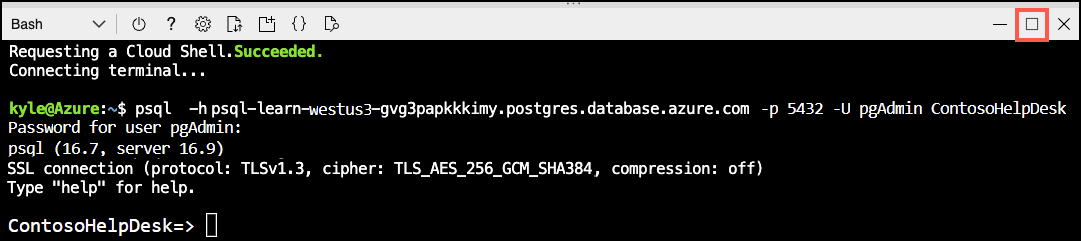
Once you sign in, the
psqlprompt for theContosoHelpDeskdatabase is displayed. -
Throughout the remainder of this exercise, you continue working in the Cloud Shell, so it helps to expand the pane within your browser window by selecting the Maximize button at the top right of the pane.
Setup: Configure extensions
To store and query vectors, and to generate embeddings, you need to allowlist and enable two extensions for Azure Database for PostgreSQL: vector and azure_ai.
-
To allowlist both extensions, add
vectorandazure_aito the server parameterazure.extensions, as per the instructions provided in How to use PostgreSQL extensions. -
Run the following SQL command to enable the
vectorandazure_aiextensions. For detailed instructions, read How to enable and usepgvectoron Azure Database for PostgreSQL.On ContosoHelpDesk prompt, run the following SQL commands:
-- Enable required extensions CREATE EXTENSION vector; CREATE EXTENSION azure_ai; -
Now configure the
azure_aiextension connection to Azure OpenAI. You need the endpoint for your Azure OpenAI resource (found on the Keys and Endpoint page under Resource Management in the Azure portal).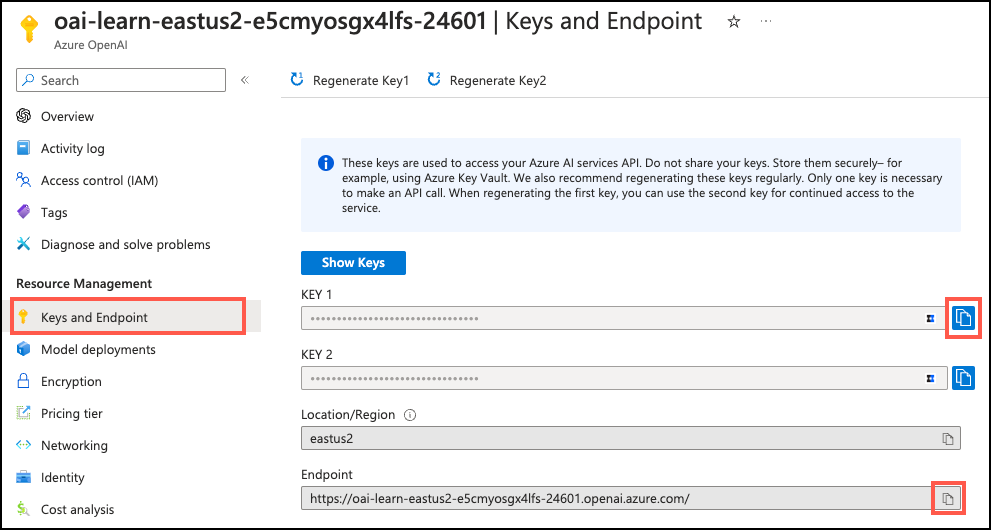
On the ContosoHelpDesk prompt, run the commands for your chosen authentication method:
Using API keys: Copy one of the available keys from the same page. You can use either
KEY 1orKEY 2.SELECT azure_ai.set_setting('azure_openai.endpoint', '{endpoint}'); SELECT azure_ai.set_setting('azure_openai.subscription_key', '{api-key}');Using managed identity: Only set the endpoint. When no
subscription_keyis configured, the extension automatically uses the server’s system-assigned managed identity.SELECT azure_ai.set_setting('azure_openai.endpoint', '{endpoint}'); SELECT azure_ai.set_setting('azure_openai.auth_type', 'managed-identity');
Populate the database with sample data
Before you use the azure_ai extension, add a table to the ContosoHelpDesk database and populate them with sample data so you have information to work with as you create your application.
-
On the ContosoHelpDesk prompt, run the following commands to create the
company_policiestable for storing company policy data:-- Create table for policies and embeddings (matches CSV columns) DROP TABLE IF EXISTS company_policies CASCADE; CREATE TABLE company_policies ( policy_id BIGSERIAL PRIMARY KEY, title TEXT NOT NULL, department TEXT NOT NULL, policy_text TEXT NOT NULL, embedding vector(1536) -- The `text-embedding-ada-002` model is configured to return 1,536 dimensions, so use that number for the vector column size. ); -
In your Azure Cloud Shell, use the
COPYcommand to load data from CSV files into each table you previously created. Run the following command to populate thecompany_policiestable:\COPY company_policies (title, department, policy_text) FROM 'mslearn-postgresql/Allfiles/Labs/Shared/company_policies.csv' WITH (FORMAT csv, HEADER)The command output should be
COPY 108, indicating that 108 rows were written into the table from the CSV file. -
Backfill embeddings for existing rows.
Run the following command in your psql session (Cloud Shell) to compute embeddings in batches. This avoids 429 Too Many Requests errors by processing rows in small groups with a pause between each batch.
 DO $$
 DECLARE
   batch_size       int := 50;   -- rows per batch (reduce if you still get 429 errors)
   pause_secs       int := 10;   -- seconds to wait between batches
   updated          int;
 BEGIN
   LOOP
     BEGIN
       WITH todo AS (
         SELECT policy_id, policy_text
         FROM company_policies
         WHERE embedding IS NULL
         ORDER BY policy_id
         LIMIT batch_size
       )
       UPDATE company_policies p
       SET embedding = azure_openai.create_embeddings('embedding', t.policy_text)::vector
       FROM todo t
       WHERE p.policy_id = t.policy_id;

       GET DIAGNOSTICS updated = ROW_COUNT;

       IF updated = 0 THEN
         RAISE NOTICE 'All rows embedded.';
         EXIT;
       END IF;

       RAISE NOTICE 'Updated % rows; sleeping % seconds...', updated, pause_secs;
       PERFORM pg_sleep(pause_secs);

     EXCEPTION WHEN OTHERS THEN
       RAISE NOTICE 'Throttled - backing off % seconds...', pause_secs;
       PERFORM pg_sleep(pause_secs);
       pause_secs := LEAST(pause_secs * 2, 60);
     END;
   END LOOP;
 END $$;
Note: If you experience repeated throttling, reduce
batch_size(try 40, 30, or 20) or increasepause_secs(try 20 or 30).Once all 108 rows are backfilled, continue to the next section.
Test the vector table with a similarity query
Let’s make sure everything is working by verifying with a similarity search and simple filtering directly from SQL.
-
On the Azure Cloud Shell, connect to the ContosoHelpDesk database again using psql as before.
-
Run the following SQL statement:
-- Best match for a question (cosine) SELECT policy_id, title, department, policy_text FROM company_policies ORDER BY embedding <=> azure_openai.create_embeddings('embedding', 'How many vacation days do employees get?')::vector LIMIT 1; -
Add a filter plus a vector search by running the following SQL statement:
-- Filter + vector (hybrid) SELECT policy_id, title, department, policy_text FROM company_policies WHERE department = 'HR' ORDER BY embedding <=> azure_openai.create_embeddings('embedding', 'Does the company help me with college expenses')::vector LIMIT 3; -
Type \q and press Enter to exit psql.
While these answers are a good start, they might not be comprehensive enough for more complex queries. To address this problem, you can create a Python RAG (Retrieval-Augmented Generation) application that retrieves relevant passages from our database and uses them as context for generating answers.
Create a Python RAG application to retrieve natural language answers
Now that your embeddings are in place, you can write a short Python script that asks a question, fetches the most relevant policies from PostgreSQL, and prints an answer based only on those passages.
Update your environment variables
Before you look at our Python application, you need to set the correct environment variables for PostgreSQL and Azure OpenAI.
-
Open your
.envfile:code "mslearn-postgresql/Allfiles/Labs/14/.env" -
Update your
.envfile with your PostgreSQL and Azure OpenAI credentials. Use the template that matches your chosen authentication method:Using API keys:
 # PostgreSQL connection
 PGHOST=<server FQDN from output serverFqdn>
 PGUSER=pgAdmin
 PGPASSWORD=<your admin password>
 PGDATABASE=ContosoHelpDesk

 # Azure OpenAI
 AZURE_OPENAI_API_KEY=<your Azure OpenAI key>
 AZURE_OPENAI_ENDPOINT=<value from output azureOpenAIEndpoint>  # e.g., https://oai-learn-<region>-<id>.openai.azure.com
 OPENAI_API_VERSION=2024-02-15-preview

 # Deployment names (match the Bicep resources)
 OPENAI_EMBED_DEPLOYMENT=embedding
 OPENAI_CHAT_DEPLOYMENT=chat
Using managed identity: Omit the
AZURE_OPENAI_API_KEYline. The Python app authenticates usingDefaultAzureCredentialwith the role you assigned earlier.# PostgreSQL connection PGHOST=<server FQDN from output serverFqdn> PGUSER=pgAdmin PGPASSWORD=<your admin password> PGDATABASE=ContosoHelpDesk # Azure OpenAI (no key needed) AZURE_OPENAI_ENDPOINT=<value from output azureOpenAIEndpoint> OPENAI_API_VERSION=2024-02-15-preview # Deployment names (match the Bicep resources) OPENAI_EMBED_DEPLOYMENT=embedding OPENAI_CHAT_DEPLOYMENT=chat -
Save the file and close the code editor.
📝 If you can’t find the save/exit options, on the code editor window, move your mouse to the upper right of the editor. Your icon should change, press your mouse button and you should see the options to save and close.
Update your Python RAG application
On the GitHub repo you cloned, you can find the app.py file, which contains the shell for your RAG application. Time to implement the logic to retrieve and answer questions based on the context from PostgreSQL.
-
Open the
CompanyPolicies.pyto add the RAG logic.code "mslearn-postgresql/Allfiles/Labs/14/CompanyPolicies.py" -
Review the libraries the application depends on. The main library you use for interacting with Azure OpenAI is
langchain_openai. -
our first function,
get_conn, just creates a connection to the PostgreSQL database. This one is predefined for you. For the following three functions, replace the comments with actual code provided. -
Replace the comment # Retrieve top-k rows by cosine similarity (embedding must be present) with the following script:
 # Retrieve top-k rows by cosine similarity (embedding must be present)
 def retrieve_chunks(question, top_k=5):
     sql = """
     WITH q AS (
       SELECT azure_openai.create_embeddings(%s, %s)::vector AS qvec
     )
     SELECT policy_id, title, policy_text
     FROM company_policies, q
     WHERE embedding IS NOT NULL
     ORDER BY embedding <=> q.qvec
     LIMIT %s;
     """
     params = (os.getenv("OPENAI_EMBED_DEPLOYMENT"), question, top_k)
     with get_conn() as conn, conn.cursor() as cur:
         cur.execute(sql, params)
         rows = cur.fetchall()
     return [{"policy_id": r[0], "title": r[1], "text": r[2]} for r in rows]
This function retrieves the top-k relevant chunks from the PostgreSQL database based on the user’s question.
-
Replace the comment # Format retrieved chunks for the model prompt with the following script:
 # Format retrieved chunks for the model prompt
 def format_context(chunks):
     return "\n\n".join([f"[{c['title']}] {c['text']}" for c in chunks])
This function formats the retrieved chunks into a context string suitable for the model prompt.
-
Replace the comment # Call Azure OpenAI to answer using the provided context with the script that matches your authentication method:
Using API keys:
 # Call Azure OpenAI to answer using the provided context
 def generate_answer(question, chunks):
     llm = AzureChatOpenAI(
         azure_deployment=os.getenv("OPENAI_CHAT_DEPLOYMENT"),
         api_key=os.getenv("AZURE_OPENAI_API_KEY"),
         azure_endpoint=os.getenv("AZURE_OPENAI_ENDPOINT"),
         api_version=os.getenv("OPENAI_API_VERSION"),
         temperature=0,
     )
     messages = [
         {"role": "system", "content": "Answer ONLY from the provided context. If it isn't in the context, say you don't have enough information. Cite policy titles in square brackets, e.g., [Vacation policy]."},
         {"role": "user", "content": f"Question: {question}\nContext:\n{format_context(chunks)}"},
     ]
     return llm.invoke(messages).content
Using managed identity: Replace
api_keywith a token provider. Also addazure-identityto yourrequirements.txtor runpip install azure-identity.from azure.identity import DefaultAzureCredential, get_bearer_token_provider token_provider = get_bearer_token_provider( DefaultAzureCredential(), "https://cognitiveservices.azure.com/.default" ) # Call Azure OpenAI to answer using the provided context def generate_answer(question, chunks): llm = AzureChatOpenAI( azure_deployment=os.getenv("OPENAI_CHAT_DEPLOYMENT"), azure_ad_token_provider=token_provider, azure_endpoint=os.getenv("AZURE_OPENAI_ENDPOINT"), api_version=os.getenv("OPENAI_API_VERSION"), temperature=0, ) messages = [ {"role": "system", "content": "Answer ONLY from the provided context. If it isn't in the context, say you don't have enough information. Cite policy titles in square brackets, e.g., [Vacation policy]."}, {"role": "user", "content": f"Question: {question}\nContext:\n{format_context(chunks)}"}, ] return llm.invoke(messages).contentBoth versions produce the same result — the only difference is how they authenticate to Azure OpenAI.
-
Save the file and close the code editor.
Run the application
The last thing you need to do before running the application is to set up the Python environment and install the required packages. Finally, you run the application.
# Navigate to the exercise folder
cd ~/mslearn-postgresql/Allfiles/Labs/14

# Set up the Python environment
python3 -m venv .venv
source .venv/bin/activate
pip install -r requirements.txt

# When prompted, enter a question (for example, How many vacation days do employees get?)
python CompanyPolicies.py
Try different questions to see how the model responds.
- What is the company’s policy on remote work?
- I need to visit some local customers, can I use the company car for that visit?
- We’re expecting a new child, can I take some time off, and is it paid time off?
- What are the guidelines for employee conduct?
Or come up with your own questions, maybe they’re covered by the existing policies you added to the database. This small Python script is the basis of a RAG application. You search for relevant documents in the database and use them to answer user questions. But for an effective RAG application, you need to ensure that your document retrieval is fast and scalable. To achieve this fast retrieval, you can implement a vector index.
Add a vector index (speed at scale)
Since your company_policies table was small, most likely your queries ran relatively fast. However, as the table grows, you should optimize for performance. The first step to improve query performance is to add a vector index.
But adding an index to such a small table might not show significant improvements. So let’s go ahead and emulate a larger table by adding 50,000 rows to the table. For this lab, to increase the size of the table, just copy the existing rows multiple times.
-
On the Azure Cloud Shell, connect to the ContosoHelpDesk database using psql as before.
-
Run the following SQL statement to insert more rows into the company_policies table:
 -- Inflate to ~50k rows (keeps embeddings the same; OK for a demo)
 INSERT INTO company_policies (title, department, policy_text, embedding)
 SELECT title || ' (copy ' || gs || ')', department, policy_text, embedding
 FROM company_policies
 CROSS JOIN generate_series(1, 500) AS gs;
Let’s review the execution plan for our query with and without the index.
Run query without a vector index
First, let’s run the query without the index.
-
On the Azure Cloud Shell, connect to the ContosoHelpDesk database using psql as before.
-
Evaluate the execution plan for your query without the index by running the following SQL statement:
 -- Disable pagination for better output readability
 \pset pager off
EXPLAIN (ANALYZE, BUFFERS) SELECT policy_id, title, department, policy_text FROM company_policies ORDER BY embedding <=> azure_openai.create_embeddings('embedding', 'How many vacation days do employees get?')::vector LIMIT 1;
This query should return a detailed execution plan. Notice that because it doesn’t use an index, the Execution Time, and Buffers metrics could indicate higher resource usage. If you run the query a second time, the query planner should use cached results, potentially improving performance. Take note of these metrics so you can compare them later.
Run query with a vector index
Creating an IVFFlat index keeps top-k similarity fast as the table grows. Start simple and tune later.
Let’s go ahead and create the index.
-
On the Azure Cloud Shell, connect to the ContosoHelpDesk database using psql as before.
-
Create the IVFFlat index:
-- Drop the IVFFlat index DROP INDEX IF EXISTS company_policies_embedding_ivfflat_idx; -- Use cosine distance (vector_cosine_ops) for text embeddings CREATE INDEX company_policies_embedding_ivfflat_idx ON company_policies USING ivfflat (embedding vector_cosine_ops) WITH (lists = 100); ANALYZE company_policies; -
Evaluate the execution plan for your query with the index by running the following SQL statement:
 -- Disable pagination for better output readability
 \pset pager off
EXPLAIN (ANALYZE, BUFFERS) SELECT policy_id, title, department, policy_text FROM company_policies ORDER BY embedding <=> azure_openai.create_embeddings('embedding', 'How many vacation days do employees get?')::vector LIMIT 1;
You notice several improvements in the execution plan, including reduced Execution Time and Buffers metrics. Additionally, you also notice that the query is now using the IVFFlat index. Even if you run the query multiple times, the performance should remain consistent.
Key takeaways
By completing this exercise, you now know how to build a retrieval augmented application in Python. Your application retrieved the relevant documents and answered user queries intelligently. You scratched the surface of what’s possible with RAG applications. With further enhancements, you can improve the accuracy and efficiency of your document retrieval and response generation.
Additionally, you explored how to optimize query performance using vector indexes, which is crucial for scaling your application as the dataset grows. By using these indexes, you can ensure that your RAG application remains responsive and efficient, even as the volume of data increases.
Finally, you learned about the importance of monitoring and fine-tuning your application over time. As user queries evolve and the dataset expands, you need to revisit your indexing strategy, prompt design, and overall architecture to maintain optimal performance and accuracy.