Use Azure AI services with Azure Database for PostgreSQL
In this exercise, you help Margie’s Travel, a vacation rental company, improve how property listings and guest reviews are stored and used in their application.
The company wants to:
- Summarize long property descriptions into shorter highlights.
- Analyze guest reviews to understand satisfaction and uncover issues.
- Extract key phrases, entities, and protect sensitive data.
- Translate listings and reviews so international guests and hosts can understand each other.
You use the azure_ai extension in Azure Database for PostgreSQL to implement these features directly in the database.
Before you start
You need an Azure subscription with administrative rights, and you must be approved for Azure Language access in that subscription. If you need Azure Language access, apply at the Azure Language limited access page.
Deploy resources into your Azure subscription
If you already have a nonproduction Azure Database for PostgreSQL server and a nonproduction Azure Language resource setup, you can skip this section.
This step guides you through using Azure CLI commands from the Azure Cloud Shell to create a resource group and run a Bicep script to deploy the Azure services necessary for completing this exercise into your Azure subscription.
-
Open a web browser and navigate to the Azure portal.
-
Select the Cloud Shell icon in the Azure portal toolbar to open a new Cloud Shell pane at the bottom of your browser window.

If prompted, select the required options to open a Bash shell. If you previously used a PowerShell console, switch it to a Bash shell.
-
At the Cloud Shell prompt, enter the following to clone the GitHub repo containing exercise resources:
git clone https://github.com/MicrosoftLearning/mslearn-postgresql.git -
Next, you run three commands to define variables to reduce redundant typing when using Azure CLI commands to create Azure resources. The variables represent the name to assign to your resource group (
RG_NAME), the Azure region (REGION) into which resources are deployed, and a randomly generated password for the PostgreSQL administrator sign in (ADMIN_PASSWORD).In the first command, the region assigned to the corresponding variable is
westus3, but you can also replace it with a location of your preference. However, if replacing the default, you must select another Azure region that supports summarization and translation features to ensure you can complete all of the tasks in this exercise.REGION=westus3The following command assigns the name to be used for the resource group that houses all the resources used in this exercise. The resource group name assigned to the corresponding variable is
rg-learn-postgresql-ai-$REGION, where$REGIONis the location you previously specified. However, you can change it to any other resource group name that suits your preference.RG_NAME=rg-learn-postgresql-ai-$REGIONThe final command randomly generates a password for the PostgreSQL admin sign in. Make sure you copy it to a safe place to use later to connect to your PostgreSQL.
a=() for i in {a..z} {A..Z} {0..9}; do a[$RANDOM]=$i done ADMIN_PASSWORD=$(IFS=; echo "${a[*]::18}") echo "Your randomly generated PostgreSQL admin user's password is:" echo $ADMIN_PASSWORD -
Only run this command if you want to change your current subscription. If you have access to more than one Azure subscription, and your default subscription isn’t the one in which you want to create the resource group and other resources for this exercise, run this command to set the appropriate subscription, replacing the
<subscriptionName|subscriptionId>token with either the name or ID of the subscription you want to use:az account set --subscription <subscriptionName|subscriptionId> -
Run the following Azure CLI command to create your resource group:
az group create --name $RG_NAME --location $REGION -
Finally, use the Azure CLI to execute Bicep deployment scripts to provision Azure resources in your resource group:
 # Core infra: PostgreSQL + DB + firewall + server param, Azure Language account
 az deployment group create \
   --resource-group "$RG_NAME" \
   --template-file "~/mslearn-postgresql/Allfiles/Labs/Shared/deploy-all.bicep" \
   --parameters adminLogin=pgAdmin adminLoginPassword="$ADMIN_PASSWORD" databaseName=rentals
The Bicep deployment script provisions the Azure services required to complete this exercise into your resource group. The resources deployed include an Azure Database for PostgreSQL server and an Azure Language service. The Bicep script also performs some configuration steps, such as adding the
azure_aiextension to the PostgreSQL server’s allowlist (via theazure.extensionsserver parameter), and creating a database namedrentalson the server.The deployment typically takes several minutes to complete. You can monitor it from the Cloud Shell or navigate to the Deployments page for the resource group you previously created and observe the deployment progress there.
-
Take note of the resource names and their corresponding ID, and the PostgreSQL server’s fully qualified domain name (FQDN), username, and password, as you need them later.
Troubleshooting deployment errors
You could encounter a few errors when running the Bicep deployment script. If no errors are encountered, skip this section.
-
If you previously ran the Bicep deployment script for this learning path and later deleted the resources, you could receive an error message like the following if you’re attempting to rerun the script within 48 hours of deleting the resources:
  {"code": "InvalidTemplateDeployment", "message": "The template deployment 'deploy' is not valid according to the validation procedure. The tracking id is '4e87a33d-a0ac-4aec-88d8-177b04c1d752'. See inner errors for details."}

  Inner Errors:
  {"code": "FlagMustBeSetForRestore", "message": "An existing resource with ID '/subscriptions/{subscriptionId}/resourceGroups/rg-learn-postgresql-ai-eastus/providers/Microsoft.CognitiveServices/accounts/{accountName}' has been soft-deleted. To restore the resource, you must specify 'restore' to be 'true' in the property. If you don't want to restore existing resource, please purge it first."}
If you receive this message, modify the
azure deployment group createcommand previously to set therestoreparameter equal totrueand rerun it. -
If the selected region is restricted from provisioning specific resources, you must set the
REGIONvariable to a different location and rerun the commands to create the resource group and run the Bicep deployment script.{"status":"Failed","error":{"code":"DeploymentFailed","target":"/subscriptions/{subscriptionId}/resourceGroups/{resourceGrouName}/providers/Microsoft.Resources/deployments/{deploymentName}","message":"At least one resource deployment operation failed. Please list deployment operations for details. Please see https://aka.ms/arm-deployment-operations for usage details.","details":[{"code":"ResourceDeploymentFailure","target":"/subscriptions/{subscriptionId}/resourceGroups/{resourceGrouName}/providers/Microsoft.DBforPostgreSQL/flexibleServers/{serverName}","message":"The resource write operation failed to complete successfully, because it reached terminal provisioning state 'Failed'.","details":[{"code":"RegionIsOfferRestricted","message":"Subscriptions are restricted from provisioning in this region. Please choose a different region. For exceptions to this rule please open a support request with Issue type of 'Service and subscription limits'. See https://review.learn.microsoft.com/en-us/azure/postgresql/flexible-server/how-to-request-quota-increase for more details."}]}]}} -
If the script is unable to create an AI resource due to the requirement to accept the responsible AI agreement, you get the following error. If you get that error, use the Azure portal user interface to create an Azure AI Services resource, and then rerun the deployment script.
  {"code": "InvalidTemplateDeployment", "message": "The template deployment 'deploy' is not valid according to the validation procedure. The tracking id is 'f8412edb-6386-4192-a22f-43557a51ea5f'. See inner errors for details."}

  Inner Errors:
  {"code": "ResourceKindRequireAcceptTerms", "message": "This subscription cannot create TextAnalytics until you agree to Responsible AI terms for this resource. You can agree to Responsible AI terms by creating a resource through the Azure Portal then trying again. For more detail go to https://go.microsoft.com/fwlink/?linkid=2164190"}
Connect to your database using psql in the Azure Cloud Shell
You connect to the rentals database on your Azure Database for PostgreSQL server using the psql command-line utility from the Azure Cloud Shell.
-
In the Azure portal, navigate to your newly created Azure Database for PostgreSQL server.
-
In the resource menu, under Settings, select Databases and then select Connect for the
rentalsdatabase. Selecting Connect doesn’t actually connect you to the database; it simply provides instructions for connecting to the database using various methods. Review the instructions to Connect from browser or locally and use those instructions to connect using the Azure Cloud Shell.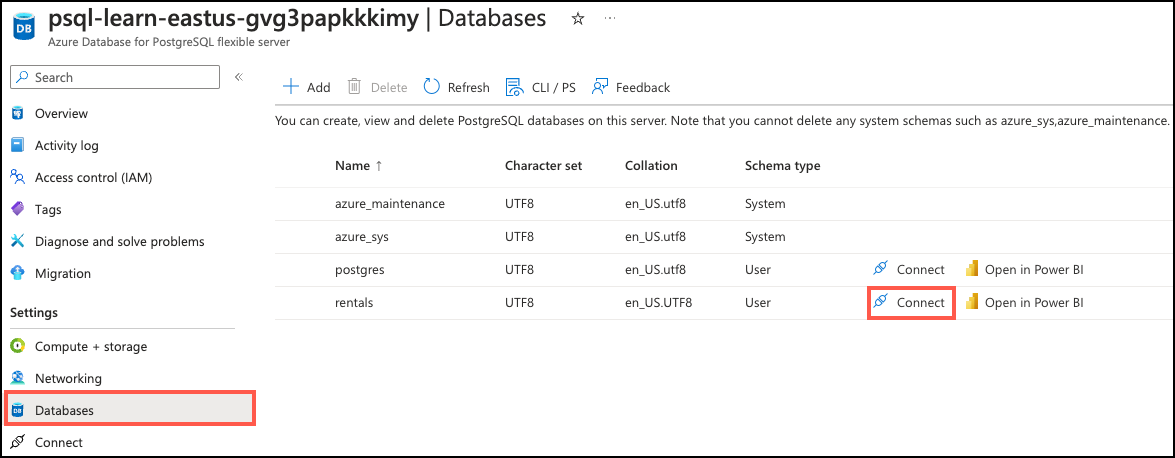
-
At the “Password for user pgAdmin” prompt in the Cloud Shell, enter the randomly generated password for the pgAdmin sign in.
Once you sign in, the
psqlprompt for therentalsdatabase is displayed. -
Throughout the remainder of this exercise, you continue working in the Cloud Shell, so it helps to expand the pane within your browser window by selecting the Maximize button at the top right of the pane.
Setup: Configure extensions
To store and query vectors, and to generate embeddings, you need to allowlist and enable two extensions for Azure Database for PostgreSQL: vector and azure_ai.
-
To allowlist both extensions, add
vectorandazure_aito the server parameterazure.extensions, as per the instructions provided in How to use PostgreSQL extensions. -
Run the following SQL command to enable the
vectorandazure_aiextensions. For detailed instructions, read How to enable and usepgvectoron Azure Database for PostgreSQL.On ContosoHelpDesk prompt, run the following SQL commands:
-- Enable required extensions CREATE EXTENSION vector; CREATE EXTENSION azure_ai; -
To enable the
azure_aiextension, run the following SQL command. You need the endpoint and API key for the Azure OpenAI resource. For detailed instructions, read Enable theazure_aiextension.On the ContosoHelpDesk prompt, run the following commands:
 -- Configure Azure Language
 SELECT azure_ai.set_setting('azure_cognitive.endpoint', 'https://<your-language-resource>.cognitiveservices.azure.com');
 SELECT azure_ai.set_setting('azure_cognitive.subscription_key', '<your-language-key>');
 SELECT azure_ai.set_setting('azure_cognitive.region','<your-region>');  -- e.g., 'westus3'
Populate the database with sample data
Before you use the azure_ai extension, add two tables to the rentals database and populate them with sample data so you have information to work with as you create your application.
-
On the rentals prompt, run the following commands to create the
listingsandreviewstables for storing rental property information and guest feedback:-- Drop existing tables if they exist DROP TABLE IF EXISTS reviews CASCADE; DROP TABLE IF EXISTS listings CASCADE; -- Create table for property listings -- Matches listings.csv (id,name,description,property_type,room_type,price,weekly_price) CREATE TABLE listings ( id BIGINT PRIMARY KEY, name TEXT NOT NULL, description TEXT NOT NULL, property_type TEXT NOT NULL, room_type TEXT NOT NULL, price NUMERIC(10,2), weekly_price NUMERIC(10,2) ); -- Create table for guest reviews -- Matches reviews.csv (id,listing_id,date,comments) CREATE TABLE reviews ( id BIGINT PRIMARY KEY, listing_id BIGINT NOT NULL REFERENCES listings(id), date DATE, comments TEXT NOT NULL ); -
In your Azure Cloud Shell, use the
COPYcommand to load data from CSV files into each table you previously created:- load data into the
listingstable from thelistings.csvfile\COPY listings (id, name, description, property_type, room_type, price, weekly_price) FROM 'mslearn-postgresql/Allfiles/Labs/Shared/listings.csv' WITH (FORMAT csv, HEADER); - load data into the
reviewstable from thereviews.csvfile\COPY reviews (id, listing_id, date, comments) FROM 'mslearn-postgresql/Allfiles/Labs/Shared/reviews.csv' WITH (FORMAT csv, HEADER);
The command output should confirm that rows were written into both tables from the CSV files.
- load data into the
-
Add the embedding vector column.
The
text-embedding-ada-002model is configured to return 1,536 dimensions, so use that for the vector column size.ALTER TABLE listings ADD COLUMN listing_vector vector(1536); -
Generate an embedding vector for the description of each listing by calling Azure OpenAI through the
create_embeddingsuser-defined function:UPDATE listings SET listing_vector = azure_openai.create_embeddings('embedding', description, max_attempts => 5, retry_delay_ms => 500) WHERE listing_vector IS NULL;
📝 Adding these embeddings can take several minutes, depending on the available quota.
Use Azure AI Services to enrich the application
Let’s assume Margie’s Travel reached the stage where the company needs to do more than just store listings and reviews. Guests need shorter descriptions, hosts want to understand feedback at scale, the business must protect sensitive data, and the whole service should work across languages.
After some consideration, the team decides to implement the following features straight from Azure Database for PostgreSQL using the azure_ai extension:
- Summarize long property descriptions into shorter highlights.
- Analyze guest reviews to understand satisfaction and uncover issues.
- Extract key phrases, recognize entities, and protect sensitive data.
- Translate listings and reviews so international guests and hosts can understand each other.
Let’s explore how to implement each of these features with SQL commands.
Task 1: Summarize property listings
Long property descriptions can overwhelm guests and make comparisons harder. Margie’s Travel generates shorter versions so each listing highlights the essentials without losing meaning.
-
connect to the
rentalsdatabase usingpsqlin the Azure Cloud Shell, if you aren’t already connected. -
Run the following SQL commands to generate the sql commands for summarizing property listings. First, extractive summarization pulls key sentences from the original text.
  SELECT
    id,
    name,
    azure_cognitive.summarize_extractive(description, 'en', 2) AS extractive_summary
  FROM listings
  ORDER BY id
  LIMIT 3;
- For some listings, a rewritten summary is clearer than pulled sentences. The team runs abstractive summarization to create concise versions that capture the main points.
  SELECT
    id,
    name,
    azure_cognitive.summarize_abstractive(description, 'en', 2) AS abstractive_summary
  FROM listings
  ORDER BY id
  LIMIT 3;
📝 Abstractive summarization isn’t supported in all Azure regions. If you receive an error, try a different region that supports this feature. See Region support for Azure Language features for details.
Task 2: Analyze guest sentiment
Thousands of reviews arrive every month, and the company needs to understand how people feel without reading them one by one. Each review gets an overall sentiment label (positive, neutral, or negative) with scores that indicate confidence.
-
connect to the
rentalsdatabase usingpsqlin the Azure Cloud Shell, if you aren’t already connected. -
To analyze guest sentiment, run the following SQL commands.
  WITH s AS (
    SELECT id, comments,
          azure_cognitive.analyze_sentiment(comments, 'en') AS res
    FROM reviews
  )
  SELECT
    id,
    (res).sentiment            AS overall_sentiment,
    (res).positive_score,
    (res).neutral_score,
    (res).negative_score
  FROM s
  ORDER BY id
  LIMIT 10;
- When issues need attention, staff can focus on the most negative reviews first, ordered by how negative they are. To identify the most negative reviews, run the following SQL commands.
  WITH s AS (
    SELECT id, comments,
          azure_cognitive.analyze_sentiment(comments, 'en') AS res
    FROM reviews
  )
  SELECT
    id,
    (res).negative_score AS negativity,
    comments
  FROM s
  WHERE (res).sentiment = 'negative'
  ORDER BY (res).negative_score DESC
  LIMIT 10;
- Run the following SQL commands to analyze sentiment at the sentence level. This helps identify specific phrases that could be causing negative reactions.
  SELECT
    azure_cognitive.analyze_sentiment(
      ARRAY_REMOVE(STRING_TO_ARRAY(comments, '.'), ''), 'en'
    ) AS sentence_sentiments
  FROM reviews
  ORDER BY id
  LIMIT 1;
Task 3: Extract insights and protect sensitive information
The operations team wants the data to be easier to search while keeping private details out of general use. Descriptions yield short phrases that work well as tags and filters.
-
connect to the
rentalsdatabase usingpsqlin the Azure Cloud Shell, if you aren’t already connected. -
Run the following SQL commands to extract key phrases from property descriptions.
  SELECT
    id,
    name,
    unnest(azure_cognitive.extract_key_phrases(description)) AS key_phrase
  FROM listings
  ORDER BY id
  LIMIT 50;
- Reviews often mention places, dates, and organizations. Identifying these details makes it easier to analyze patterns across properties and locations.
  SELECT
    r.id AS review_id,
    (e).text       AS entity_text,
    (e).category   AS entity_category,
    (e).subcategory
  FROM (
    SELECT id, unnest(azure_cognitive.recognize_entities(comments, 'en-us')) AS e
    FROM reviews
  ) r
  ORDER BY review_id
  LIMIT 50;
- Personal Identifiable Information (PII) is important to protect. Private details such as phone numbers or emails shouldn’t appear in shared text. Redaction removes those values and leaves a safer version.
  SELECT
    id,
    (pii).redacted_text AS redacted_description
  FROM (
    SELECT id, azure_cognitive.recognize_pii_entities(description, 'en-us') AS pii
    FROM listings
  ) x
  ORDER BY id
  LIMIT 10;
- For audits, staff can review what was removed and how it was categorized.
  SELECT
    l.id,
    (ent).text      AS detected_value,
    (ent).category  AS pii_type
  FROM (
    SELECT id, unnest((azure_cognitive.recognize_pii_entities(description, 'en-us')).entities) AS ent
    FROM listings
  ) l
  ORDER BY l.id
  LIMIT 50;
Task 4: Translate listings and reviews
With guests and hosts from many countries, language shouldn’t be a barrier. Listings and reviews are made available in multiple languages so everyone can use the platform comfortably.
-
connect to the
rentalsdatabase usingpsqlin the Azure Cloud Shell, if you aren’t already connected. -
Since we’re currently pointing to the Language resource, we need to update the endpoint and region to point to the Translator resource. Run the following commands to update the settings:
SELECT azure_ai.set_setting('azure_cognitive.endpoint', 'https://<your-translator-resource>.cognitiveservices.azure.com'); SELECT azure_ai.set_setting('azure_cognitive.subscription_key', '<your-translator-key>'); SELECT azure_ai.set_setting('azure_cognitive.region','<your-region>'); -- e.g., 'westus3' -
Property descriptions can be translated into Spanish and French to help travelers read them in their preferred language. Run the following SQL commands to translate property descriptions into multiple languages.
  SELECT
    l.id,
    l.name,
    t.target_language AS target_lang,
    t.text            AS translated_text
  FROM listings l
  CROSS JOIN LATERAL azure_cognitive.translate(
    l.description,
    ARRAY['es','fr'],
    'en'
  ) a
  CROSS JOIN LATERAL unnest(a.translations) AS t
  ORDER BY l.id, t.target_language
  LIMIT 6;
- Reviews are translated as well. The original language is detected automatically, and the text is made available in French for consistent review.
  SELECT
    r.id,
    t.target_language AS target_lang,
    t.text            AS translated_text
  FROM reviews r
  CROSS JOIN LATERAL azure_cognitive.translate(
    r.comments,
    ARRAY['fr'],
    NULL
  ) a
  CROSS JOIN LATERAL unnest(a.translations) AS t
  ORDER BY r.id
  LIMIT 5;
Margie’s Travel can now provide a more robust and user-friendly experience for both guests and hosts. By using Azure AI Services directly within Azure Database for PostgreSQL, the company enhanced its platform with intelligent features that tackle real-world challenges.
Key takeaways
In this exercise, you learned how to use the azure_ai extension in Azure Database for PostgreSQL to implement intelligent features that enhance an application. You explored how to summarize text, analyze sentiment, extract key phrases and entities, protect sensitive information, and translate content into multiple languages. These capabilities enable applications to provide better user experiences, improve accessibility, and support global audiences.