Generate images with AI
In this exercise, you use an image generation model to generate images. You also use the OpenAI Python SDK to create a simple app to generate images based on your prompts.
Note: This exercise is based on pre-release SDK software, which may be subject to change. Where necessary, we’ve used specific versions of packages; which may not reflect the latest available versions. You may experience some unexpected behavior, warnings, or errors.
While this exercise is based on the OpenAI Python SDK, you can develop AI chat applications using multiple language-specific SDKs; including:
This exercise takes approximately 30 minutes.
Prerequisites
Before starting this exercise, ensure you have:
- An active Azure subscription
- Visual Studio Code installed
- Python version 3.13 or higher installed
- Git installed and configured
- Azure CLI installed
Create a Microsoft Foundry project
Microsoft Foundry uses projects to organize models, resources, data, and other assets used to develop an AI solution.
-
In a web browser, open the Microsoft Foundry portal at
https://ai.azure.comto start building; signing in using your Azure credentials. Close any tips or quick start panes that are opened the first time you sign in. - If it is not already enabled, in the tool bar the top of the page, enable the New Foundry option. Then, if prompted, create a new project with a unique name; expanding the Advanced options area to specify the following settings for your project:
- Foundry resource: Use the default name for your resource (usually {project_name}-resource)
- Subscription: Your Azure subscription
- Resource group: Create or select a resource group
- Region: Select any available region
-
Wait for your project to be created. Then, on the home page for your project, note that the API key, project endpoint, and Azure OpenAI endpoint are displayed here.
TIP: You’re going to need the Azure OpenAI endpoint later!
Deploy a model
You’ll need a model that can generate images.
- Now you’re ready to explore models. On the Discover page, select the Models tab to view the Microsoft Foundry model catalog.
-
Search for and deploy the
gpt-image-2model using the default settings. Deployment may take a minute or so.After the model is deployed, the playground for the model is displayed.
TIP: Note the model deployment name you use - you’ll need this later!
Test the model in the playground
Before creating a client application, let’s test the gpt-image model in the playground.
-
In the playground, ensure your gpt-image model deployment is selected. Then, in the box near the bottom of the page, select the smallest available size and enter a prompt such as
A robot eating spaghetti. -
Review the resulting image in the playground:
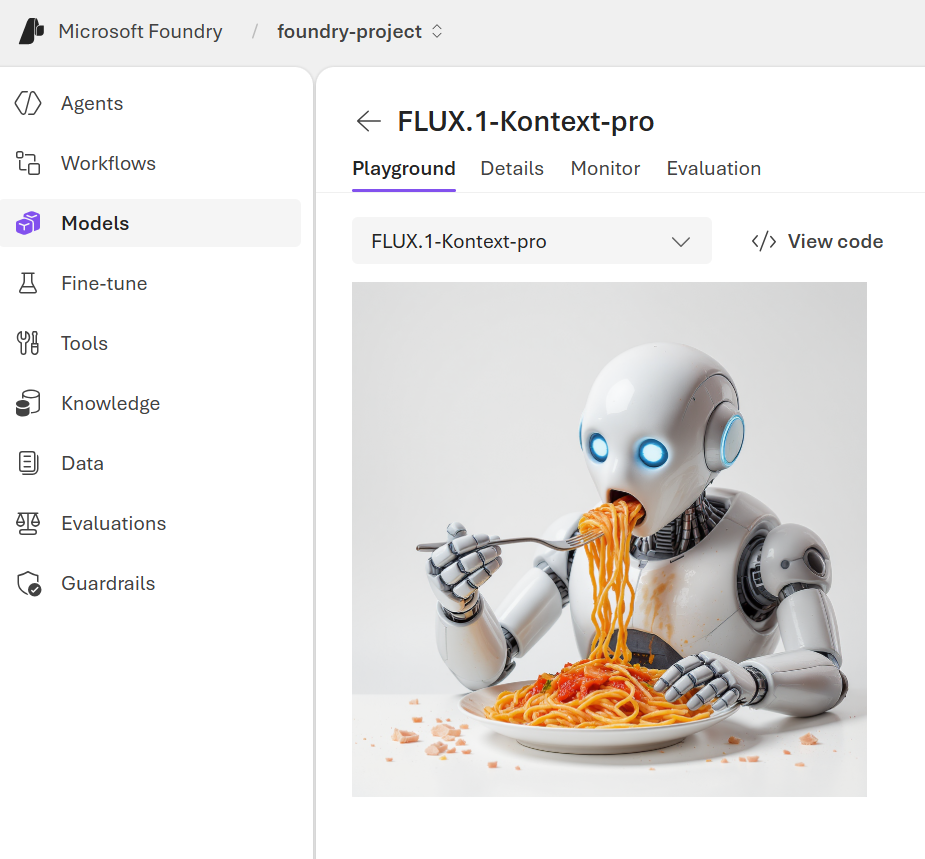
-
Enter a follow-up prompt, such as
Show the robot in a restaurantand review the resulting image. -
Continue testing with new prompts to refine the image until you are happy with it.
Create a client application
Now you can use the OpenAI SDK to generate images in a client application.
Get application files from GitHub
The initial application files you’ll need to develop the translation application are provided in a GitHub repo.
- Open Visual Studio Code.
-
Open the command palette (Ctrl+Shift+P) and use the
Git:clonecommand to clone thehttps://github.com/microsoftlearning/mslearn-ai-visionrepo to a local folder (it doesn’t matter which one). Then open it.You may be prompted to confirm you trust the authors.
- In Visual Studio Code, view the Extensions pane; and if it is not already installed, install the Python extension.
-
In the Command Palette, use the command
python:select interpreter. Then select an existing environment if you have one, or create a new Venv environment based on your Python 3.1x installation.Tip: If you are prompted to install dependencies, you can install the ones in the requirements.txt file in the /labfiles/image-client/python folder; but it’s OK if you don’t - we’ll install them later!
Prepare the application configuration
-
After the repo has been cloned, open the folder in VS Code (File > Open Folder), and navigate to the
/labfiles/image-client/pythonfolder. -
In the VS Code Explorer pane, review the files in the folder:
.env- A configuration file for application settings.image-client.py- The Python code file for the image application.requirements.txt- A file listing the package dependencies.
-
In the Explorer pane, in the python folder, select the .env file to open it. Then update the configuration values to include the Azure OpenAI endpoint for your Foundry resource, and the model deployment name for your image-generation model.
Important:Be sure to add the
https://{foundry-resource-name}.openai.azure.com/openai/v1/Azure openAI endpoint, not the project endpoint!Save the modified configuration file.
-
In the Explorer pane, right-click the python folder containing the application files, and select Open in integrated terminal (or open a terminal in the Terminal menu and navigate to the /labfiles/image-client/python folder.)
Note: Opening the terminal in Visual Studio Code will automatically activate the Python environment. You may need to enable running scripts on your system.
- Ensure that the terminal is open in the /labfiles/image-client/python* folder with the prefix (.venv) to indicate that the Python environment you created is active.
-
Install the required Python packages by running the following command:
pip install -r requirements.txt
Write code to connect to your project and chat with your model
Tip: As you add code, be sure to maintain the correct indentation.
-
In VS Code, open the
image-client.pyfile. -
In the code file, note the existing statements that have been added at the top of the file to import the necessary SDK namespaces. Then, under the comment Add references, add the following code to reference the namespaces in the libraries you installed previously:
# Add references from dotenv import load_dotenv from azure.identity import DefaultAzureCredential, get_bearer_token_provider from openai import OpenAI import requests import base64 -
In the main function, under the comment Get configuration settings, note that the code loads the endpoint and model deployment name values you defined in the configuration file.
-
Under the comment Initialize the client, add the following code to connect to your model using the Azure credentials you are currently signed in with:
# Initialize the client token_provider = get_bearer_token_provider( DefaultAzureCredential(exclude_environment_credential=True, exclude_managed_identity_credential=True), "https://cognitiveservices.azure.com/.default" ) client = OpenAI( base_url=endpoint, api_key=token_provider(), ) -
Note that the code includes a loop to allow a user to input a prompt until they enter “quit”. Then in the loop section, under the comment Generate an image, add the following code to submit the prompt and retrieve the data for the generated image from your model:
Python
# Generate an image img = client.images.generate( model=model_deployment, prompt=input_text, n=1 ) json_response = json.loads(img.model_dump_json()) image_data = json_response["data"][0].get("b64_json") image_data_in_bytes = base64.b64decode(image_data)Note: The gpt-image model returns the generated image as base64-encoded data in
b64_json. -
Note that the code in the remainder of the main function passes the image data and a filename to a provided function, which decodes and saves the generated image as a .png file.
-
Note that the code in the remainder of the main function passes the image data and a filename to a provided function, which decodes and saves the generated image as a .png file.
-
Save your changes to the code file.
Run the client application
-
In the terminal pane, use the following command to sign into Azure.
az loginNote: In most scenarios, just using az login will be sufficient. However, if you have subscriptions in multiple tenants, you may need to specify the tenant by using the –tenant parameter. See Sign into Azure interactively using the Azure CLI for details.
- When prompted, follow the instructions to sign into Azure. Then complete the sign in process in the command line, viewing (and confirming if necessary) the details of the subscription containing your Foundry resource.
-
After you have signed in, enter the following command to run the application:
python image-client.py -
When prompted, enter a request for an image, such as
Create an image of a robot eating pizza.After a moment or two, the app should confirm that the image has been saved. The image should appear in the
imagesfolder in your project directory with the nameimage_1.png. -
Try a few more prompts. When you’re finished, enter
quitto exit the program.Note: In this simple app, we haven’t implemented logic to retain conversation history; so the model will treat each prompt as a new request with no context of the previous prompt.
- Review the generated images in the
imagesfolder.
Summary
In this exercise, you used Microsoft Foundry and the Azure OpenAI SDK to create a client application uses a gpt-image model to generate images.
Clean up
If you’ve finished exploring image generation, you should delete the resources you have created in this exercise to avoid incurring unnecessary Azure costs.
- Return to the browser tab containing the Azure portal (or re-open the Azure portal at
https://portal.azure.comin a new browser tab) and view the contents of the resource group where you deployed the resources used in this exercise. - On the toolbar, select Delete resource group.
- Enter the resource group name and confirm that you want to delete it.