Get started with speech in Microsoft Foundry

The two fundamental speech capabilities that power voice-enabled applications are speech recognition (converting spoken words to text) and speech synthesis (converting text to natural-sounding speech).

In this exercise, use Microsoft Foundry, Microsoft’s platform for creating AI applications, to interact with a generative AI model using speech. You’ll explore speech-to-text (STT) and text-to-speech (TTS) with Azure Speech Voice Live, a service used to build real-time voice-based agents. Voice live in the Speech Playground supports both speech recognition and speech synthesis, enabling you to have a voice-based conversation with the model.

This exercise takes approximately 30 minutes.

Create a Microsoft Foundry project

Microsoft Foundry uses projects to organize models, resources, data, and other assets used to develop an AI solution.

  1. In a web browser, open Microsoft Foundry at https://ai.azure.com and sign in using your Azure credentials. Close any tips or quick start panes that are opened the first time you sign in, and if necessary use the Foundry logo at the top left to navigate to the home page.

  2. If it is not already enabled, in the tool bar the top of the page, enable the New Foundry option. Then, if prompted, create a new project with a unique name of your choice, using the default options. After creating or selecting a project in the new Foundry portal, it should open in a page similar to the following image:
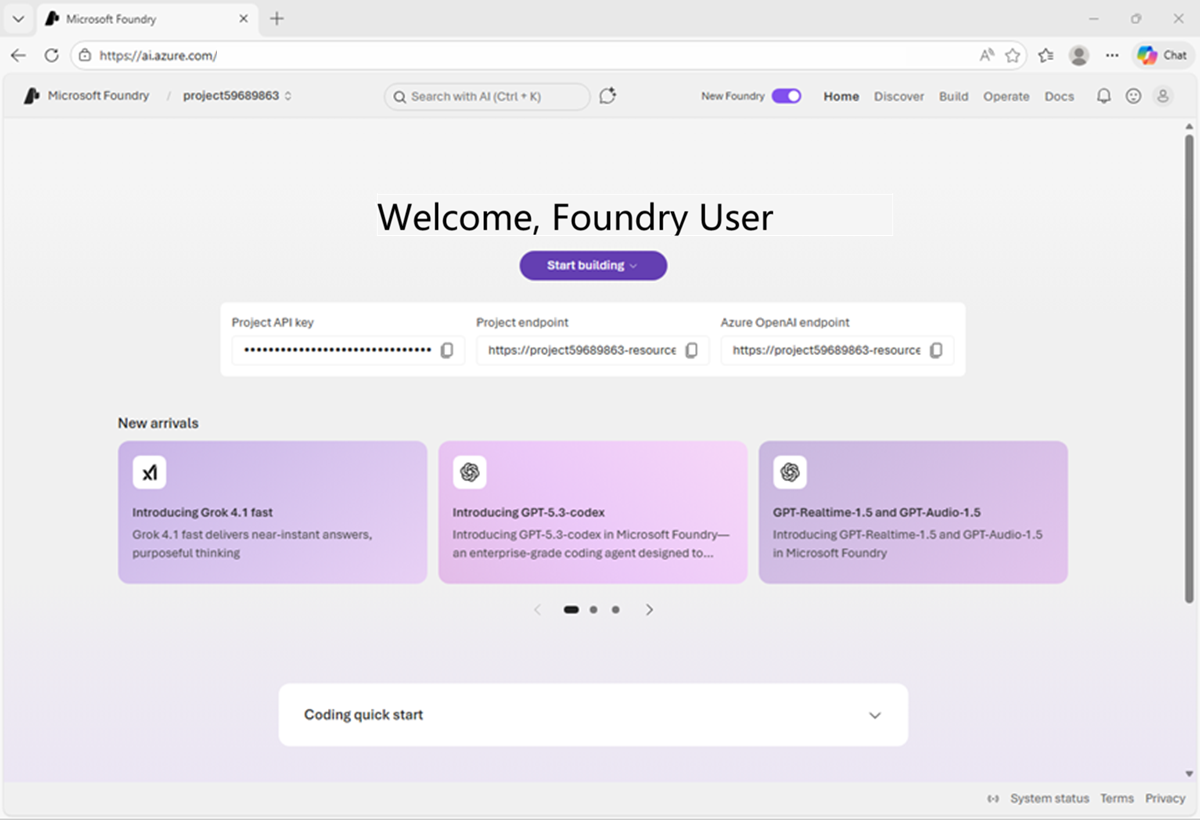
    Screenshot of the New Foundry Home Page

  1. On the new Foundry home page, navigate to the top right menu (you may need to expand the screen to see the menu options). Select Build.

    Screenshot of how to navigate to the Build menu option.

  2. On the Build page, navigate to the left-hand menu (you may need to expand it to see its options). From the menu, select Models. On the Models page, select AI-services. Note that the list of AI services is a small subset of all the AI capabilities available with Foundry Tools. Several Speech-related services are available for testing, including:
    • Azure Speech - Speech to Text: capabilities used to generate text transcriptions from speech audio. For example, to transcribe calls or meetings, or to create captions for hearing-impaired users.
    • Azure Speech - Text to Speech: capabilities used to generate audio from text. For example, to create audio to help people with visual-impairments, or enable bots with natural-sounding speech.
  3. From the list, select Azure Speech - Voice Live to try out Voice Live capabilities in the Speech Playground.

    Screenshot of how to navigate to Speech Playground to test Azure Speech - Voice Live.

Open the Speech Playground App

Let’s start by chatting with a generative AI model. In this exercise, we’ll use a browser-based application to chat with the GPT-4.1 Mini model; a small language model that is useful for general chat solutions.

  1. In a web browser, the Azure Speech - Voice Live Speech Playground should be open. In the playground settings pane, click through the samples and select Start with Blank to create your own assistant.

  2. In the playground settings pane, modify the Generative AI model the assistant uses. Select GPT-4.1 Mini. Select Apply changes to save the updates.

  3. View the Speech Playground app, which should look like this:

    Screenshot of Voice Live with GPT-4.1 Mini and blanck chat selected.

Select a voice

Text-to-speech solutions use voices to control the cadence, pronunciation, timbre, and other aspects of generated speech. The available voices depend on your browser and operating system.

  1. In the configuration pane on the left, view the voices in the Speech output drop-down list.

  2. Select any of the available voices, and use the Preview selected voice (▷) button to hear a sample of the voice.

  3. When you have selected the voice you want to use, use the Apply changes button to activate it.

Use speech to interact with the model

The app supports both speech recognition and speech synthesis, enabling you to have a voice-based conversation with the model.

  1. In the Chat pane, use the Start button to start a conversation with the model. If prompted, allow access to the system microphone. The agent will introduce itself.

  2. When the app status is Listening…, say something like "How does speech recognition work?" and wait for a response.

    Tip: If an error occurs or the app can’t detect any speech input, you can enter a text-based prompt.

  3. Verify that the app status changes to Processing…. The app will process the spoken input, using speech-to-text to convert your speech to text and submit it to the model as a prompt.

    Tip: the processing speed may be so fast that you do not actually see the status before it changes back to Speaking.

  4. When the status changes to Speaking…, the app uses text-to-speech to vocalize the response from the model. To see the original prompt and the response as text, select the cc button on the bottom of the chat screen.

    Tip: The follow-on prompt is submitted just by speaking. You can even interrupt the agent to keep the interaction focused on what you need done. Tip: You can also use the Stop generation button in the chat pane to stop long-running responses. The button will end the conversation. You will need to start a new conversation to continue using the agent.

    Screenshot of the selected cc button to see the closed captions.

  5. To continue the conversation, submit a second spoken prompt, such as "How does speech synthesis work?", and review the response.

Experiment with system prompts

A system prompt is used to provide the model with instructions that guide its responses. You can use the system prompt to provide guidelines about format, style, and constraints about what the model should and should not include in its responses.

  1. In the pane on the left, in the Instructions text area, change the system prompt to: You are an AI assistant that provides short and concise answers using simple language. Limit responses to a single sentence.

    Tip: Remember to select Apply changes before testing any changes.

  2. Now try the same prompt as before (How does speech synthesis work?) and review the output.

Experiment with model parameters

Model parameters control how the model works, and can be useful for restricting the size of its responses (measured in tokens) and controlling how “creative” its responses can be.

Generative AI model parameters

  1. Review the generative AI model’s Advanced settings. One way you can affect the model’s responses is by configuring the temperature of the response. The temperature is a parameter that controls the randomness or creativity of the model’s responses. When the model is set to a lower temperature, its responses are more predictable and factual. As the temperature increases, more variability and creativity are added. The higher temperature setting is useful for brainstorming, its conversational tone, and generating varied examples. If the temperature is too high however, it can result in responses that do not make much sense and aren’t reliable.

  2. Experiment by changing the temperature and repeating the same prompt as before (How does speech synthesis work?).

  3. Another setting for the model is proactive engagement. Activating the toggle on means the agent initiates the conversation. Try turning the proactive engagement on and starting a new conversation with the agent.

Speech input parameters

  1. Review the speech input’s Advanced settings.
    • End of utterance (EOU): Detects the end of speaking and stops speech recognition processing, returning results promptly. Currently does not support GPT-4o Realtime or GPT-4o Mini Realtime models.
    • Audio enhancement: Improves sound quality by reducing noise and boosting clarity, ensuring more accurate and clear speech recognition.

Speech output parameters

  1. Review the speech output’s advanced settings.
    • Voice temperature: Controls the style and expressiveness of the spoken audio including intonation, prosody, emphasis, pacing, and emotional variance.
    • Playback speed: The speed at which the voice is speaking.
    • Custom lexicon: Define the pronunciation of specific words, such as company names, medical terms, or emojis. Create a custom lexicon file using the Audio Content Creation tool, and copy its link here to use
  2. If you have time, you can also try out an Azure avatar. Activating the avatar toggle will allow you to select a prebuilt avatar or create a custom avatar that visualizes the agent’s audio output as an avatar speaking.

View the client code

Now let’s review the code that makes this web experience possible!

  1. Select Code at the top of the chat screen. You should see Python code like this:

    Screenshot of the start of the python code for the voice live app.

  2. In lines 17-32 you can see the specific Azure Speech packages imported. Imported packages provide additional functionality and tools - in this case, additional functions and models that compliment the language model used to respond to the conversation text itself. By importing these packages, you can leverage prebuilt, optimized solutions instead of writing everything from scratch, making code more efficient, readable, and maintainable.

    Screenshot of the imported packages.

  3. The web live voice assistant is composed of two major functionalities: the Audio Processor and the Voice Assistant. In lines 63-238, you can review the code for the AudioProcessor class to see how it handles real-time audio capture and playback.

    Screenshot of the Audio Processor class.

  4. The BasicVoiceAssistant class begins on line 240. The code in this class uses the VoiceLive Python SDK to handle the events from the VoiceLive connection. Notice how the BasicVoiceAssistant has a dependency on the AudioProcessor class (such as in line 258).

    Screenshot of the Voice Assistant class.

  5. The configurations from the playground settings and your credentials (such as AI voice, model, and instructions) are handled by the global parse_arguments function that starts on line 417.

    Screenshot of parse arguments function.

  6. Click on {X}.env variables at the top of the code screen to your VoiceLive credentials.

    Screenshot of the env variables.

  7. Stitched all together, we can understand what is executed with the main function that starts on line 472:

    • Your Azure credentials are validated (notice how parse_arguments() is saved to the variable args)
    • Your client is created
    • The voice assistant is created (notice how the assistant is created on line 497 by calling the BasicVoiceAssistant)
    • The voice assistant is given code for proper shutdown
    • The voice assistant is started

    Screenshot of the main function

Try it out

Now you have reviewed the code, the next step is to try and implement it yourself.

  1. Those with a work or school account can click on Open in VS Code for the Web at the top of the code window and follow along with the instructions.

    Screenshot of the open button at the top of the code window.

    Screenshot of VS Code for the Web starting page.

  2. If you cannot access the web version, but have access to VS Code on your local machine, you can try out the code locally by downloading the files from the voice-live folder. Open the files in VS Code. The folder contains the instructions,codeSample.py and example.env file needed to try the code in your local VS Code environment.

    Tip: Copy and paste the .env variables that you reviewed in the previous steps into the example.env file.

    Tip: You will need a terminal to set up your environment. The terminal is a text‑based interface where you run commands to interact with your system and your project, such as installing packages, running scripts, or using Git. In Visual Studio Code, select Terminal → New Terminal from the top menu and use the Bash shell.

Clean up

If you don’t intend to do more exercises, delete any resources that you no longer need. This avoids accruing any unnecessary costs.

  1. Open the Azure portal at https://portal.azure.com and select the resource group that contains the resources you created.
  2. Select Delete resource group and then enter the resource group name to confirm. The resource group is then deleted.