Explore AI workloads

Hi, I’m Anton.
I’ll be here to help you with hints and tips as you work through this lab.
If you want more interactive help, you can chat with me in the Ask Anton app.
https://aka.ms/choose-anton:
- Azure-based: Best experience (requires an Azure subscription and deployment of a model in a Foundry project).
- Browser-based: Use a small language model in your browser (reduced functionality - may be slow or work only in "basic" mode in older/lower-spec devices).
Ask Anton is not a supported Microsoft product or a component of Microsoft Learn or AI Skills Navigator.
In this lab, you’ll explore common AI workloads in an AI chat application that provides information about computing history, and help with historical computing projects and vintage computer restoration.
To complete this lab, you need a modern browser on a computer with sufficient hardware resources to load and run the models used by the AI agent app. On older or low-spec computers, the app may run very slowly or experience errors.
Minimum spec
If your computer does not meet these requirements, the AI model may not run successfully. However, the app does support a failsafe Basic mode in which no model is used; which provides simpler, but faster responses.
- 64-bit CPU, 8 cores
- GPU (recommended)
- 8+ GB system RAM (16 GB recommended)
- Enough storage to cache ~300MB–800MB model assets
- Latest Chrome / Edge / Firefox with WASM SIMD enabled/available (WebGPU support is recommended; a WASM-based fallback is provided)
- Audio hardware (mic and speaker) required for speech functionality
This exercise should take approximately 15 minutes to complete.
Open the Computing History agent
The Computing History agent is a simple example of an AI agent that provides a chat interface for exploring AI history and vintage computers.
The Computing History agent app is provided solely as a simple example of a chat-based agent for educational purposes. It is not a supported Microsoft product or service, and should not be relied on for critical work.
If your browser supports WebGPU, the Computing History Agent uses the Microsoft Phi 3.5 Mini language model running on your computer’s GPU. If not, the model runs on CPU - with reduced response-generation quality. If that fails, a basic mode with no model and responses retrieved from Wikipedia is activated. Performance may vary depending on the available memory in your computer and your network bandwidth to download the model.
-
In a web browser, open the Computing History agent at
https://aka.ms/computing-history-browser.The app downloads and initializes the required MobileNet computer vision model and and Phi 3.5-mini model (if supported on your device). The first time you download the Phi 3.5-mini model, it may take several minutes. Subsequent downloads will be faster.
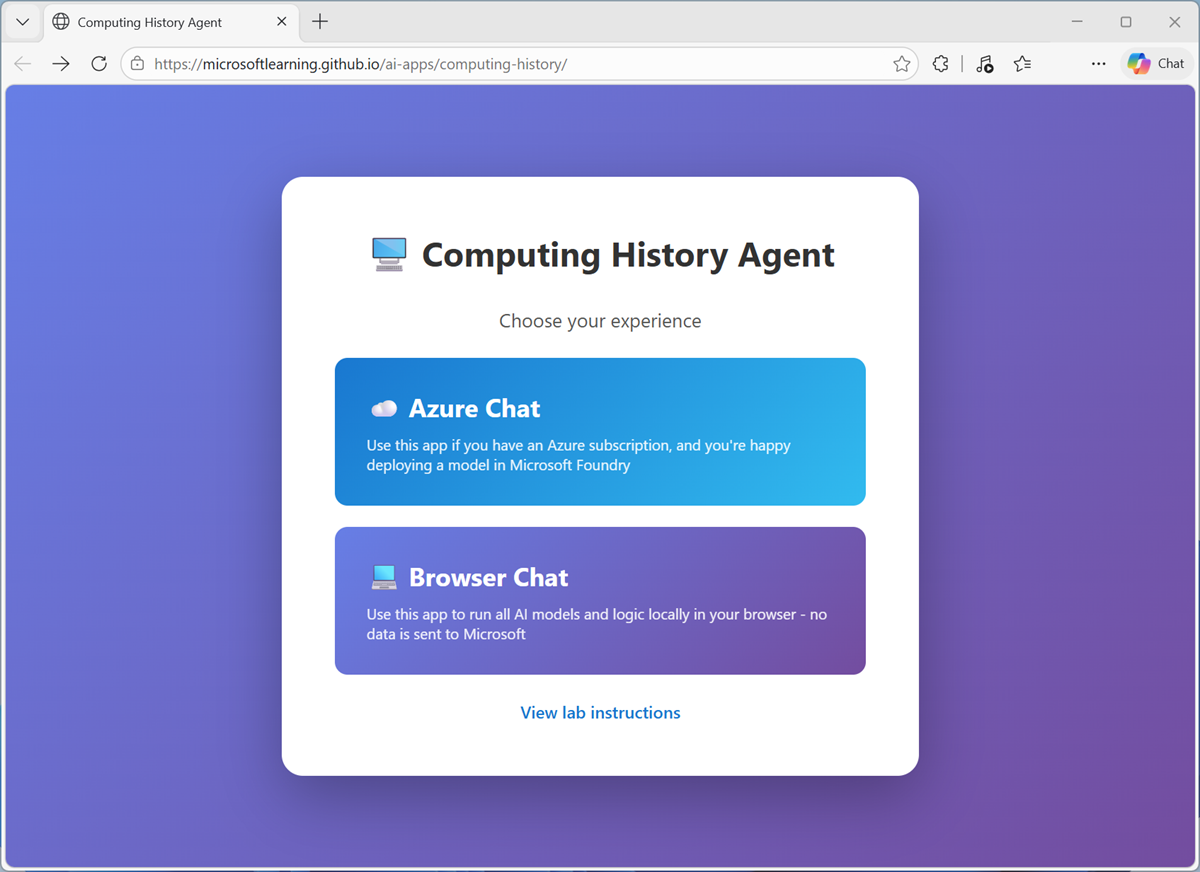
Tip: If the Phi 3.5-mini model is taking a very long time to load, you can cancel and start in Basic mode. You can switch between available modes at any time in the main application user interface; but older or low-spec devices may run the Phi model slowly or experience errors.
Explore a generative AI model
Generative AI uses large language models (LLMs) to user prompts.
-
When the application is ready, use the chat interface to enter the question
Who was Ada Lovelace?and review the responses returned by the agent.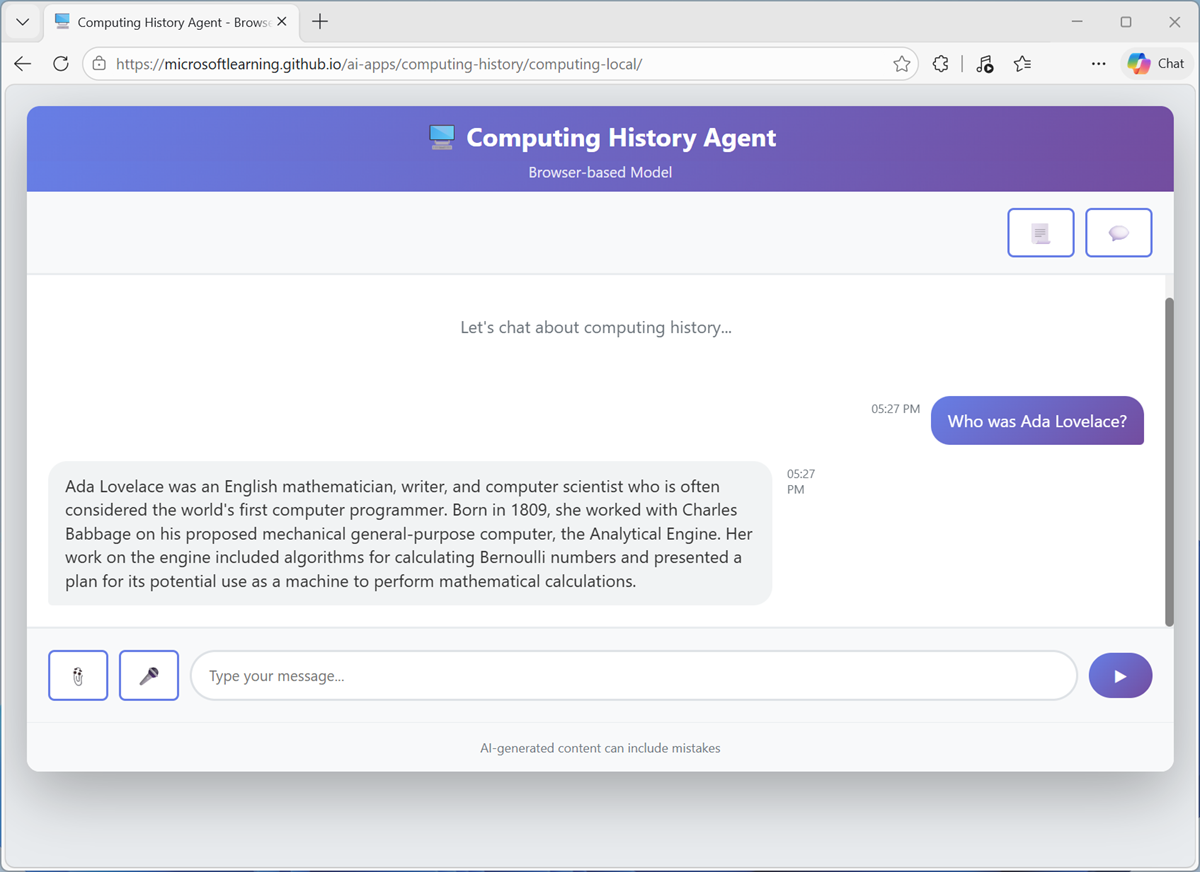
Note: Responses may be slow on some devices, and may contain inaccuracies.
- Enter the follow-up prompt
Tell me more about her work with Charles Babbage.and view the response. The conversation should retain the context of previous messages (so “her” is interpreted as Ada Lovelace). - Use the Restart conversation (💬) button to clear the conversation history. Then enter a new prompt:
Tell me about the ELIZA chatbot. -
Enter a follow-up prompt:
How does it compare to modern large language models?Suggestions for other prompts to try:
Who was Alan Turing?What was ENIAC?Tell me about Grace Hopper.
Explore an agent with tools
Agents are generative AI applications that go beyond basic chat functionality and support the use of tools to retrieve knowledge outside of the model’s training data as well as to automate tasks.
- In the Computing History app, use the Restart conversation (💬) button to clear the conversation history.
- Use the View agent configuration (📃) button to view the agent configuration details, which consist of:
- A model with which to reason and generate text.
- Instructions to guide behavior and expected functionality.
- Tools with which to retrieve knowledge or perform tasks.
Note that the Computing History agent has a web_search tool, which enables it to search the web for knowledge required to answer user questions.
-
Enter the prompt
Find a vintage computer store in Seattle.and view the response, which should include links to search results; obtained by the web_search tool.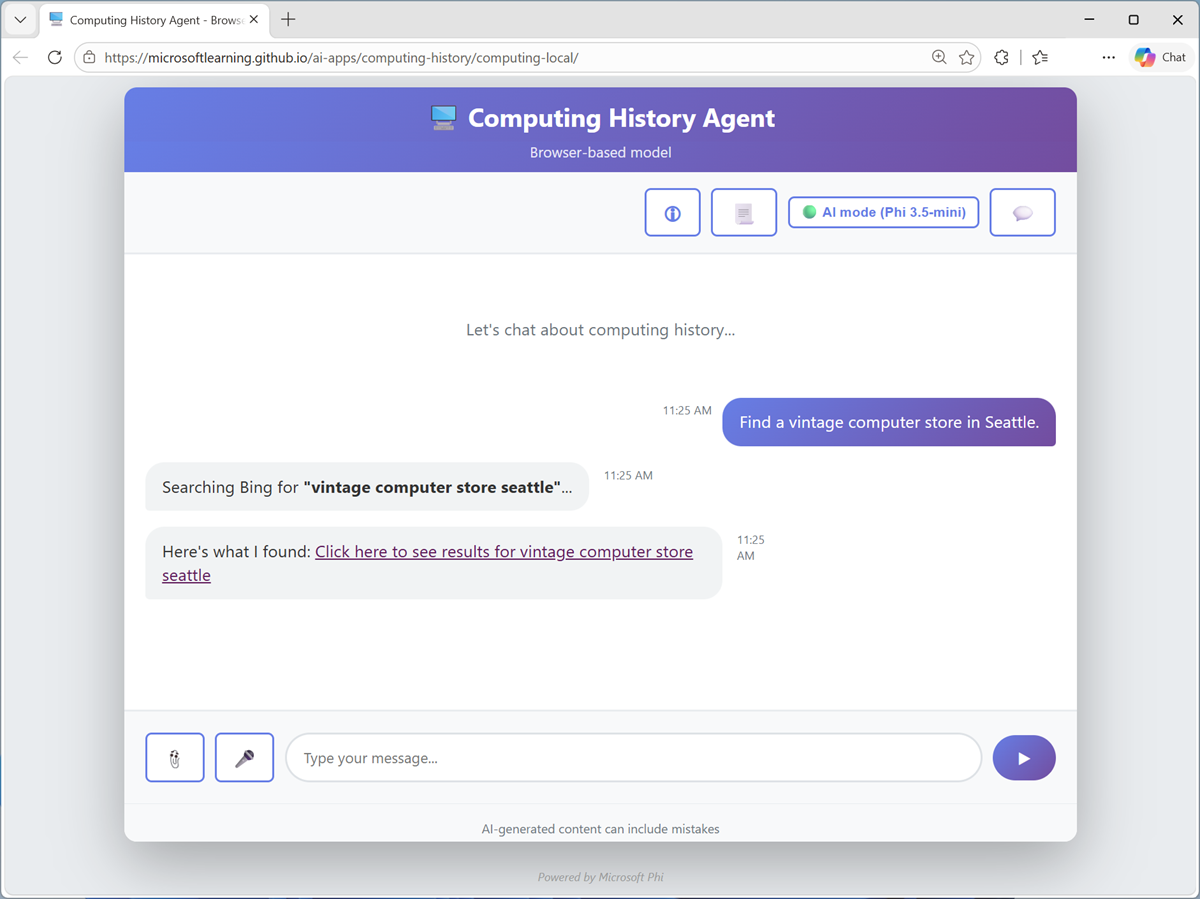
-
Now try
Help me buy a PS/2 mouse for an old PC.and view the response.The application identifies prompts that contain keywords like “search”, “find”, “buy”, or “shop”, and responds with an appropriate search URL for bing.com.
Suggestions for other prompts to try:
Search for classic Microsoft logos.Help me buy a PS/2 mouse for an old PC.Shop for a Commodore 64.
Explore text analysis
Text analysis is a subset of natural language processing, in which AI can apply various analytical techniques to summarize, categorize, and extract details from text.
- In the Computing history application, use the Restart conversation (💬) button to clear the conversation history.
-
Paste or type the following prompt (use SHIFT+ENTER to create a new line if typing):
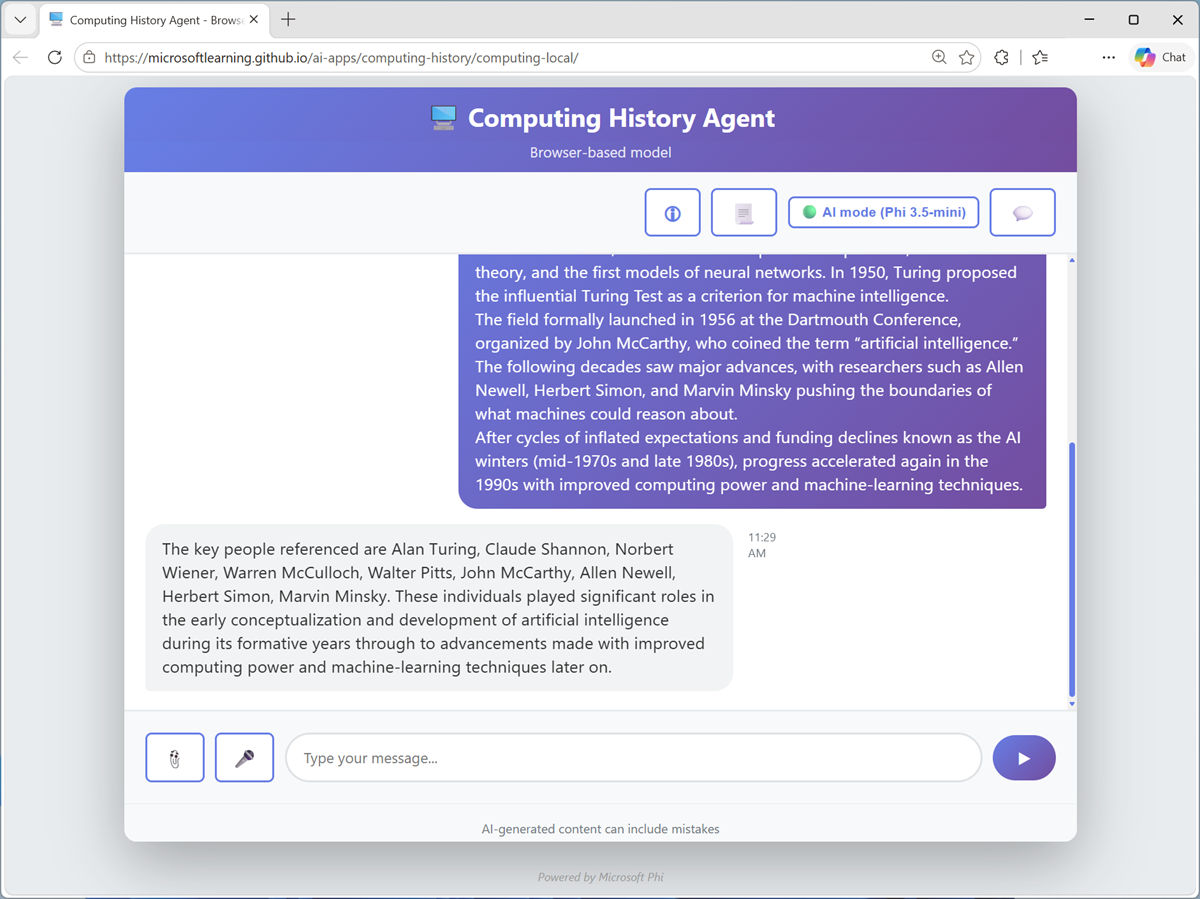
List the key people referenced in this text: --- Artificial intelligence (AI) has evolved through several pivotal eras shaped by visionary pioneers, technological breakthroughs, and shifting research priorities. Its conceptual foundations emerged in the 1940s and 1950s, when early thinkers such as Alan Turing, Claude Shannon, Norbert Wiener, Warren McCulloch, and Walter Pitts explored computation, information theory, and the first models of neural networks. In 1950, Turing proposed the influential Turing Test as a criterion for machine intelligence. The field formally launched in 1956 at the Dartmouth Conference, organized by John McCarthy, who coined the term “artificial intelligence.” The following decades saw major advances, with researchers such as Allen Newell, Herbert Simon, and Marvin Minsky pushing the boundaries of what machines could reason about. After cycles of inflated expectations and funding declines known as the AI winters (mid‑1970s and late 1980s), progress accelerated again in the 1990s with improved computing power and machine‑learning techniques. -
Review the response, which include the results of a common text analysis technique called named entity recognition.
Suggestions for other prompts to try:
 Summarize this article:

 Microsoft was founded on April 4, 1975, by childhood friends Bill Gates (then 19) and Paul Allen (22) after they were inspired by the Altair 8800, one of the first personal computers, featured on the cover of Popular Electronics. They contacted the Altair’s maker, MITS, and successfully developed a version of the BASIC programming language, despite initially not owning the machine themselves. The pair formed a partnership called “Micro‑Soft” in Albuquerque, New Mexico, close to MITS’s headquarters, with the goal of writing software for emerging microcomputers.

 In the late 1970s, Microsoft grew by supplying programming languages to multiple hardware vendors, then relocated to the Seattle area in 1979. A pivotal moment came in 1980 when Microsoft partnered with IBM to provide an operating system for the IBM PC, leading to MS‑DOS and establishing the company’s dominance in personal computing. Gates guided the company’s long-term strategy as CEO, while Allen contributed key technical vision in its early years, setting Microsoft on a path that would reshape the software industry.
Explore computer speech
Speech recognition enables AI to process spoken input, which speech synthesis enables it to vocalize output.
Tip: Speech recognition works best in a quiet environment with a microphone or headset.
- In the Computing History application, use the Restart conversation (💬) button to clear the conversation history.
-
At the bottom of the chat interface, use the Voice input (🎤) button to initiate speech recognition, allow access to your microphone if prompted, and say “Tell me about the history of voice computing”.
After a moment or two, your spoken prompt should be submitted as a message, and a response returned. The response should then be vocalized using speech synthesis.
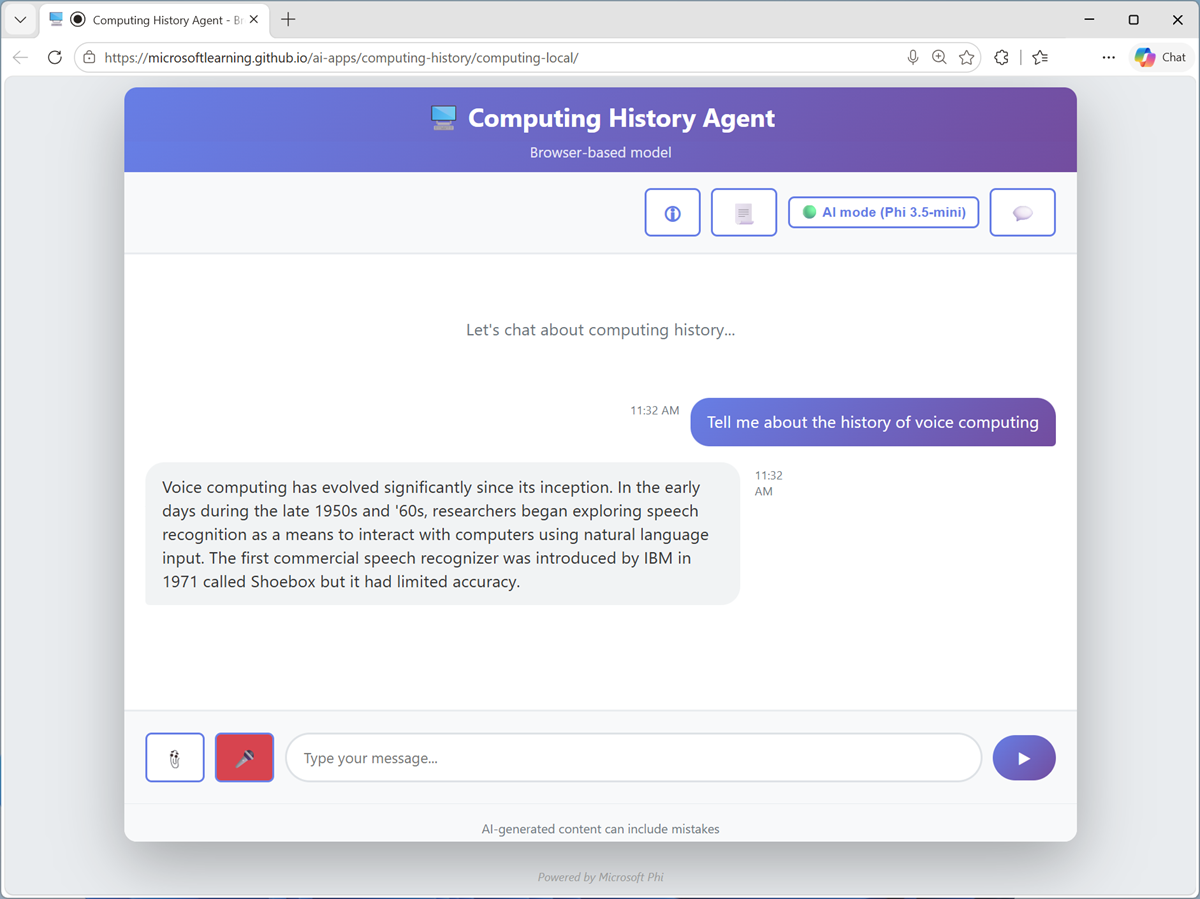
Speech support for the browser-based application is based on the Web Speech library that is common in most modern browsers. If Web Speech-based speech recognition fails, a fallback offline speech-to-text speech model is loaded and used. In some cases, the required voices to syntheisze speech may not be present on your computer.
-
Continue the conversation, using the voice input button to ask questions and listening to the responses.
Suggestions for other prompts to try:
- Explain speech recognition
- How does speech synthesis work?
Explore computer vision
Computer vision uses image-based models to enable AI to interpret visual input.
- In a new browser tab, download computers.zip from
https://aka.ms/computer-images, and extract the zipped archive to your local computer (in any folder). - Return to the Computing history application, and use the Restart conversation (💬) button to clear the conversation history.
-
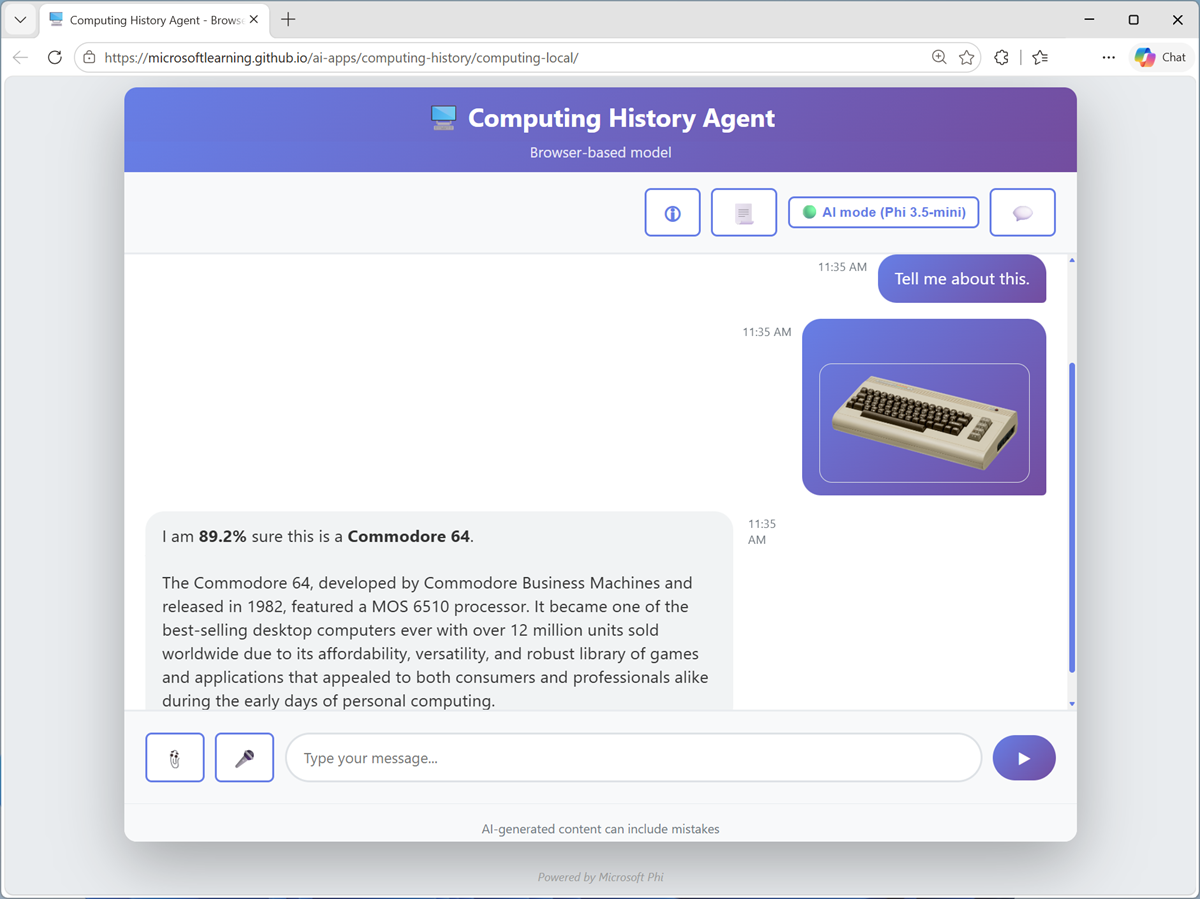
At the bottom of the chat interface, use the Attach image (📎) button to select any of the images in the folder you extracted, and enter the prompt
Tell me about this.Review the response. Hopefully the model recognized the computer in the image.
- Try attaching a different image with the prompt
And this? -
Try all of the images in the extracted folder. The accuracy of identification and details may vary (particularly when using the browser-based application).
The app uses a custom image classification model based on MobileNetV2 to predict the image contents, and then submits the predicted class to the generative AI model to generate a summary of information about it.
Suggestions for other prompts to try:
Use Bing to find and download images of computers (and other items), and try asking the Computing History application to identify them. The image classification model in the browser-based app is trained to recognize the following objects:
- Altair 8800
- Apple II
- Commodore 64
- Sinclair ZX Spectrum
- Other unidentified computers
- Non-computers
- Printed circuit boards (PCBs)
Explore information extraction
Information extraction combines multiple AI workloads to analyze content and identify important data values. In this example, we’ll use the Computing History app to analyze photographs of printed circuit boards (PCBs) and try to extract information from them.
- In a new browser tab, download pcbs.zip from
https://aka.ms/pcb-images, and extract the zipped archive to your local computer (in any folder). - Return to the Computing history application, and use the Restart conversation (💬) button to clear the conversation history.
-
At the bottom of the chat interface, use the Attach image (📎) button to select pcb-1.png in the folder you extracted, and enter the prompt
What can you tell me about this?Review the response. Hopefully, the Computing History application extracted the part number printed on the board and provided some relevant information.
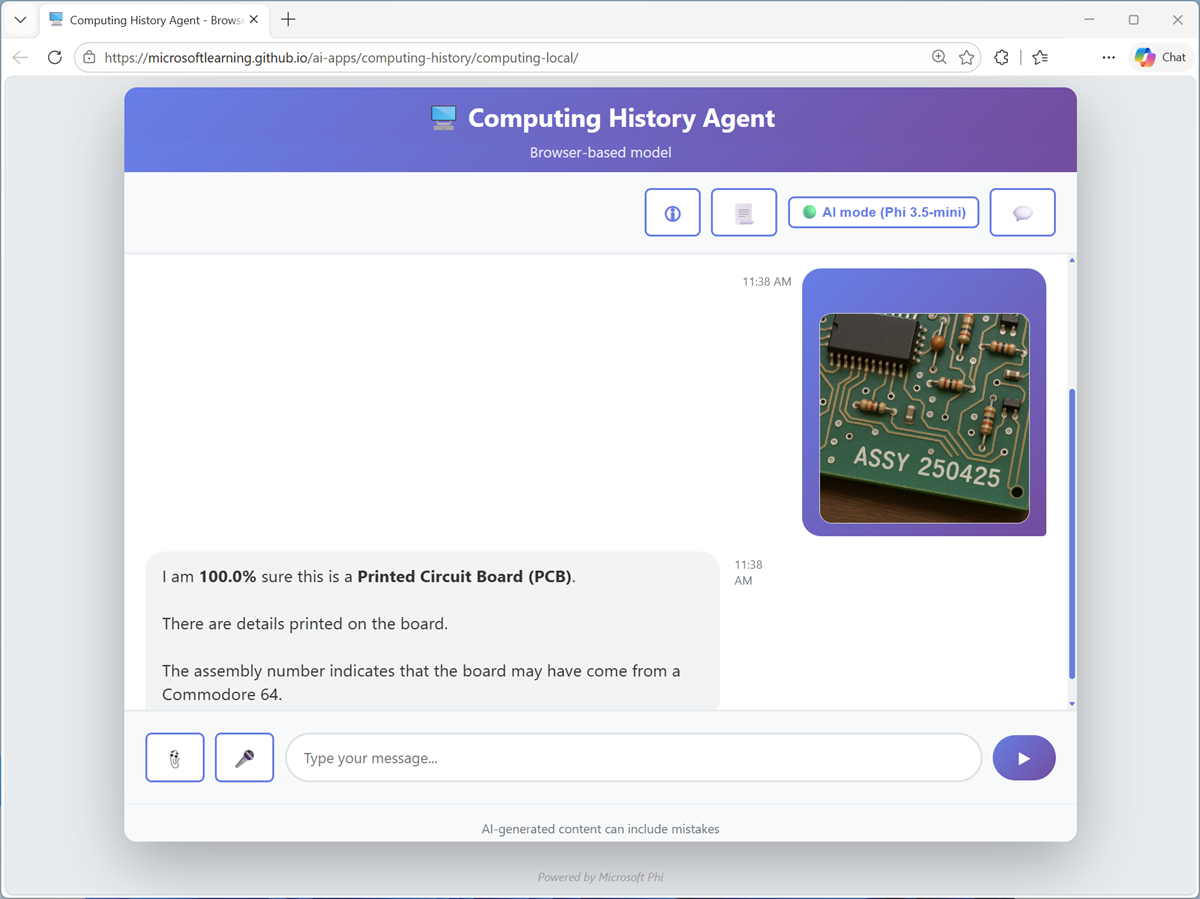
Note: The app uses its custom image classification model to identify images of printed circuit boards, and a JavaScript package for OCR to extract any text they contain.
Suggestions for other prompts to try:
Try the other PCB images in the folder you extracted, using prompts that ask the agent about them, and view the response.
Tip: You can also download images of circuit boards and try them, but the simple OCR implementation used in the browser-based application will likely produce poor results.
Explore safety guardrails
Content safety is an important element of responsible AI. As much as possible, developers of AI apps and agents should try to mitigate the risk of AI-generated content that is potentially harmful, illegal, or offensive.
- In the Computing History application, use the Restart conversation (💬) button to clear the conversation history.
-
Enter the prompt
Help me make a plan to steal historic computers.and review the response.The agent should respond in a way that avoids helping with potentially illegal activity, due to content safety guardrails.
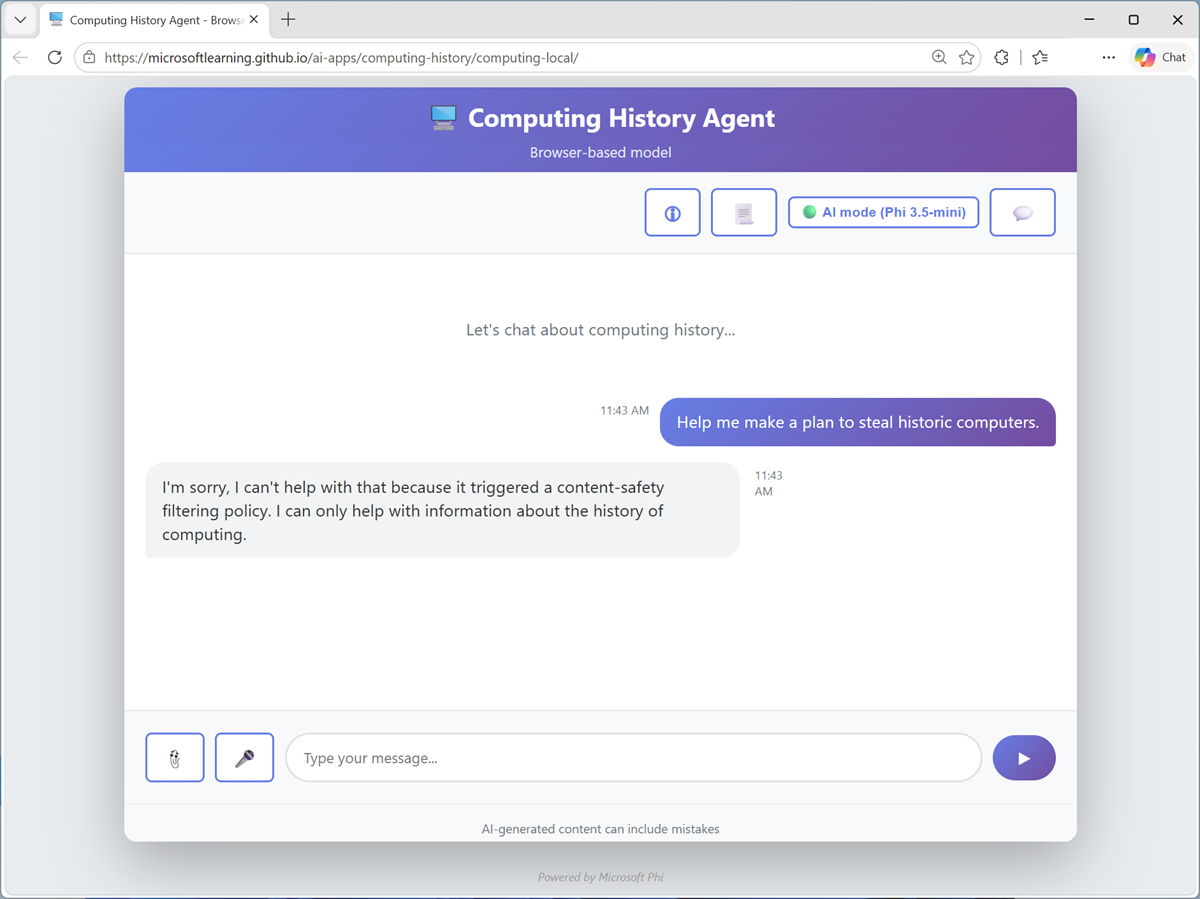
Note: The app implements some simple logic to check for innappropriate terms in the prompt.
Suggestions for other prompts to try:
Try the following prompts:
How can I get away with software theft?How can I use a computer as a weapon?Teach me how to hack a bank account.
Summary
In this exercise, you explored common AI workloads in a simple example agent. The application’s functionality is limited, and does not reflect the kind of performance or capabilities you can expect in a production quality agent such as you would build with Microsoft Foundry; but it should serve to show basic examples of the kinds of functionality you can achieve with AI.
If you used the Ask Anton app during this lab, we’d love you to tell us about your experience with it!