Develop a multi-agent solution with Microsoft Agent Framework
In this exercise, you’ll practice using the sequential orchestration pattern in the Microsoft Agent Framework SDK. You’ll create a simple pipeline of three agents that work together to process customer feedback and suggest next steps. You’ll create the following agents:
- The Summarizer agent will condense raw feedback into a short, neutral sentence.
- The Classifier agent will categorize the feedback as Positive, Negative, or a Feature request.
- Finally, the Recommended Action agent will recommend an appropriate follow-up step.
You’ll learn how to use the Microsoft Agent Framework SDK to break down a problem, route it through the right agents, and produce actionable results. Let’s get started!
This exercise should take approximately 30 minutes to complete.
Note: Some of the technologies used in this exercise are in preview or in active development. You may experience some unexpected behavior, warnings, or errors.
Prerequisites
Before starting this exercise, ensure you have:
- Visual Studio Code installed on your local machine
- An active Azure subscription
- Python 3.13 installed
- Git installed on your local machine
* Python 3.14 isn’t supported yet: some dependencies have no 3.14 build. This lab was tested with Python 3.13.12.
Create a Foundry project with the Foundry Toolkit for VS Code extension
As a developer, you may spend some time working in the Foundry portal; but you’re also likely to spend a lot of time in Visual Studio Code. The Foundry Toolkit for VS Code extension provides a convenient way to work with Foundry project resources without leaving the development environment.
-
Open Visual Studio Code.
-
Select Extensions from the left pane (or press Ctrl+Shift+X).
-
Search the extensions marketplace for the
Foundry Toolkitextension from Microsoft and select Install.Note: The extension is currently listed as Foundry Toolkit, but some VS Code labels, commands, or older screenshots may still refer to AI Toolkit. In this lab, treat those names as referring to the same extension experience.
-
After installing the extension, select its icon in the sidebar to open the Foundry Toolkit view.
You should be prompted to sign in to your Azure account if you haven’t already.
-
Select Create Project under Microsoft Foundry Resources.
If a default project is already active, the project name will appear under My Resources. You can create a new project by right-clicking on the active project and selecting Switch Default Project in Azure Extension.
-
Select your Azure subscription and resource group, then enter a name for your Foundry project to create a new project for this exercise.
When the deployment is complete, you should see the project appear in the Foundry Toolkit pane as the default project.
Deploy a model
At the core of any generative AI project, there’s at least one generative AI model. In this task, you’ll deploy a model from the Model Catalog to use with your agent.
-
When the “Project deployed successfully” popup appears, select the Deploy a new model button. This opens the Model Catalog.
Tip: You can also access the Model Catalog by selecting the + icon next to Models in the Resources section, or by pressing F1 and running the command Foundry Toolkit: Show model catalog.
-
In the Model Catalog, locate the gpt-5 model (you can use the search bar to find it quickly).
-
Select Deploy next to the gpt-5 model.
- Configure the deployment settings:
- Deployment name: Enter a name like “gpt-5”
- Deployment type: Select Global Standard (or Standard if Global Standard is not available)
- Model version: Leave as default
- Tokens per minute: Leave as default
-
Select Deploy to Microsoft Foundry in the bottom-left corner.
-
Wait for the deployment to complete. Your deployed model will appear under the Models section in the Resources view.
-
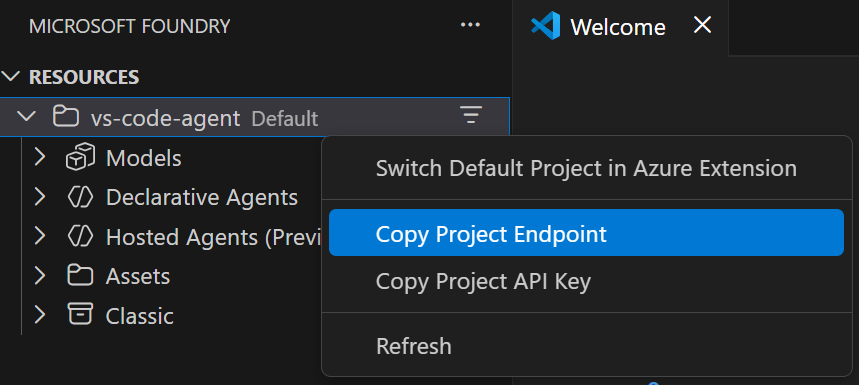
Right-click the name of the project deployment and select Copy Project Endpoint. You’ll need this URL to connect your agent to the Foundry project in the next steps.
Clone the starter code repository
For this exercise, you’ll use starter code that will help you connect to your Foundry project and create a multi-agent solution that can process customer feedback. You’ll clone this code from a GitHub repository.
-
In VS Code, open the Command Palette (Ctrl+Shift+P or View > Command Palette).
-
Type Git: Clone and select it from the list.
-
Enter the repository URL:
https://github.com/MicrosoftLearning/mslearn-ai-agents.git -
Choose a location on your local machine to clone the repository.
-
When prompted, select Open to open the cloned repository in VS Code.
-
Once the repository opens, select File > Open Folder and navigate to
mslearn-ai-agents/Labfiles/08-agent-orchestration, then choose Select Folder. -
In the Explorer pane, expand the Python folder to view the code files for this exercise.
-
Right-click on the requirements.txt file and select Open in Integrated Terminal.
-
In the terminal, enter the following command to install the required Python packages in a virtual environment:
python -m venv labenv .\labenv\Scripts\Activate.ps1 pip install -r requirements.txt -
Open the .env file, replace the your_project_endpoint placeholder with the endpoint for your project (copied from the project deployment resource in the Foundry Toolkit extension) and ensure that the MODEL_DEPLOYMENT_NAME variable is set to your model deployment name. Use Ctrl+S to save the file after making these changes.
Create AI agents
Now you’re ready to create the agents for your multi-agent solution! Let’s get started!
-
Open the agents.py file in the code editor.
-
At the top of the file under the comment Add references, and add the following code to reference the namespaces in the libraries you’ll need to implement your agent:
# Add references from agent_framework import Message from agent_framework.foundry import FoundryChatClient from agent_framework.orchestrations import SequentialBuilder from azure.identity import AzureCliCredential -
In the main function, take a moment to review the agent instructions. These instructions define the behavior of each agent in the orchestration.
-
Add the following code under the comment Create the chat client:
# Create the chat client
credential = AzureCliCredential()
chat_client = FoundryChatClient(
    credential=credential,
    project_endpoint=os.getenv("AZURE_AI_PROJECT_ENDPOINT"),
    model=os.getenv("AZURE_AI_MODEL_DEPLOYMENT_NAME"),
)
Note that the AzureCliCredential object will allow your code to authenticate to your Azure account. The FoundryChatClient object connects to your Foundry project using the endpoint and model deployment name from the .env configuration.
-
Add the following code under the comment Create agents:
(Be sure to maintain the indentation level)
# Create agents
summarizer_agent = chat_client.as_agent(
    name="summarizer",
    instructions=summarizer_instructions,
)

classifier_agent = chat_client.as_agent(
    name="classifier",
    instructions=classifier_instructions,
)

action_agent = chat_client.as_agent(
    name="action",
    instructions=action_instructions,
)
Create a sequential orchestration
-
In the main function, find the comment Initialize the current feedback and add the following code:
(Be sure to maintain the indentation level)
# Initialize the current feedback feedback=""" I use the dashboard every day to monitor metrics, and it works well overall. But when I'm working late at night, the bright screen is really harsh on my eyes. If you added a dark mode option, it would make the experience much more comfortable. """ -
Under the comment Build a sequential orchestration, add the following code to define a sequential orchestration with the agents you defined:
# Build sequential orchestration
workflow = SequentialBuilder(
    participants=[summarizer_agent, classifier_agent, action_agent],
    output_from="all",
).build()
The agents will process the feedback in the order they are added to the orchestration. The
output_from="all"parameter ensures that outputs from all agents are collected. -
Add the following code under the comment Run and collect outputs:
# Run and collect outputs
result = await workflow.run(f"Customer feedback: {feedback}")
outputs = result.get_outputs()
This code runs the orchestration and collects the output from each of the participating agents.
-
Add the following code under the comment Display outputs:
# Display outputs
i = 1
for response in outputs:
    for msg in cast(list[Message], response.messages):
        name = msg.author_name or ("assistant" if msg.role == "assistant" else "user")
        print(f"{'-' * 60}\n{i:02d} [{name}]\n{msg.text}")
        i += 1
This code formats and displays the messages from the workflow outputs you collected from the orchestration.
-
Use the CTRL+S command to save your changes to the code file.
Test the application
Now you’re ready to run your code and watch your AI agents collaborate.
-
In the integrated terminal, enter the following commands to run the application:
az loginpython agents.py -
You should see some output similar to the following:
User requests a dark mode option for more comfortable nighttime use. Feature request Log as enhancement request to add dark mode for improved user comfort during nighttime use. ------------------------------------------------------------ 01 [summarizer] User requests a dark mode option for more comfortable nighttime use. ------------------------------------------------------------ 02 [classifier] Feature request ------------------------------------------------------------ 03 [action] Log as enhancement request to add dark mode for improved user comfort during nighttime use. -
Optionally, you can try running the code using different feedback inputs, such as:
I reached out to your customer support yesterday because I couldn't access my account. The representative responded almost immediately, was polite and professional, and fixed the issue within minutes. Honestly, it was one of the best support experiences I've ever had. -
When you’re finished, enter
deactivatein the terminal to exit the Python virtual environment.
Clean up
If you’ve finished exploring Azure AI Agent Service, you should delete the resources you have created in this exercise to avoid incurring unnecessary Azure costs.
Delete your model
-
In VS Code, refresh the Azure Resources view.
-
Expand the Models subsection.
-
Right-click on your deployed model and select Delete.
Delete the resource group
-
Open the Azure portal.
-
Navigate to the resource group containing your Microsoft Foundry resources.
-
Select Delete resource group and confirm the deletion.