Use a custom function in an AI agent
In this exercise you’ll explore creating an agent that can use custom functions as a tool to complete tasks. The agent will act as an astronomy assistant that can provide information about astronomical events and calculate the cost of telescope rentals based on user inputs. You’ll define the function tools and implement the logic to process function calls made by the agent.
Tip: The code used in this exercise is based on the Microsoft Foundry SDK for Python. You can develop similar solutions using the SDKs for Microsoft .NET, JavaScript, and Java. Refer to Microsoft Foundry SDK client libraries for details.
This exercise should take approximately 50 minutes to complete.
Note: Some of the technologies used in this exercise are in preview or in active development. You may experience some unexpected behavior, warnings, or errors.
Prerequisites
Before starting this exercise, ensure you have:
- Visual Studio Code installed on your local machine
- An active Azure subscription
- Python 3.13 installed
- Git installed on your local machine
* Python 3.14 isn’t supported yet: some dependencies have no 3.14 build. This lab was tested with Python 3.13.12.
Create a Foundry project with the Foundry Toolkit for VS Code extension
As a developer, you may spend some time working in the Foundry portal; but you’re also likely to spend a lot of time in Visual Studio Code. The Foundry Toolkit for VS Code extension provides a convenient way to work with Foundry project resources without leaving the development environment.
-
Open Visual Studio Code.
-
Select Extensions from the left pane (or press Ctrl+Shift+X).
-
Search the extensions marketplace for the
Foundry Toolkit for VS Codeextension from Microsoft and select Install.Installing the Foundry Toolkit Extension will add the Foundry Toolkit extension to VS Code.
Note: The extension is currently listed as Foundry Toolkit, but some VS Code labels, commands, or older screenshots may still refer to AI Toolkit. In this lab, treat those names as referring to the same extension experience.
-
After installing the extension, select the Foundry Toolkit icon in the sidebar.
You should be prompted to sign in to your Azure account if you haven’t already.
-
Select Create Project under Microsoft Foundry Resources.
If a default project is already active, the project name will appear under My Resources. You can create a new project by right-clicking on the active project and selecting Switch Default Project in Azure Extension.
-
Select your Azure subscription and resource group, then enter a name for your Foundry project to create a new project for this exercise.
When the deployment is complete, you should see the project appear in the Foundry Toolkit pane as the default project.
Deploy a model
At the core of any generative AI project, there’s at least one generative AI model. In this task, you’ll deploy a model from the Model Catalog to use with your agent.
-
When the “Project deployed successfully” popup appears, select the Deploy a new model button. This opens the Model Catalog.
Tip: You can also access the Model Catalog by selecting the + icon next to Models in the Resources section, or by pressing F1 and running the command Foundry Toolkit: Show model catalog.
-
In the Model Catalog, locate the gpt-5 model (you can use the search bar to find it quickly).
-
Select Deploy next to the gpt-5 model.
- Configure the deployment settings:
- Deployment name: Enter a name like “gpt-5”
- Deployment type: Select Global Standard (or Standard if Global Standard is not available)
- Model version: Leave as default
- Tokens per minute: Leave as default
-
Select Deploy to Microsoft Foundry in the bottom-left corner.
-
Wait for the deployment to complete. Your deployed model will appear under the Models section in the Resources view.
-
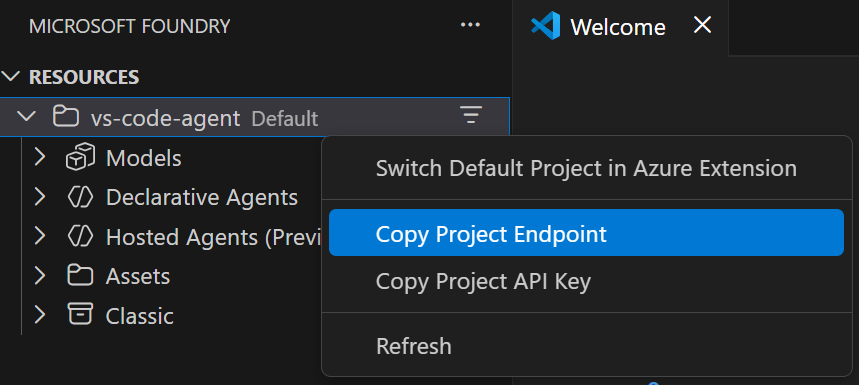
Right-click the name of the project deployment and select Copy Project Endpoint. You’ll need this URL to connect your agent to the Foundry project in the next steps.
Clone the starter code repository
For this exercise, you’ll use starter code that will help you connect to your Foundry project and create an agent that uses custom function tools.
-
In VS Code, open the Command Palette (Ctrl+Shift+P or View > Command Palette).
-
Type Git: Clone and select it from the list.
-
Enter the repository URL:
https://github.com/MicrosoftLearning/mslearn-ai-agents.git -
Choose a location on your local machine to clone the repository.
-
When prompted, select Open to open the cloned repository in VS Code.
-
Once the repository opens, select File > Open Folder and navigate to
mslearn-ai-agents/Labfiles/02-agent-custom-tools, then choose Select Folder. -
In the Explorer pane, expand the Python folder to view the code files for this exercise.
-
Right-click on the requirements.txt file and select Open in Integrated Terminal.
-
In the terminal, enter the following command to install the required Python packages in a virtual environment:
python -m venv labenv .\labenv\Scripts\Activate.ps1 pip install -r requirements.txt -
Open the .env file, replace the your_project_endpoint placeholder with the endpoint for your project (copied from the project deployment resource in the Foundry Toolkit VS Code extension) and ensure that the MODEL_DEPLOYMENT_NAME variable is set to your model deployment name. Use Ctrl+S to save the file after making these changes.
Now you’re ready to create an AI agent that uses MCP server tools to access external data sources and APIs.
Create a function for the agent to use
-
Open the functions.py file and review the existing code.
This file includes several functions that you can use as tools for your agent. The functions use sample files located in the data folder to retrieve information about astronomical events and locations.
-
Find the comment Determine the next visible astronomical event for a given location and add the following code:
# Determine the next visible astronomical event for a given location
def next_visible_event(location: str) -> str:
    """Returns the next visible astronomical event for a location."""
    today = int(datetime.now().strftime("%m%d"))
    loc = location.lower().replace(" ", "_")

    # Retrieve the next event visible from the location, starting with events later this year
    for name, event_type, date, date_str, locs in EVENTS:
        if loc in locs and date >= today:
            return json.dumps({"event": name, "type": event_type, "date": date_str, "visible_from": sorted(locs)})

    return json.dumps({"message": f"No upcoming events found for {location}."})
This function checks the sample events data to find the next astronomical event that is visible from a specified location, and returns the event details as a JSON string. Next, let’s create an agent that can use this function.
Connect to the Foundry project
-
Open the agent.py file.
Tip: As you add code, be sure to maintain the correct indentation. Use the comment indentation levels as a guide.
-
Find the comment Add references and add the following code to import the classes you’ll need to build an Azure AI agent that uses a function tool:
# Add references
from azure.ai.projects import AIProjectClient
from azure.identity import DefaultAzureCredential
from azure.ai.projects.models import PromptAgentDefinition, FunctionTool
from openai.types.responses.response_input_param import FunctionCallOutput, ResponseInputParam
from functions import next_visible_event, calculate_observation_cost, generate_observation_report
Notice that the functions you defined in the functions.py file are imported so they can be used as tools for the agent.
-
Find the comment Connect to the project client and add the following code:
# Connect to the project client
with (
    DefaultAzureCredential() as credential,
    AIProjectClient(endpoint=project_endpoint, credential=credential) as project_client,
    project_client.get_openai_client() as openai_client,
):
Define the function tools
In this task, you’ll define each of the function tools that the agent can use. The parameters for each function tool are defined using a JSON schema, which specifies the name, type, description, and other attributes for each parameter of the function.
-
Find the comment Define the event function tool and add the following code:
# Define the event function tool event_tool = FunctionTool( name="next_visible_event", description="Get the next visible event in a given location.", parameters={ "type": "object", "properties": { "location": { "type": "string", "description": "continent to find the next visible event in (e.g. 'north_america', 'south_america', 'australia')", }, }, "required": ["location"], "additionalProperties": False, }, strict=True, ) -
Find the comment Define the observation cost function tool and add the following code:
# Define the observation cost function tool cost_tool = FunctionTool( name="calculate_observation_cost", description="Calculate the cost of an observation based on the telescope tier, number of hours, and priority level.", parameters={ "type": "object", "properties": { "telescope_tier": { "type": "string", "description": "the tier of the telescope (e.g. 'standard', 'advanced', 'premium')", }, "hours": { "type": "number", "description": "the number of hours for the observation", }, "priority": { "type": "string", "description": "the priority level of the observation (e.g. 'low', 'normal', 'high')", }, }, "required": ["telescope_tier", "hours", "priority"], "additionalProperties": False, }, strict=True, ) -
Find the comment Define the observation report generation function tool and add the following code:
# Define the observation report generation function tool
report_tool = FunctionTool(
    name="generate_observation_report",
    description="Generate a report summarizing an astronomical observation",
    parameters={
        "type": "object",
        "properties": {
            "event_name": {
                "type": "string",
                "description": "the name of the astronomical event being observed",
            },
            "location": {
                "type": "string",
                "description": "the location of the observer",
            },
            "telescope_tier": {
                "type": "string",
                "description": "the tier of the telescope used for the observation (e.g. 'standard', 'advanced', 'premium')",
            },
            "hours": {
                "type": "number",
                "description": "the number of hours the telescope was used for the observation",
            },
            "priority": {
                "type": "string",
                "description": "the priority level of the observation (e.g. 'low', 'normal', 'high')",
            },
            "observer_name": {
                "type": "string",
                "description": "the name of the person who conducted the observation",
            },
        },
        "required": ["event_name", "location", "telescope_tier", "hours", "priority", "observer_name"],
        "additionalProperties": False,
    },
    strict=True,
)
Create the agent that uses the function tools
Now that you’ve defined the function tools, you can create an agent that can use those tools to complete tasks.
-
Find the comment Create a new agent with the function tools and add the following code:
# Create a new agent with the function tools
agent = project_client.agents.create_version(
    agent_name="astronomy-agent",
    definition=PromptAgentDefinition(
        model=model_deployment,
        instructions=
            """You are an astronomy observations assistant that helps users find
            information about astronomical events and calculate telescope rental costs.
            Use the available tools to assist users with their inquiries.""",
        tools=[event_tool, cost_tool, report_tool],
    ),
)
Send a message to the agent and process the response
Now that you’ve created the agent with the function tools, you can send messages to the agent and process its responses.
-
Find the comment Create a thread for the chat session and add the following code:
# Create a thread for the chat session
conversation = openai_client.conversations.create()
This code creates the chat session with the agent.
-
Find the comment Create a list to hold function call outputs that will be sent back as input to the agent and add the following code:
# Create a list to hold function call outputs that will be sent back as input to the agent
input_list: ResponseInputParam = []
This list is created inside the chat loop so that each turn starts with a fresh set of function call outputs.
-
Find the comment Send a prompt to the agent and add the following code:
# Send a prompt to the agent openai_client.conversations.items.create( conversation_id=conversation.id, items=[{"type": "message", "role": "user", "content": user_input}], ) -
Find the comment Retrieve the agent’s response, which may include function calls and add the following code:
# Retrieve the agent's response, which may include function calls
response = openai_client.responses.create(
    conversation=conversation.id,
    extra_body={"agent_reference": {"name": agent.name, "type": "agent_reference"}},
    input=input_list,
)

# Check the run status for failures
if response.status == "failed":
    print(f"Response failed: {response.error}")
In this code, you send a user prompt to the agent and retrieve the response. You also check if the response indicates a failure and print the error if so.
Process function calls and display the agent’s response
-
Find the comment Process function calls and add the following code to handle any function calls made by the agent:
# Process function calls
for item in response.output:
    if item.type == "function_call":
        # Retrieve the matching function tool
        function_name = item.name
        result = None
        if item.name == "next_visible_event":
            result = next_visible_event(**json.loads(item.arguments))
        elif item.name == "calculate_observation_cost":
            result = calculate_observation_cost(**json.loads(item.arguments))
        elif item.name == "generate_observation_report":
            result = generate_observation_report(**json.loads(item.arguments))

        # Append the output text
        input_list.append(
            FunctionCallOutput(
                type="function_call_output",
                call_id=item.call_id,
                output=result,
            )
        )
This code iterates through the items in the agent’s response to check for any function calls. If a function call is found, it retrieves the corresponding function tool, executes the function with the provided arguments, and appends the result to the input list that will be sent back to the agent.
-
Find the comment Send function call outputs back to the model and retrieve a response and add the following code:
# Send function call outputs back to the model and retrieve a response
if input_list:
    response = openai_client.responses.create(
        conversation=conversation.id,
        input=input_list,
        extra_body={"agent_reference": {"name": agent.name, "type": "agent_reference"}},
    )
# Display the agent's response
print(f"AGENT: {response.output_text}")
This code checks if there are any function call outputs in the input list, and if so, it sends them back to the agent as input to retrieve an updated response. Finally, it prints the agent’s response.
Note that the outputs are attached to the same conversation, so the function calls are resolved in conversation state and the agent’s answer is saved to the chat history. Sending them back with
previous_response_idinstead would make the next message fail with “No tool output found for function call”. -
Find the comment Delete the agent when done and add the following code:
# Delete the agent when done project_client.agents.delete_version(agent_name=agent.name, agent_version=agent.version) print("Deleted agent.") - Review the complete code you’ve added to the file. It should now include sections that:
- Import necessary libraries
- Connect to the Foundry project and OpenAI client
- Define function tools for the agent to use
- Create an agent with those function tools
- Send a message to the agent and retrieve the response
- Process any function calls made by the agent and send the outputs back to the agent
- Display the agent’s response
- Delete the agent when done
- Save the code file (CTRL+S) when you have finished.
Run the agent application
-
In the integrated terminal, enter the following command to run the application:
az loginpython agent.py -
When prompted, enter a prompt such as:
Find me the next event I can see from South America and give me the cost for 5 hours of premium telescope time at normal priority.Notice that this prompt asks the agent to use both of the function tools you defined:
next_visible_eventandcalculate_observation_cost. The agent is able to invoke both functions in the same conversation turn, and use the outputs from those function calls to provide a helpful response to the user.Tip: If the app fails because the rate limit is exceeded. Wait a few seconds and try again. If there is insufficient quota available in your subscription, the model may not be able to respond.
You should see some output similar to the following:
AGENT: The next astronomical event you can observe from South America is the Jupiter-Venus Conjunction, taking place on May 1st. The cost for 5 hours of premium telescope time at normal priority for this observation will be $1,875. -
Enter a follow-up prompt to generate an observation report, such as:
Generate that information in a report for Bellows College.You should see a response similar to the following:
AGENT: Here is your report for Bellows College:

- Next visible astronomical event: Jupiter-Venus Conjunction
- Date: May 1st
- Visible from: South America
- Observation details:
    - Telescope tier: Premium
    - Duration: 5 hours
    - Priority: Normal
- Observation cost: $1,875

A formal report has been generated for Bellows College.
In the file explorer, you can see that a new file named
report-<event-type>.txthas been created, which contains the generated report. You can open this file to view the contents of the report. -
Enter
quitto exit the application.You can also use
deactivateto exit the Python virtual environment in the terminal.
Clean up
When you’ve finished exploring the Foundry Toolkit for VS Code extension, you should clean up the resources to avoid incurring unnecessary Azure costs.
Delete your model
-
In VS Code, refresh the Azure Resources view.
-
Expand the Models subsection.
-
Right-click on your deployed model and select Delete.
Delete the resource group
-
Open the Azure portal.
-
Navigate to the resource group containing your Microsoft Foundry resources.
-
Select Delete resource group and confirm the deletion.