WWL Tenants - Terms of use
If you are being provided with a tenant as a part of an instructor-led training delivery, please note that the tenant is made available for the purpose of supporting the hands-on labs in the instructor-led training.
Tenants should not be shared or used for purposes outside of hands-on labs. The tenant used in this course is a trial tenant and cannot be used or accessed after the class is over and are not eligible for extension.
Tenants must not be converted to a paid subscription. Tenants obtained as a part of this course remain the property of Microsoft Corporation and we reserve the right to obtain access and repossess at any time.
Lab Setup: Preparing your environment for administration
In this lab, you’ll configure and prepare your environment for administration tasks. You’ll activate necessary features, set up administrative permissions, and ensure proper configuration of key elements.
Tasks:
- Enable Audit in the Microsoft Purview portal
- Assign compliance roles
- Explore the Microsoft Purview portal
Task 1 – Enable Audit in the Microsoft Purview portal
In this task, you’ll enable Audit in the Microsoft Purview portal to monitor portal activities.
-
Log into Client 1 VM (SC-401-CL1) with the Admin account.
-
Open Microsoft Edge, navigate to Microsoft Purview portal at
https://purview.microsoft.com. - Sign in as MOD Administrator:
- Username:
admin@WWLxZZZZZZ.onmicrosoft.com(where ZZZZZZ is your unique tenant prefix provided by your lab hosting provider) - Password: Provided by your lab hosting provider
- Username:
-
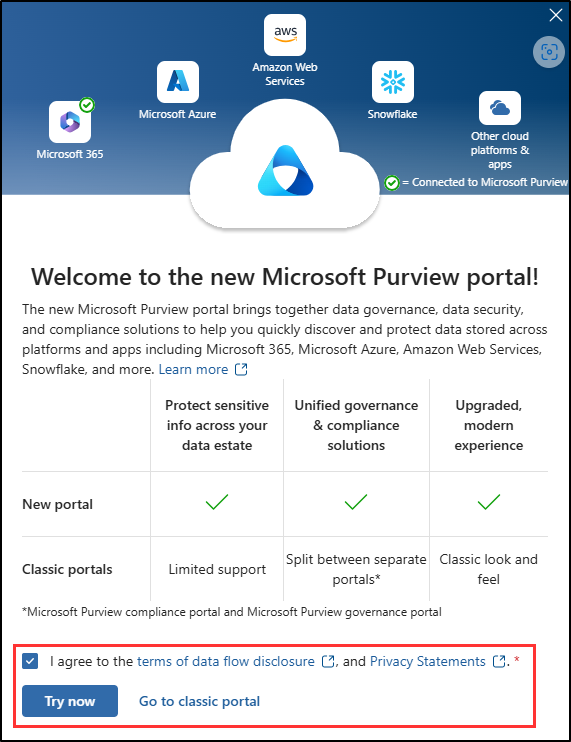
A message about the new Microsoft Purview portal will appear on the screen. Select Get started to access the new portal.
-
Select Solutions from the left sidebar, then select Audit.
-
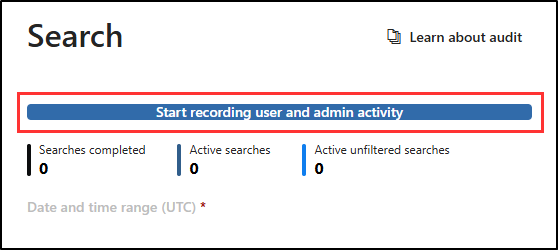
On the Search page, select the Start recording user and admin activity button to enable audit logging.
-
Once you select this option, the blue bar should disappear from this page.
Note: If the Audit button doesn’t enable logging
In some tenants, selecting Start recording user and admin activity might not activate Audit.
If this happens, you can enable Audit through PowerShell instead:
-
Open an elevated Terminal window by right-clicking the Windows button and selecting Terminal (Admin).
-
Install the latest Exchange Online PowerShell module:
Install-Module ExchangeOnlineManagementConfirm any prompts by typing Y for Yes and pressing Enter.
-
Run the following command to change your execution policy:
Set-ExecutionPolicy -ExecutionPolicy RemoteSigned -Scope CurrentUser -
Close the elevated Terminal window and open a regular PowerShell session.
-
Connect to Exchange Online:
Connect-ExchangeOnlineSign in as
admin@WWLxZZZZZZ.onmicrosoft.com(where ZZZZZZ is your unique tenant prefix provided by your lab hosting provider). Admin’s password should be provided by your lab hosting provider. -
Check if Audit is enabled:
Get-AdminAuditLogConfig | FL UnifiedAuditLogIngestionEnabledIf it returns False, enable Audit:
Set-AdminAuditLogConfig -UnifiedAuditLogIngestionEnabled $true -
Verify that it’s now enabled:
Get-AdminAuditLogConfig | FL UnifiedAuditLogIngestionEnabledThe command should return True once Audit is active.
-
You have successfully enabled auditing in Microsoft 365.
Task 2 – Assign compliance roles
In this task, you’ll assign the Compliance Administrator role to the user you’ll be using for these lab exercises.
-
Open Microsoft Edge and navigate to the Microsoft 365 admin center at
https://admin.microsoft.com. You’ll need to log in as a user that has Global Administrator rights.Note: If prompted to set up multifactor authentication (MFA), complete the setup using the available authentication method to continue with the lab.
-
In the left navigation menu, expand Users, then select Active users.
-
Select or create a user to continue with these lab exercises.
If using an existing user, select a user with minimal rights for least access privilege.
-
If creating a new user:
-
On the Active users page, select + Add a user.
-
On the Set up the basics page, enter the required user details, then select Next.
-
On the Assign product licenses page, select a location, then assign a license (Microsoft 365 E5 license or a compatible add-on) if available.
If no license is available, select Create user without product license, then select Next. -
On the Optional settings page, expand the Roles, then select Admin center access.
-
Expand the Show all by category.
-
Under Security & Compliance, select Compliance Administrator.
-
Select Next.
-
On the Review and finish page, review the settings, then select Finish adding to complete the user creation.
-
-
If modifying an existing user:
-
Select the user, then select Manage roles.
-
In the Manage admin roles page, select Admin center access.
-
Expand the Show all by category.
-
Under Security & Compliance, select Compliance Administrator.
-
Select Save changes.
-
-
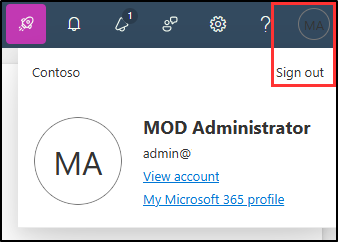
Sign out of the account with the Global Administrator access by selecting the user icon in the top-right corner, then select Sign out.
Example:
You have successfully assigned a user the Compliance Administrator role, which is required to perform the different exercises of this lab.
Task 3 – Explore the Microsoft Purview portal
In this task, you’ll sign in as the user you previously granted the Compliance Administrator role to explore the Microsoft Purview portal. This role will be referred to as your Compliance Administrator in the next labs and exercises.
-
In Microsoft Edge, navigate to Microsoft Purview portal at
https://purview.microsoft.com. -
When the Pick an account window is displayed, select Use another account.
-
When the Sign in window is displayed, sign in as the user you previously selected as the Compliance Administrator.
-
Get yourself familiar with the new Microsoft Purview portal. When you are done, leave the browser window open.
You have successfully switched to the Compliance Administrator’s account and are now ready to start the lab.