WWL Tenants - Terms of use
If you are being provided with a tenant as part of an instructor-led training delivery, please note that the tenant is made available for the purpose of supporting the hands-on labs in the instructor-led training.
Tenants should not be shared or used for purposes outside of hands-on labs. The tenant used in this course is a trial tenant and cannot be used or accessed after the class is over and is not eligible for extension.
Tenants must not be converted to a paid subscription. Tenants obtained as part of this course remain the property of Microsoft Corporation and we reserve the right to obtain access and repossess at any time.
Lab 6 - Exercise 1 - Use Data Security Posture Management
You are Joni Sherman, the Information Security Administrator for Contoso Ltd. As data moves across Microsoft 365, AI apps, and other connected services, your team needs practical ways to find and reduce sensitive data exposure. In this lab, you’ll use Microsoft Purview Data Security Posture Management (DSPM) to complete setup, create a policy from a remediation action, and run an assessment for potential oversharing.
Tasks:
- Complete DSPM setup
- Create a remediation policy from DSPM
- Create a data risk assessment for potential oversharing
Estimated time: 45-60 minutes
Task 1 – Complete DSPM setup
Contoso is preparing for broader AI adoption, and the security team needs a unified view of data exposure before rollout. In this task, you enable the required analytics so DSPM can start gathering the signals it needs.
-
Sign into the Client 1 VM (SC-401-CL1) as the SC-401-CL1\admin account.
-
In Microsoft Edge, navigate to
https://purview.microsoft.comand sign in as Joni Sherman,JoniS@WWLxZZZZZZ.onmicrosoft.com(where ZZZZZZ is your unique tenant prefix provided by your lab hosting provider). User account passwords are provided by your lab hosting provider. -
In Microsoft Purview, select Solutions > DSPM.
-
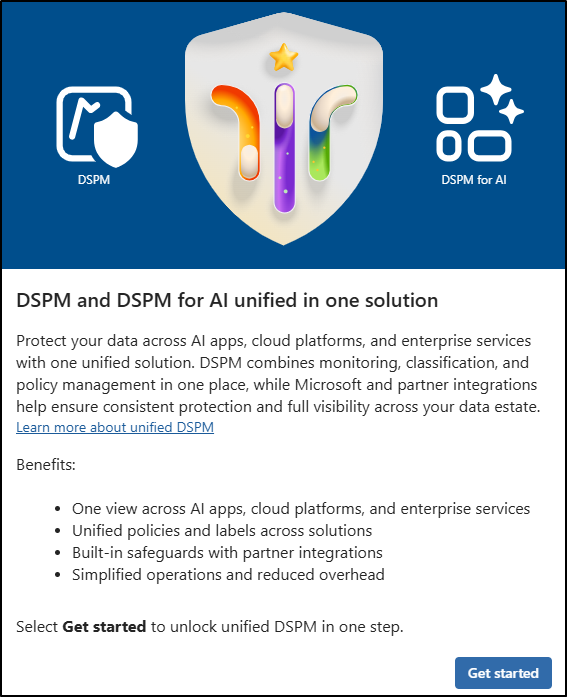
On the DSPM and DSPM for AI unified in one solution page, select Get started.
-
On the Complete setup to unlock the unified DSPM experience page, review the required Auditing and analytics card. It confirms that Audit and Insider Risk Management analytics are already enabled and that DLP analytics will be enabled during setup.
-
Select Start setup.
Note: DSPM setup actions
Selecting Start setup enables any required analytics that aren’t already enabled and starts the initial DSPM scan.
You’ve enabled DSPM analytics and started the initial scan that correlates sensitive-data risks across Microsoft Purview.
Task 2 – Create a remediation policy from DSPM
Contoso wants to reduce the risk of employees using AI apps in ways that could create policy violations or unethical behavior. In this task, you select the remediation action that matches that business need and review the policy handoff to the owning Purview solution.
-
In DSPM, select Tasks and actions > Remediation actions.
-
Select the recommendation for Detect unethical behavior in AI apps.
-
Review the Detect unethical behavior in AI apps recommendation, then select Create policies.
-
Once your policy has been successfully created, navigate to Solutions > Communication Compliance.
-
In the Communication Compliance solution, select Policies.
-
Verify the DSPM for AI - Unethical behavior in AI apps policy was created from the remediation action.
You’ve used DSPM to convert a recommended remediation into a policy owned and managed by a Purview solution.
Task 3 – Create a data risk assessment for potential oversharing
Contoso is preparing for broader Copilot and AI adoption, and wants to find content that may be accessible beyond the intended audience before those experiences expand. In this task, you create an assessment for unlabeled SharePoint content to identify the most likely oversharing risks.
-
In DSPM, select Discover > Data risk assessments.
-
Select + Create custom assessment.
-
On the Basic details page, enter:
- Name:
Unlabeled SharePoint Content Assessment - Description:
Identifies unlabeled SharePoint content that could be overshared and helps prioritize remediation.
- Name:
-
Select Next.
-
On the Select scan level page, leave Source-level (always on) selected, then select Next.
-
On the Add users page, select All, then select Next.
-
On the Add data sources to assess page, select SharePoint and OneDrive, then select Next.
-
On the Review and run the data assessment scan page, review the assessment scope, then select Save and run.
-
On the confirmation page, select Done.
-
Back on the Data risk assessments page, select Unlabeled SharePoint Content Assessment to review its status and scope.
Note: Assessment scan processing time
The assessment scan can take time to complete. Review the assessment results after processing finishes to identify files that need labeling, access review, or other remediation.
You’ve created a DSPM data risk assessment that will identify potential oversharing risks in unlabeled SharePoint content. Use the results with the DSPM posture and objectives pages to prioritize appropriate labeling, DLP, and access-remediation actions.