Lab 1 - Exercise 2 - Create and manage sensitive information types
Joni Sherman, the Information Security Administrator at Contoso Ltd., is updating the organization’s information protection strategy after previous incidents involving the unintentional sharing of personal data in support tickets. She needs to create and test custom sensitive information types that help detect employee IDs and references to personal health information in documents and emails.
Tasks:
- Create custom sensitive information types
- Modify confidence level to reduce false positives
- Create a security group and assign roles to create an EDM classifier
- Create EDM-based classification information type
- Create EDM-based classification data source
- Create keyword dictionary
- Test custom sensitive information types
Estimated time: 60-90 minutes
Task 1 – Create custom sensitive information types
In this task, you’ll create a new custom sensitive information type that recognizes the pattern of employee IDs near the keywords “Employee” and “ID”.
-
You should still be logged into Client 1 VM (SC-401-CL1) as the SC-401-CL1\admin account.
-
In Microsoft Edge, navigate to
https://purview.microsoft.comand log into the Microsoft Purview portal asJoniS@WWLxZZZZZZ.onmicrosoft.com(where ZZZZZZ is your unique tenant prefix provided by your lab hosting provider). User account passwords are provided by your lab hosting provider. -
On the left sidebar, select Solutions then select Information Protection.
-
On the left sidebar, expand Classifiers then select Sensitive info types.
-
On the Sensitive info types page, select + Create sensitive info type to start the sensitive information type configuration.
-
On the Name your sensitive info type page, enter:
- Name:
Contoso Employee IDs - Description:
Pattern for Contoso employee IDs.
- Name:
-
Select Next.
-
On the Define patterns for this sensitive info type page, select Create pattern.
-
On the New pattern flyout panel on the right, select + Add primary element > Regular expression.
-
On the + Add a regular expression flyout panel on the right, enter:
- ID:
Contoso IDs - Regular expression:
[A-Z]{3}[0-9]{6} - Select the radio button for String match.
- ID:
-
Select Done at the bottom of the flyout panel.
-
Back on the New pattern flyout panel, under Supporting elements, select + Add supporting elements or group of elements drop-down menu and select Keyword list.
-
On the Add a keyword list flyout panel on the right, enter:
- ID:
Employee ID keywords -
Case insensitive:
Employee ID - Select the radio button for Word match
- ID:
-
Select Done at the bottom of the flyout panel.
-
Back on the New pattern flyout panel, under Character proximity, decrease the Detect primary AND supporting elements value to
100characters. -
Select the Create button at the bottom of the flyout panel.
-
Back on the Define patterns for this sensitive info type page select Next.
-
On the Choose the recommended confidence level to show in compliance policies page use the default value and select Next.
-
On the Review settings and finish page review the settings and select Create. When successfully created select Done.
You have successfully created a new sensitive information type to identify employee IDs in the pattern of three uppercase characters, six numbers, and the keywords ‘Employee’ or ‘IDs’ within a range of 100 characters.
Task 2 – Modify confidence level to reduce false positives
You’ve received reports that some documents containing employee IDs aren’t being detected. To improve detection coverage, you’ll lower the confidence level of the pattern in the Contoso Employee IDs SIT so it triggers even when only partial evidence is found, increasing the likelihood of detection. This increases detections during testing and policy simulation.
-
You should still be logged into Client 1 VM (SC-401-CL1) as the SC-401-CL1\admin account, and logged into Microsoft Purview as Joni Sherman.
-
In Microsoft Edge, navigate to
https://purview.microsoft.com. -
In the left navigation, select Solutions > Information Protection > Classifiers > Sensitive info types.
-
Search for
Contoso Employee IDsin the list and select the SIT name to open the details page. -
Select Edit at the top of the page to modify the SIT.
-
On the Name your sensitive info type page, select Next.
-
On the Define patterns for this sensitive info type page, expand Pattern #1 and review the settings.
-
Select the pencil icon on the right to edit the pattern.
-
In the Edit pattern flyout, set the Confidence level dropdown to Medium confidence, which allows matches with less supporting evidence than high confidence.
-
Select Update at the bottom of the flyout.
-
Select Next until you reach the Review settings and finish page.
-
Select Save, then select Done to update your sensitive info type.
You have successfully reduced the confidence level to increase the sensitivity of your custom SIT, helping ensure documents with partial matching content are more likely to be flagged.
Task 3 – Create a security group and assign roles to create an EDM classifier
In this task, you’ll create the role group to create an EDM classifier and add Joni to the new role group.
-
You should still be logged into Client 1 VM (SC-401-CL1) as the SC-401-CL1\admin account.
-
Open Microsoft Edge in an InPrivate window by right clicking Microsoft Edge from the task bar and selecting New InPrivate window.
-
Navigate to
https://admin.microsoft.com, and sign in as MOD Administrator,admin@WWLxZZZZZZ.onmicrosoft.com(where ZZZZZZ is your unique tenant prefix provided by your lab hosting provider). Admin’s password should be provided by your lab hosting provider. -
From the left pane, expand Teams & groups then select Active teams & groups.
-
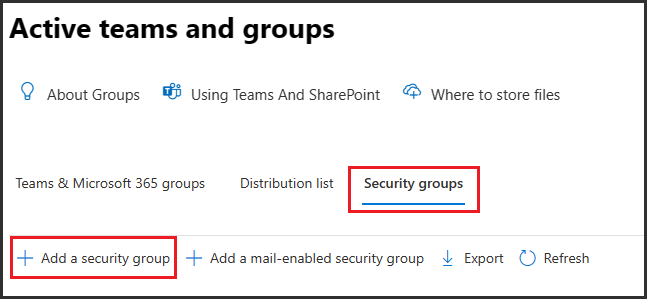
On the top of the Active teams and groups page, select Security groups then select + Add a security group.
-
On the Set up the basics screen, enter:
- Name:
EDM_DataUploaders - Description:
People who upload data for EDM.
- Name:
-
Select Next.
-
On the Edit settings page, leave the default settings, then select Next.
-
On the Review and finish adding group page, review your settings and select Create group.
-
On the EDM_DataUploaders group created page, select Close.
-
Back on the Active teams and groups page, ensure the Security tab is selected from the top navigation ribbon, then select the Refresh button to display the newly created security group. Select the EDM_DataUploaders group from the list to open the EDM_DataUploaders flyout panel on the right.
-
Select the Members tab then select View all and manage members.
-
On the Members page select + Add members.
-
On the Add members page, select the checkbox to the left of Joni Sherman, then select the Add (1) button at the bottom of the flyout panel.
-
Verify Joni Sherman is listed below Members, then close the flyout panel by selecting the X on the top right of the flyout panel.
-
Close the InPrivate window.
You have successfully created the EDM_DataUploaders group and assigned Joni access to create an EDM classifier.
Task 4 – Create EDM-based classification information type
In this task, you’ll create an Exact Data Match (EDM) based classification with a database schema of employee data.
-
Return to the Microsoft Edge window where you’re signed in as Joni Sherman. Refresh the tab to ensure the new permissions are active.
-
In Microsoft Edge, you should still be logged into Microsoft Purview as Joni Sherman.
-
Navigate to Information Protection by selecting Solutions > Information Protection from the left sidebar.
-
On the Information Protection page, expand Classifiers then select EDM classifiers.
-
On the EDM classifiers page, select + Create EDM classifier.
-
On the Name and describe your EDM classifier page, enter:
- Name:
employeedb - Description:
Employee Database schema
- Name:
-
Select Next.
-
On the Choose a method for defining your schema page, select Manually define your data structure, then select Next.
-
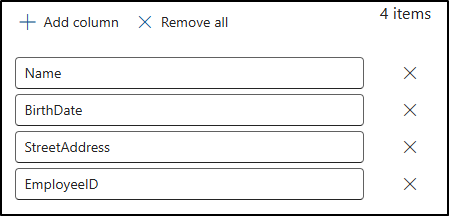
On the Define columns that contain the data you want to detect page, enter these columns:
NameBirthDateStreetAddressEmployeeID
Select + Add column to add the remaining fields until you have four columns total.
-
Select Next.
-
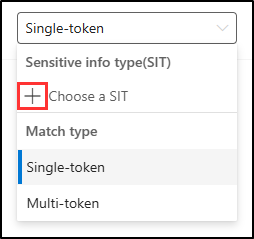
On the Select primary elements page, find the EmployeeID column. Expand the Match mode dropdown where Single-token is displayed. Select the + (plus sign) for Choose a SIT.
-
On the Choose a sensitive info type for “EmployeeID” flyout panel on the right, in the search bar, search for
Contoso. -
The Contoso Employee IDs sensitive info type created in a previous task should be displayed. Select the checkbox to the left of this sensitive info type, then select Save.
-
Back on the Select primary elements page, select the checkbox to the right of EmployeeID to identify this field as a Primary element.

-
Select Next.
-
On the Configure settings for data in selected columns, ensure the toggle is set to Yes for Use the same settings for all columns.
-
Select the checkbox for Ignore delimiters and punctuation for data in all columns.
-
Select the dropdown for Choose delimiters and punctuation to ignore and select:
- Hyphen (‘-‘)
- Period (‘.’)
- Space (‘ ‘)
- Open parenthesis (‘(‘)
- Close parenthesis (‘)’)
-
Click anywhere outside of the dropdown, then select Next.
-
On the Configure detection rules for primary elements, leave the default configuration, then select Next.
-
On the Review settings and finish page, select Submit.
-
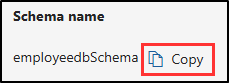
On the You successfully created an EDM classifier page, be sure to capture the Schema name to use in the next task.
-
Once you’ve captured the schema name, select Done.
-
Leave the browser open with the Microsoft Purview portal.
You have successfully created a new EDM-based classification sensitive information type for identifying employee data from a database file source.
Task 5 – Create EDM-based classification data source
In this task, you’ll hash and upload the actual data for the EDM-based classification sensitive information type via the EDM Upload Agent tool.
-
You should still be logged into Client 1 VM (SC-401-CL1) as the SC-401-CL1\admin account, and you should be logged into Microsoft 365 as Joni Sherman.
-
In Microsoft Edge, navigate to
https://go.microsoft.com/fwlink/?linkid=2088639to download the EDM upload agent. -
Once the download is complete, select Open file in the Microsoft Edge browser window to open the Microsoft Exact Data Match Upload Agent Setup wizard.
-
On the Welcome to the Microsoft Exact Data Match Upload Agent Setup Wizard page, select Next.
-
On the End-User License Agreement page, select the I accept the terms in the License Agreement checkbox, then select Next.
-
On the Destination Folder page, don’t change the default destination path, then select Next.
-
On the Ready to install Microsoft Exact Data Match Upload Agent page, select Install.
-
If the User Account Control window pops up, select Yes to allow this application to make changes to your device.
-
When the installation finishes, select Finish on the Completed the Microsoft Exact Data Match Upload Agent Setup Wizard page.
-
In your task bar, search for
Notepadin the search field. Select the Notepad app from the Best match section of the search. -
In Notepad, enter:
Name,Birthdate,StreetAddress,EmployeeID Joni Sherman,01.06.1980,1 Main Street,CSO123456 Lynne Robbins,31.01.1985,2 Secondary Street,CSO654321 -
In Notepad, select File and Save As to save the file.
-
Select Documents from the left side pane and enter
EmployeeData.csvas the File name, then select Save. -
Close the Notepad window.
-
Right click the Windows symbol in the task bar and select Terminal (Admin).
-
If the User Account Control window pops up, select Yes to allow this application to make changes to your device.
-
In the terminal window, navigate to the EDM Upload Agent directory:
cd "C:\Program Files\Microsoft\EdmUploadAgent" -
Authorize with your account to upload the database to your tenant by running this cmdlet:
.\EdmUploadAgent.exe /Authorize -
When the Pick an account window is displayed, sign in as
JoniS@WWLxZZZZZZ.onmicrosoft.com(where ZZZZZZ is your unique tenant prefix provided by your lab hosting provider). User account passwords are provided by your lab hosting provider. -
Back in the terminal window, download the database schema definition of the EDM-based classification sensitive information type by running this script in PowerShell. For the DataStoreName, this is where you’ll use the schema name saved from the previous task.
.\EdmUploadAgent.exe /SaveSchema /DataStoreName employeedbSchema /OutputDir "C:\Users\Admin\Documents\"You should get a message that the command completed successfully.
[!Note] Note: If the last command fails, it possibly takes more time until the EDM_DataUploaders group membership is applied. It can take up to one hour until it is possible to download the schema file. If it fails, proceed to the next task and return to this step later.
-
Hash the database file and upload it to the EDM-based classification sensitive information type by running the following script in PowerShell:
.\EdmUploadAgent.exe /UploadData /DataStoreName employeedbSchema /DataFile "C:\Users\Admin\Documents\EmployeeData.csv" /HashLocation "C:\Users\Admin\Documents\" /Schema "C:\Users\Admin\Documents\employeedbSchema.xml"You should get a message that the command completed successfully.
-
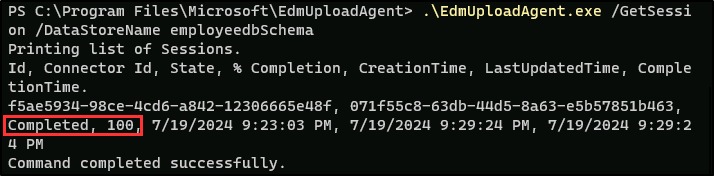
Check the upload progress with this command:
.\EdmUploadAgent.exe /GetSession /DataStoreName employeedbSchema -
In the terminal window, once the status is Completed, your EDM data is ready for use.
Alternatively, you can also refresh the EDM classifiers window in the Microsoft Purview portal to check the status of the hash. Once the status is set to Index complete the hash is complete.
[!Note] Note: This process might take some time. You might need to run the GetSession script or refresh the EDM classifiers page several times before the status indicates that the hash is complete.

-
Close the terminal window.
You have successfully hashed and uploaded a database file for an EDM-based classification sensitive information type.
Task 6 – Create keyword dictionary
Several violations of personal information leakage happened when users sent out emails after colleagues reported on sick leave. In those cases, the reason for illness or disease was disclosed. We don’t want that to happen. In this task, you’ll create a keyword dictionary to prevent personal information leakage in emails.
-
You should still be logged into Client 1 VM (SC-401-CL1) as the SC-401-CL1\admin account, and you should be logged into Microsoft 365 as Joni Sherman.
-
The Microsoft Purview portal should still be to the EDM classifiers page in Microsoft Edge. If not, in Microsoft Edge, navigate to
https://purview.microsoft.com> Solutions > Information Protection. -
In the left sidebar, expand Classifiers then select Sensitive info types.
-
Select + Create sensitive info type to open the configuration for a new sensitive information type.
-
On the Name your sensitive info type page, enter:
- Name:
Contoso Diseases List - Description:
List of possible diseases of employees.
- Name:
-
Select Next.
-
On the Define patterns for this sensitive info type page, select + Create pattern.
-
On the New pattern flyout panel on the right, under Primary element select + Add primary element, then select Keyword dictionary.
-
On the Add a keyword dictionary page enter:
- Name:
Diseases Dictionary - Keywords:
flu influenza cold bronchitis otitis - Name:
-
Select Done at the bottom of the flyout panel.
-
Back on the New pattern page, under Supporting elements, select + Add supporting elements or group of elements, then select Keyword list to add additional support for the keyword dictionary.
-
On the Add a keyword list page enter:
- Name:
Absence reason terms - Case insensitive:
employee absence reason - Name:
-
Select Done at the bottom of the flyout panel.
-
Back on the New pattern page, review the configuration and select Create.
-
Back on the Define patterns for this sensitive info type, select Next.
-
On the Choose the recommended confidence level to show in compliance policies, leave the default value, then select Next.
-
On the Review settings and finish page, review your settings and select Create. Once your sensitive info type is created, select Done on the Your sensitive info type is created page.
-
Leave the browser window in the Microsoft Purview portal open.
You have successfully created a new sensitive information type based on a keyword dictionary and added more keywords to decrease the false positive rate.
Task 7 – Test custom sensitive information types
Always test custom sensitive information types before using them in policies. Otherwise, data loss or leakage may occur if the pattern is misconfigured.
-
You should still be logged into Client 1 VM (SC-401-CL1) as the SC-401-CL1\admin account, and you should be logged into Microsoft 365 as Joni Sherman.
-
In your task bar, search for
Notepadin the search field. Select the Notepad app from the Best match section of the search. -
In Notepad, enter:
Employee ID: EMP123456 - Joni Sherman is absent because of the flu/influenza. -
Select File > Save As.
-
Select Documents on the left side pane and enter
SickTestData.txtas the File name, then select Save. -
Close the Notepad window.
-
Back in Microsoft Edge, Microsoft Purview portal should still be open on the Sensitive info types page.
-
In the Search bar on the upper right, enter
Contosoand press Enter. -
Select Contoso Employee IDs.
-
Select Test.
-
On the Upload file to test “Contoso Employee IDs” flyout panel on the right, select Upload file.
-
Select Documents from the left pane, select the SickTestData.txt file, then select Open.
-
Select Test to start the analysis.
-
On the Match results page, review the matches, then select Finish to end the test.
-
Navigate back to Sensitive info types and search for
Contosoagain. -
This time select the Contoso Diseases List sensitive info type, then select Test.
-
On the Upload file to test “Contoso Diseases List” flyout panel on the right, select Upload file.
-
Select Documents from the left pane, select the SickTestData.txt file, then select Open.
-
Select Test to start the analysis.
-
On the Match results page, review the matches, then select Finish to end the test.
You’ve successfully tested the two custom sensitive information types and validated that the search patterns work as expected.