Learning Path 09 - Lab 1 - Exercise 1 - Perform Threat Hunting with Microsoft Sentinel in the Microsoft Defender portal
Lab scenario
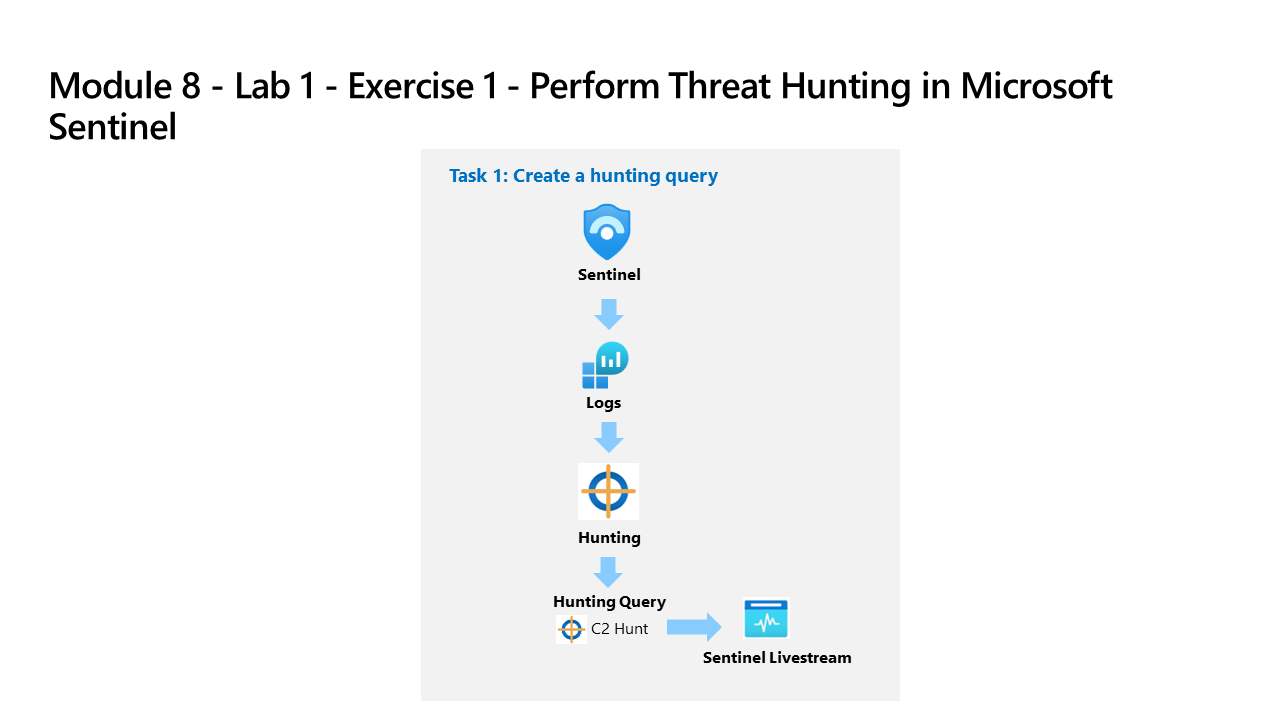
You’re a Security Operations Analyst working at a company that implemented Microsoft Sentinel. You have received threat intelligence about a Command and Control (C2 or C&C) technique. You need to perform a hunt and watch for the threat.
Important: The lab exercises for Learning Path #9 are in a standalone environment. If you exit the lab before completing it, you will be required to re-run the configurations again.
Estimated time to complete this lab: 45 - 60 minutes
Note: The following Prerequisite tasks Are pre-configured for you. They are included here for your information only.
Prerequisite task 1: Connect an On-Premises Server
In this task, you’ll connect an on-premises server to your Azure subscription. Azure Arc was pre-installed on this server. The server will be used in next exercises to run simulated attacks that you will later detect and investigate in Microsoft Sentinel.
Important: The next steps are done on a different machine than the one you were previously working. Look for the Virtual Machine name in the references tab.
- Sign in to WINServer virtual machine as Administrator using the provided credentials.
As described above, Azure Arc has been pre-installed on the WINServer machine. You will now connect this machine to your Azure subscription.
-
On the WINServer virtual machine, select the search icon and type cmd.
-
In search results right click Command Prompt and select Run as administrator.
-
In the Command Prompt window, type the following command. Do not press enter:
azcmagent connect -g "SentinelStatic" -l "CentralUS" -s "Subscription ID string" -
Replace the Subscription ID string with the Subscription ID provided for this lab. Make sure to keep the quotes.
-
Type Enter to run the command (this may take a couple minutes).
Note: If you see the How do you want to open this? browser selection window, select Microsoft Edge.
-
In the Sign in dialog box, enter the Tenant Email and Tenant Password provided for this lab, and then select Sign in. Wait for the Authentication complete message, close the browser tab, and return to the Command Prompt window.
Note: You may be prompted to enter the Temporary Access Pass (TAP) instead of a password.
-
When the commands complete running, leave the Command Prompt window open and type the following command to confirm that the connection was successful:
azcmagent show -
In the command output, verify that Agent status is Connected.
Prerequisite task 2: Connect a non-Azure Windows Machine
In this task, you’ll add an Azure Arc connected, on-premises machine to Microsoft Sentinel.
Note: Microsoft Sentinel has been predeployed in your Azure subscription with the name sentinelworkspace-01, and the required Content hub solutions have been installed.
-
Sign in to WIN1 virtual machine as Admin using the provided credentials.
-
In the Microsoft Edge browser, navigate to Microsoft Defender XDR at
https://security.microsoft.com. -
In the Sign in dialog box, enter the Tenant Email account provided for this lab, and then select Next.
-
In the Enter password dialog box, enter the Tenant Password provided for this lab, and then select Sign in.
Note: You may be prompted to enter the Temporary Access Pass (TAP) instead of a password.
-
In the Microsoft Defender navigation menu, scroll down and expand the Microsoft Sentinel section.
-
Expand the Configuration section and select Data connectors.
-
In the Data connectors, search for the Windows Security Events via AMA solution and select it from the list.
-
On the Windows Security Events via AMA details pane, select Open connector page.
Note: The Windows Security Events solution installs both the Windows Security Events via AMA and the Security Events via Legacy Agent Data connectors. Plus 2 Workbooks, 20 Analytic Rules, and 43 Hunting Queries.
-
In the Configuration section, under Prerequisites and Table Management, select +Create data collection rule.
-
Enter AZWINDCR for Rule Name, verify that Subscription is correct, select the SentinelStatic Resource Group.
-
Select Next: Resources.
-
Expand your Subscription under Scope on the Resources tab.
Hint: You can expand the whole Scope hierarchy by selecting the “>” before the Scope column.
-
Expand the SentinelStatic Resource Group, then select WINServer.
-
Select Next: Collect, and leave the All Security Events selected.
-
Select Next: Review + create.
-
Select Create after Validation passed is displayed.
Prerequisite task 3: Command and Control Attack with DNS
Important: The next steps are done on a different machine than the one you were previously working. Look for the Virtual Machine name in the references tab.
-
Sign in to WINServer virtual machine using the provided credentials.
-
On the WINServer virtual machine, select the search icon and type cmd.
-
In search results right click Command Prompt and select Run as administrator.
-
Copy and run this command to create a script that will simulate a DNS query to a C2 server:
notepad c2.ps1 -
Select Yes to create a new file and copy the following PowerShell script into c2.ps1.
Note: Pasting into the virtual machine file might not show the full script length. Make sure the script matches the instructions within the c2.ps1 file.
param( [string]$Domain = "microsoft.com", [string]$Subdomain = "subdomain", [string]$Sub2domain = "sub2domain", [string]$Sub3domain = "sub3domain", [string]$QueryType = "TXT", [int]$C2Interval = 8, [int]$C2Jitter = 20, [int]$RunTime = 240 ) $RunStart = Get-Date $RunEnd = $RunStart.addminutes($RunTime) $x2 = 1 $x3 = 1 Do { $TimeNow = Get-Date Resolve-DnsName -type $QueryType $Subdomain".$(Get-Random -Minimum 1 -Maximum 999999)."$Domain -QuickTimeout if ($x2 -eq 3 ) { Resolve-DnsName -type $QueryType $Sub2domain".$(Get-Random -Minimum 1 -Maximum 999999)."$Domain -QuickTimeout $x2 = 1 } else { $x2 = $x2 + 1 } if ($x3 -eq 7 ) { Resolve-DnsName -type $QueryType $Sub3domain".$(Get-Random -Minimum 1 -Maximum 999999)."$Domain -QuickTimeout $x3 = 1 } else { $x3 = $x3 + 1 } $Jitter = ((Get-Random -Minimum -$C2Jitter -Maximum $C2Jitter) / 100 + 1) +$C2Interval Start-Sleep -Seconds $Jitter } Until ($TimeNow -ge $RunEnd) -
In the Notepad menu, select File and then Save.
-
Go back to the Command Prompt window, enter the following command and press Enter.
Note: You will see DNS resolve errors. This is expected.
Start PowerShell.exe -file c2.ps1
Important: Do not close these windows. Let this PowerShell script run in the background. The command needs to generate log entries for some hours. You can proceed to the next task and next exercises while this script runs. The data created by this task will be used in the Threat Hunting lab later. This process will not create substantial amounts of data or processing.
Task 1: Create a hunting query
In this task, you’ll create a hunting query, and create a Livestream.
Note: Advanced hunting doesn’t support creating bookmarks in the Microsoft Defender portal, but they can be created in the Hunting Livestreams.
-
Sign in to WIN1 virtual machine using the provided credentials.
-
In the Microsoft Edge browser, navigate to Microsoft Defender XDR at
https://security.microsoft.com. -
In the Sign in dialog box, enter the Tenant Email account provided for this lab, and then select Next.
-
In the Enter password dialog box, enter the Tenant Password provided for this lab, and then select Sign in.
Note: You may be prompted to enter the Temporary Access Pass (TAP) provided for this lab instead of a password. If prompted, enter the TAP and select Sign in.
-
In the Microsoft Defender navigation menu, scroll down and expand the Investigation & Response section.
-
Expand the Hunting section and select Advanced hunting.
-
Enter the following KQL query in the New query tab:
Important: Please paste any KQL queries first in Notepad and then copy from there to the New query tab to avoid any errors.
 let lookback = 2d;
 SecurityEvent
 | where TimeGenerated >= ago(lookback)
 | where EventID == 4688 and Process =~ "powershell.exe"
 | extend PwshParam = trim(@"[^/\\]*powershell(.exe)+" , CommandLine)
 | project TimeGenerated, Computer, SubjectUserName, PwshParam
Note: If you receive the message, “security.microsoft.com wants to.. See text and images copied to the clipboard”, select Allow.
-
Select Run query from the command bar.
-
Review the different results. You have now identified PowerShell requests that are running in your environment.
-
Select the checkbox of the results that shows the “-file c2.ps1” in the PwshParam column.
-
In the Results pane command bar, select the ellipsis (…) button and then select Link to incident from the drop-down menu.
-
In the Link to incident pane, leave the Create new incident radio button selected.
-
Create a unique identifier by combining your initials with four digits, such as HR1234. Record this identifier so you can locate your incident.
-
Fill in the following fields:
Setting Value Alert title PowerShell C2 Hunt - your unique identifier Severity High Category Command and Control MITRE techniques T1094: Custom Command and Control Protocol Description PowerShell C2 Hunt results - your unique identifier Recommended actions Perform incident remediation -
Select Next.
-
On the Entity mapping pane, in Impacted Assets select + Add assets.
-
For Entity select Device, then Hostname and Computer for Identifier and Column.
-
Select Next.
-
On the Summary pane, select Submit, then select Done.
-
In the Microsoft Defender navigation menu, scroll down and expand the Investigation & Response section.
-
Expand the Incidents & Alerts section and select Incidents.
-
Set Last update time to 1 Day, and then search for PowerShell C2 Hunt - your unique identifier.
-
In the Incidents pane, verify that your PowerShell C2 Hunt - your unique identifier incident is listed.
Task 2: Hunt with Microsoft Sentinel graph
-
In the Microsoft Defender navigation menu, scroll down and expand the Investigation & Response section.
-
Expand the Hunting section and select Advanced hunting.
-
In Advanced hunting, select the + button next to New query.
-
From the menu, select Hunting graph.
-
Select Search with Predefined scenarios.
-
On the Select a scenario pane, select the Users with access to Sensitive data Scenario.
-
In the Scenario inputs, enter sensitivestorageaccount for the Target storage account.
-
Leave the filters with their default values and select Run.
-
The graph will render. Review the results and identify any users with access to the sensitive storage account.
-
Select the Defender for Cloud icon above the sensitivestorageaccount Storage account.
Note: If the Defender for Cloud icon is not visible, make sure the Discovery source is enabled in Layers.
-
In the sensitivestorageaccount General details pane, you can see that the Discovery source is Defender for Cloud.
- Explore the other tabs in the sensitivestorageaccount details pane. The All data tab contains many details.
Note: The Attack paths tab is only populated when there are multiple attacks.
-
In the graph display you will see a User account node connected to the sensitivestorageaccount Storage account with a gold crown icon. That is the Critical user with access to sensitive data.
-
Selecting the Crown icon will open the User account details pane and display more information about critical users.
-
Selecting the “+” icon on a node will expand the graph to show more relationships.
- Continue expanding the graph, explore the different relationships and entities, and then proceed to the next task.
Task 3: Create a Data lake KQL job
In this task, you’ll create a Data lake KQL job to look for a C2 attack.
Note:: The KQL job feature allows you to run KQL queries on your data lake and create a job that will continuously monitor for specific patterns or anomalies.
-
In Microsoft Sentinel expand Data lake exploration and select Jobs.
-
Select the Create a new KQL job link.
-
The Create a new KQL job wizard opens.
Note: Review the Consumption billing applicable message.
-
Enter a name for your job in the Job name field.
-
In the Destination table in Analytics tier section, select the SentinelWorkspace-01 workspace from the Destination workspace drop-down menu.
Note: The _KQL_CL is the custom log default appendix.
-
Leave the Create a new table radio button selected, and enter C2ATTACKHUNT_XXX (replace XXX with your initials or a unique value) for the new table name.
-
Select the Next button.
-
On the Review the query page, enter the following KQL query:
let lookback = 2d; SecurityEvent | where TimeGenerated >= ago(lookback) | where EventID == 4688 and Process =~ "powershell.exe" | extend PwshParam = trim(@"[^/\\]*powershell(.exe)+" , CommandLine) | project TimeGenerated, Computer, SubjectUserName, PwshParam | summarize min(TimeGenerated), count() by Computer, SubjectUserName, PwshParam -
Select the Next button.
-
On the Schedule the job page, leave the Job frequency radio button selected to One time, and select the Next button.
-
On the Summary, Review and finish to run job as scheduled page, review the job settings and select the Submit button.
-
On the Summary, Job saved pane, select the Done button.
-
On the Jobs page, you can see the new job listed, and the Last run status shows the job as In progress.
Note: It may take up to 10 minutes for the job to complete.
-
Select the refresh icon near the top-left of the Jobs page to refresh the Last run status.
Tip: While waiting for the new job to execute, click on any existing KQL job that has a Succeeded Last run status. Review the details, such as name, repeat frequency, date range, destination table, and the KQL query. Select view history and review the past runs. Once done, return to the job list and hit refresh.
-
When the Last run status shows Succeeded, select the job and the job details page opens.
-
You can view the history of the job runs and other details.
-
Select the Destination table link for C2ATTACKHUNT_XXX_KQL_CL.
-
This opens the Advanced hunting page with the C2ATTACKHUNT_XXX_KQL_CL table populated in the New query form. If the table name has a red rippled underline, it means the table is unknown and it may take several minutes to be updated.
Note: After the table is known to Advanced hunting, you can modify the query as needed to refine your search.
-
Select the Run query button to execute the query and view the results.
-
Review the results to identify any potential C2 activity.
Task 4: Create a hunt that combines multiple queries into a MITRE tactic
-
The MITRE ATT&CK map helps you identify specific gaps in your detection coverage. Use predefined hunting queries for specific MITRE ATT&CK techniques as a starting point to develop new detection logic.
-
In Microsoft Sentinel, expand Threat management from the left navigation menus.
-
Select MITRE ATT&CK.
-
Unselect items in the Active rules drop-down menu.
-
Select Hunting queries in the Simulated rules filter to see which techniques have hunting queries associated with them.
-
Select the card for Account Manipulation.
-
In the details pane, locate Simulated coverage and select the View link next to Hunting queries.
-
This link takes you to a filtered view of the Queries tab on the Hunting page based on the technique you selected.
-
Select all the queries for that technique by selecting the box near the top of the list on the left.
-
Select the Hunt actions drop down menu near the middle of the screen above the filters.
-
Select Create hunt. All the queries you selected are cloned for this new hunt.
-
Fill out the hunt name and optional fields. The description is a good place to verbalize your hypothesis. The Hypothesis pull down menu is where you set the status of your working hypothesis.
-
Select Create to get started.
-
Select the Hunts (Preview) tab to view your new hunt.
-
Select the hunt link by name to view the details and take actions.
-
View the details pane with the Hunt name, Description, Content, Last update time, and Creation time.
-
Select all of the queries by using the box next to the Query column.
-
Either select Run selected queries or uncheck the selected rows and right click and Run a single query.
-
You can also select a single query and select View results in the details pane.
-
Review which queries returned results.
-
Based on the results, determine if there is enough strong evidence to validate the hypothesis. If there is not, close the Hunt and mark it as invalidated.
-
Alternative Steps:
- Go to Microsoft Sentinel.
- Expand Threat management.
- Choose Hunting.
- Select add filter.
- Set the filter to tactics: persistence.
- Add another filter.
- Set the second filter to have techniques: T1098.