Practice Lab 4 - Create a Power Automate flow
Estimated time: 30 minutes
Lab objectives
In this lab, you will learn to:
- Navigate the Power Automate maker experience
- Create an automated cloud flow triggered by a Dataverse event
- Add conditions and actions to a flow
- Send an email notification using a built-in connector
- Test and monitor a flow
Scenario
Contoso wants to automatically notify the facilities team whenever a new high-priority facilities request is submitted. You will create an automated cloud flow that triggers when a new row is added to the Facility Request table and sends an email notification if the priority is High or Urgent.
Exercise 1: Create an automated cloud flow
-
In a new Browser window, navigate to https://make.powerautomate.com (or select Power Automate from the app launcher) and sign in.
-
Change the Environment from Contoso (default) to Dev One
-
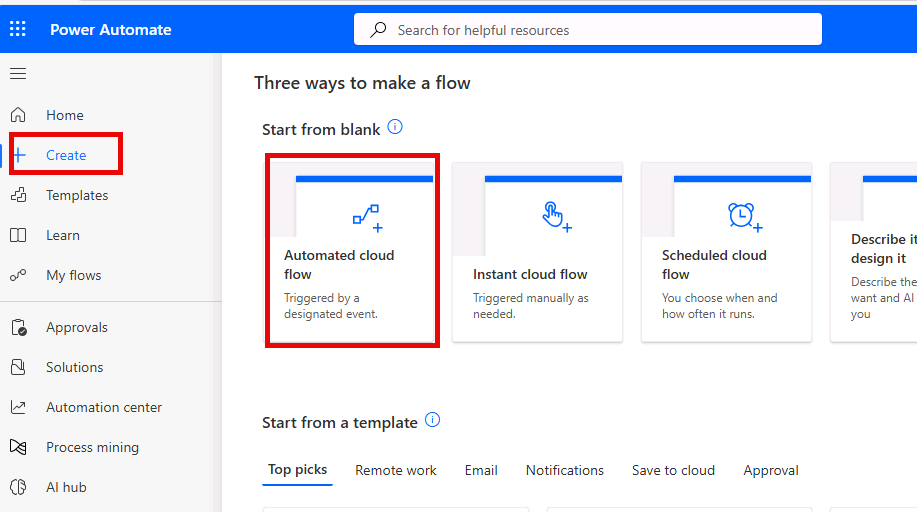
Select + Create from the left navigation.
-
Select Automated cloud flow.
-
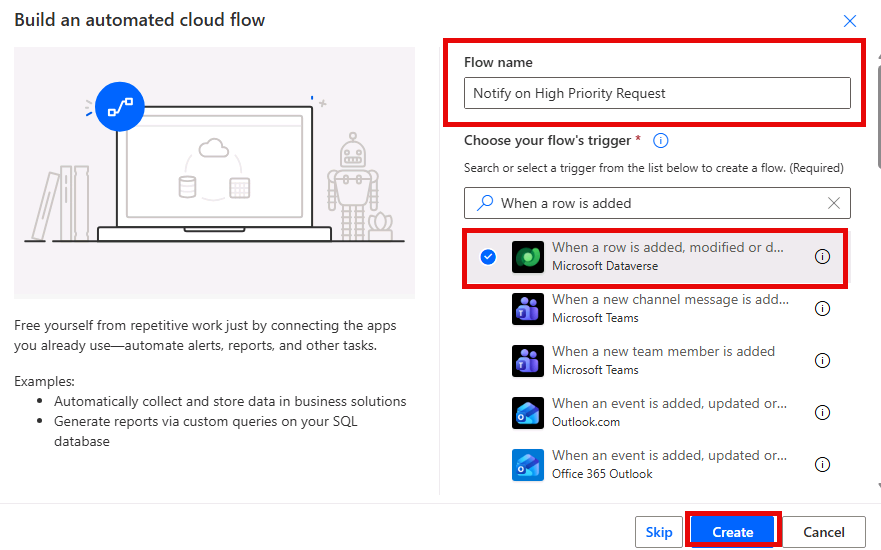
Name the flow Notify on High Priority Request.
-
In the trigger search box, search for “When a row is added” and select When a row is added, modified or deleted (Microsoft Dataverse).
-
Select Create.
Exercise 2: Configure the flow
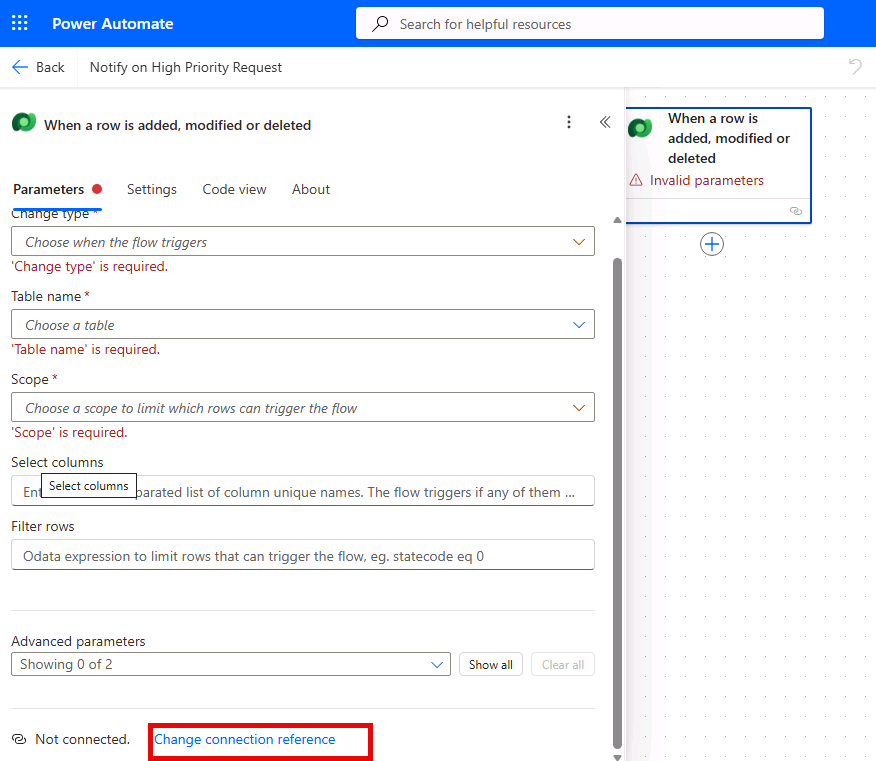
[!NOTE] It’s possible that your trigger step will say Invalid Parameters, if that is the case, it means that you need to configure a new connection. If your trigger says Invalid Parameters, follow the steps below:
Task 1: Configure the trigger
-
Select the when a row is added, modified, or deleted trigger.
-
In the Parameters pane, select Change connection reference.
-
Select Add New.
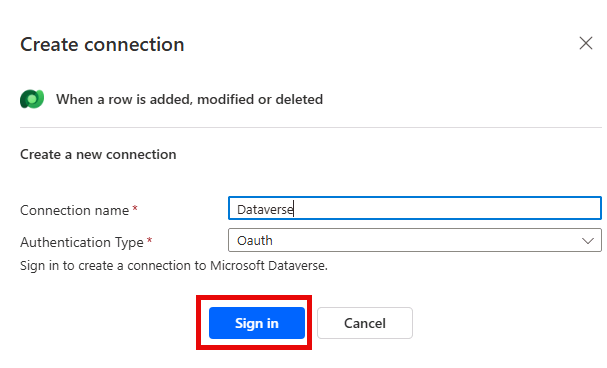
- Configure the connection as follows:
- Connection name: Dataverse
- Authentication Type: Oauth
-
Select the Sign in button.
-
Select the MOD Administrator account.
Once you have configured the connection reference, we can configure the trigger.
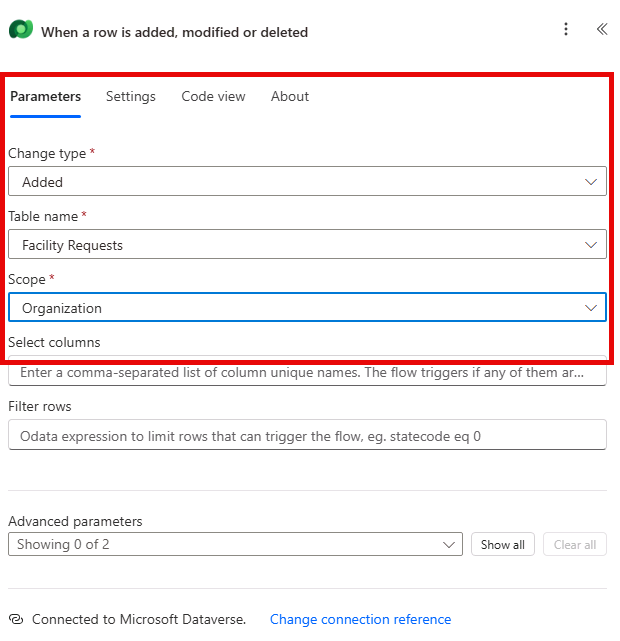
- In the trigger step, configure the following settings:
- Change type: Select Added.
- Table name: Select Facility Requests (the table you created earlier).
-
Scope: Select Organization (to trigger for all users).
Task 2: Add the Get a row by ID action
-
Below the When a row is added, modified or deleted trigger, select + to add an action.
-
Search for
Get a row by IDand select Get a row by ID under Microsoft Dataverse. -
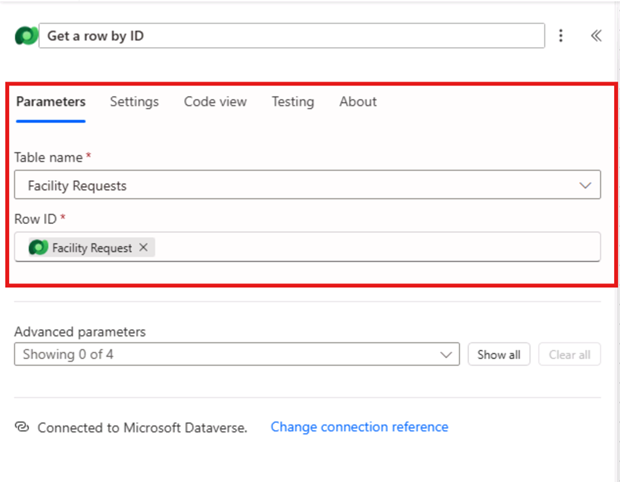
In the Get a row by ID step, configure the following settings:
- Table name: Select Facility Requests (the table you created earlier).
- Row ID: In Dynamic content, select Facility Request.
[!NOTE] You may need to configure the connection for the Get a row by ID action. If so, select Change connection reference, select the existing connection or select Add new and sign in with the MOD Administrator account.
Task 3: Configure the priority condition
-
In the Copilot pane on the right, enter the following command:
Add a condition to see if the Priority is equal to high.We only want to send a notification for high-priority requests. Add a condition to check the priority value.
-
Select the newly added condition, and configure as follows:
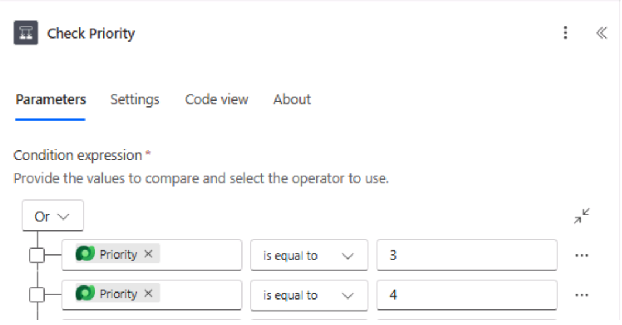
- In the left box, select Choose a value, and then in Dynamic content, under Get a row by ID, select Priority.
- Set the operator to is equal to.
- In the right box, enter 3, the value for High.
- Repeat the configuration for Urgent, using 4.
- Change the And dropdown to Or.
Your completed condition should use Or: Priority is equal to 3 (High) or Priority is equal to 4 (Urgent).
Now that we have our condition, we are going to configure the notification email.
Task 4: Configure the notification email
-
In the If True/Yes branch of the condition, select the + button to Add an action.
-
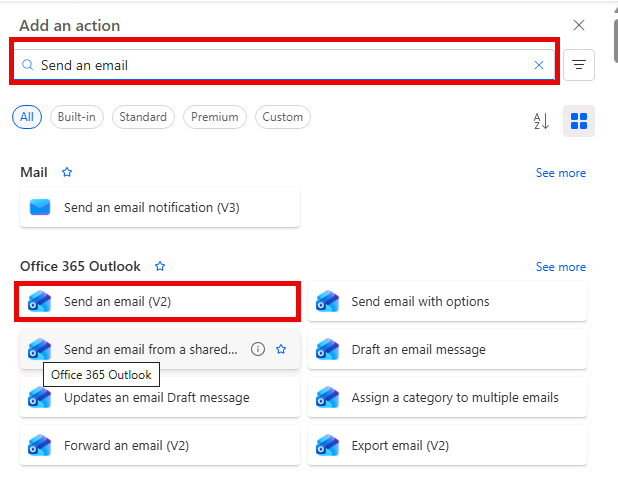
Search for “Send an email” and select Send an email (V2) from the Office 365 Outlook connector.
-
Select Sign in and select the MOD Administrator account
[!NOTE] You may need to select the Sign in button. (You may receive a browser had blocked the connection authentication popup window. If so, select the Popup icon in the address bar and choose Always allow pop-ups and redirects from https://make.powerautomate.com)
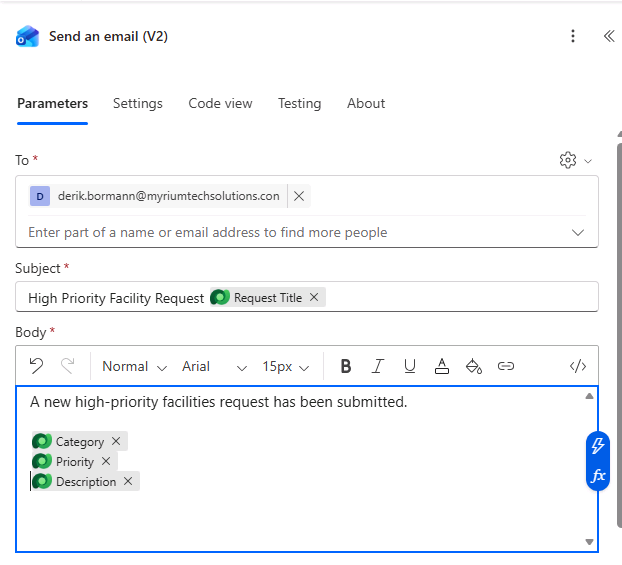
- Configure the email:
- To: Enter your own email address (for testing purposes).
- Subject: Enter
High Priority Facility Request:and insert the Request Title from Dynamic content. - Body: Enter
A new high-priority facilities request has been submitted.and add the following fields from Dynamic content under Get a row by ID on separate lines:- Category
- Priority
- Description
Your completed email should resemble the image below:
- Leave the If False/No branch empty (no action needed for non-high-priority requests).
Exercise 3: Save and test
Task 1: Save and test the flow
-
Select Save in the upper right.
- Test the flow:
- Open your Facility Request table (in make.powerapps.com > Tables or through the model-driven app).
- Add a new row with Priority set to High.
- Return to Power Automate, select My flows, and then in the 28-day run history section, verify the flow ran successfully.
- Check your email inbox for the notification.
- If the flow did not trigger or failed, select the run entry to see step-by-step details and identify where the error occurred. Select Resubmit to rerun the flow.