Practice Lab 6 - Export solution
Scenario
In this lab, you will export the solution
What you will learn
- How to a export a Microsoft Dataverse solution
High-level lab steps
- Publish customizations
- Run Solution checker
- Export solution
Prerequisites
- Must have completed Lab 5: Configure model-driven app
Detailed steps
Exercise 1 - Export solution
In this exercise, you will export the solution from the Development environment.
Task 1.1 – Publish changes
-
Navigate to the Power Apps Maker portal
https://make.powerapps.com -
Make sure you are in the Dev One environment.
-
Select Solutions.
-
Select the Property listings solution.
-
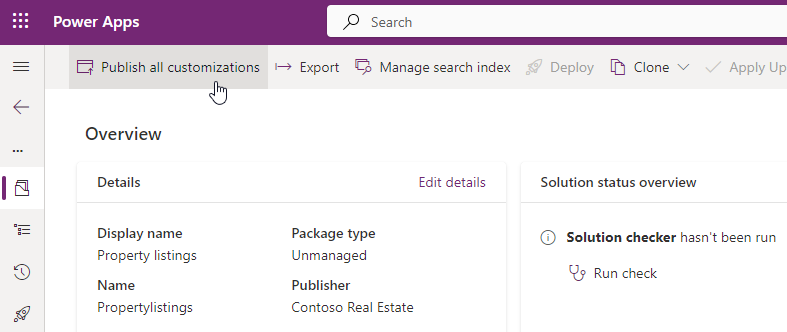
In the solution, select the Overview tab.
-
Select Publish all customizations.
Task 1.2 – Solution checker
-
In the solution, select the Overview tab.
-
Select Run check under Solution status overview.
-
Wait a few minutes for the solution checker to complete.

-
You should see no warnings or errors.
Task 1.3 – Export managed solution
-
Select Export.
-
Select Next.
-
Select Next again.
-
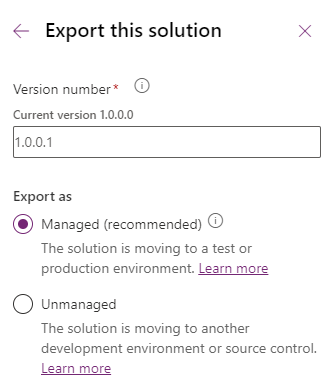
The version number should have been incremented to 1.0.0.1.
-
Select Managed for Export as.
-
Select Export.
-
The export will be prepared in the background. When the solution is ready, select the Download button.
Task 1.4 – Export unmanaged solution
-
Select Export.
-
Select Next.
-
Select Next again.
-
The version number should have been incremented to 1.0.0.2.
-
Change the version number to
1.0.0.1 -
Select Unmanaged for Export as.
-
Select Export.
-
The export will be prepared in the background. When the solution is ready, select the Download button.