Practice Lab 1 - Publisher and solution
Scenario
In this lab, you will create a publisher and a solution.
What you will learn
- How to create a solution in Microsoft Dataverse
- How to add existing components to a solution
High-level lab steps
- Create publisher
- Create solution
- Add table, column, view, and form to the solution
Prerequisites
- Must have completed Lab 0: Validate lab environment
Detailed steps
Exercise 1 - Create publisher and solution
In this exercise, you will access the Power Apps maker portal, the Developer environment and create a new solution.
Task 1.1 – Maker portal
-
In a new tab, navigate to the Power Apps Maker portal
https://make.powerapps.comand sign in with your Microsoft 365 credentials if prompted again. -
If you are prompted for a Phone number enter
0123456789and select Submit. -
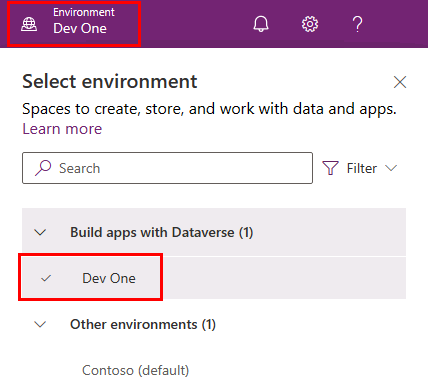
Switch environments by using the Environment Selector in the upper right corner of the screen.
-
Select the Dev One environment from the list.
-
Select Apps from the left navigation pane and then select All. You should see several apps including, Power Pages Management, Solution Health Hub, and Power Platform Environment Settings listed.
-
Select Tables from the left navigation pane. You should see the standard tables from the Common Data Model including Account and Contact.
Task 1.2 – Create solution and publisher
-
Select Solutions from the left navigation pane. You should see several solutions including the Default Solution and the Common Data Services Default Solution.

-
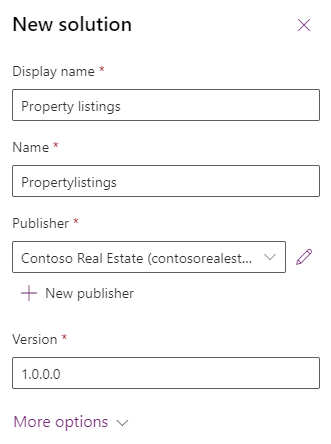
Select + New solution.
-
In the Display name text box, enter
Property listings -
Verify that Name is automatically populated.
-
Select + New publisher below the Publisher drop-down.
-
For Display name, enter
Contoso Real Estate -
For Name, enter
contosorealestate -
For Prefix, enter
cre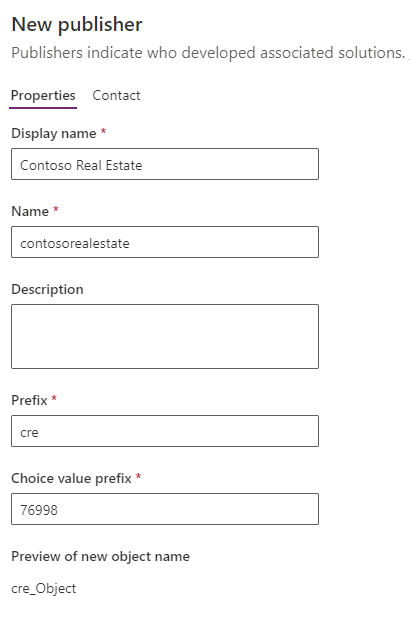
-
Select Save.
-
In the Publisher drop-down, select Contoso Real Estate (contosorealestate).
-
Select Create.
Exercise 2 - Add components to the solution
In this exercise, you will add an existing table to the solution.
Task 2.1 – Add table
-
Navigate to the Power Apps Maker portal
https://make.powerapps.com -
Make sure you are in the Dev One environment.
-
Select Solutions.
-
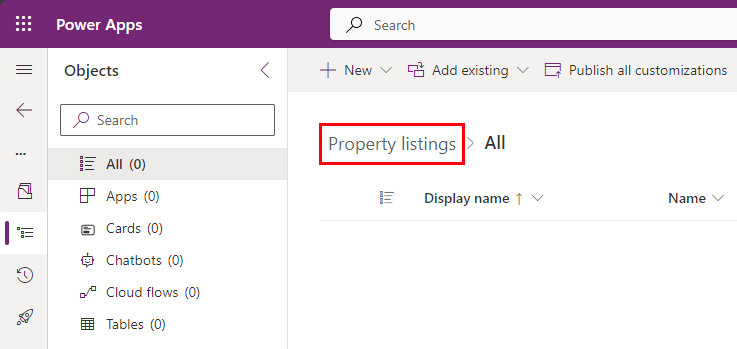
Select the Property listings solution, from the previous exercise.
-
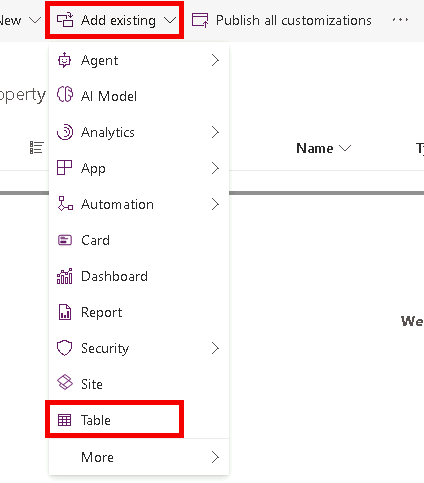
Select Add existing and choose Table.
-
Select the Account table.

-
Select Next.
-
Under the Account table, select the Edit objects link.
-
In the Columns tab, select the Account Number column.
-
Select the Views tab.
-
Select the Active Accounts view.
-
Select the Forms tab.
-
Select the Account form.
-
Select Add.
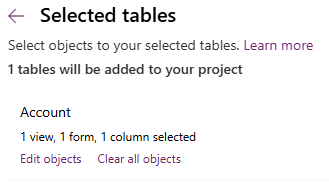
Note: You should have selected 1 view, 1 form, and 1 column for the Account table.
-
Select Add.