Create a Power Platform environment
Power Platform Admin Center
Before you start the lab exercises, you must create a development environment to work in.
-
Open a web browser, navigate to
https://admin.powerplatform.microsoft.com/manage/environments, and sign in using your credentials for this exercise. -
If prompted, choose the option to stay signed in.
-
Close any pop-up messages that are displayed.
Add Dataverse to the default environment
-
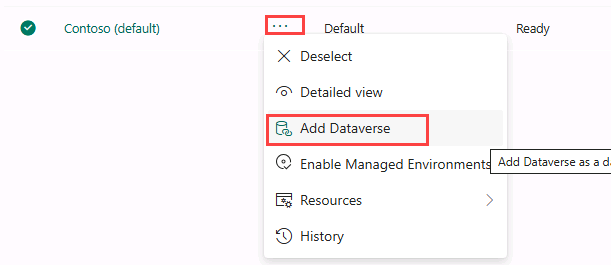
Select the ellipses (…) for the Contoso (default) environment and select Add Dataverse.
-
Leave all of the default settings and select Add.
Create a new environment
-
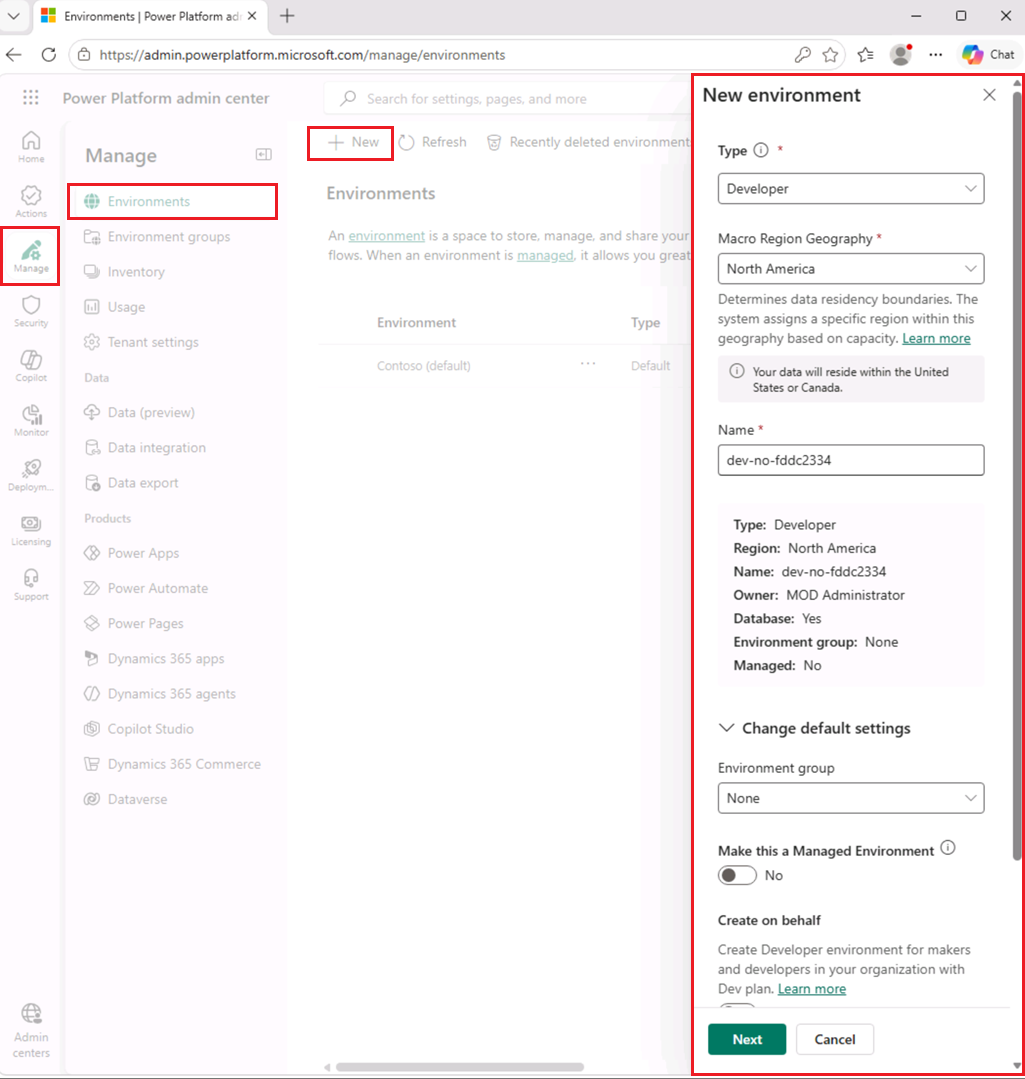
In the Environments page, select + New to create a new environment with the following settings:
- Type: Developer
- Macro Region Geography: North America
- Name: Your name
-
In the Add Dataverse secion click + Add Dataverse then select:
- Language: English (United States)
- Currency: USD ($)
- Deploy sample apps and data: No
-
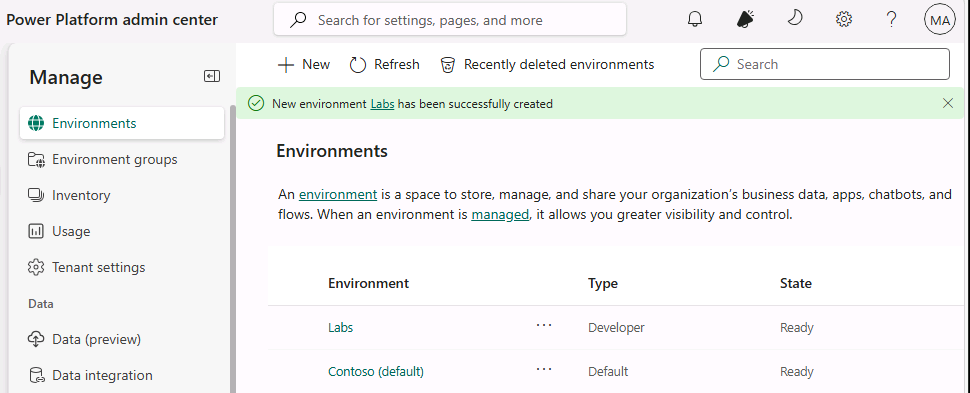
Select Add and wait until the state of your environment is Ready (you can use the Refresh button to update the display).
[!NOTE] Environment provisioning can take several minutes depending on tenant configuration.
-
In a new browser tab, navigate to
https://copilotstudio.microsoft.com/and sign in if prompted. -
If Copilot Studio opens in the new experience, locate the New experience toggle in the upper-right corner of the page and turn it off to return to the classic experience. On the Submit feedback to Microsoft dialog, select Submit > Done to close it. If Copilot Studio opens in the classic experience, skip this step.
[!NOTE]
If you experience issues loading Copilot Studio on your environment:- First, capture your environment ID (GUID) from the Power Platform admin center:
- Open the environment you created at
https://admin.powerplatform.microsoft.com/manage/environments. - Locate the environment ID in the URL (a long string such as
12345678-90ab-cdef-1234-567890abcdef). - Copy and save this value.
- Open the environment you created at
- Then try accessing your environment directly by pasting your ID into the following URL:
https://copilotstudio.microsoft.com/environments/<your-environment-id>/home
- First, capture your environment ID (GUID) from the Power Platform admin center:
-
If prompted, select Get Started and keep the default country or region settings.
-
Skip any welcome messages that appear.
-
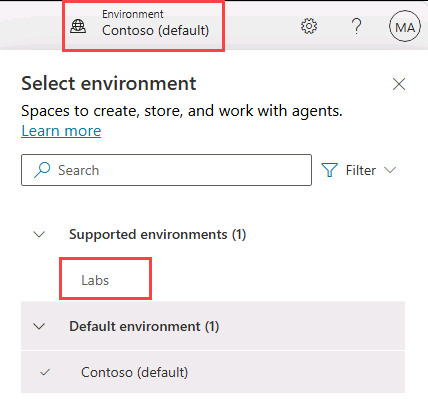
In the upper right corner of the page, switch environments by using the Environment Selector and select the environment you created.
You now have a Power Platform environment to work in.