Configure resource locks
In this exercise, you use resource locks to prevent accidental deletion of a file.
This exercise should take approximately 15 minutes to complete.
[!IMPORTANT] You’ll need access to an Azure subscription with sufficient permissions to create a resource group, storage account, and resource lock to complete this exercise. This exercise uses the Central US region.
Task 1: Create a resource group
In this task, you’ll create a resource group. By creating a resource group for this exercise, it will make it easier to clean up the exercise when you’re complete.
- Log into the Azure portal.
- Select Resource groups.
- Select Create.
- Select the subscription you will use for this exercise from the Subscription dropdown list.
- Enter
IntroAzureRGfor the resource group name. - Select Central US as the region.
- Select Review + create.
- Select Create.
- Select Home.
Task 2: Create a resource
In order to apply a resource lock, you have to have a resource created in Azure. The first task focuses on creating a resource that you can then lock in subsequent tasks.
- Select Create a resource.
- Under Categories, select Infrastructure Services.
- Under Storage Account, select Create.
-
On the Basics tab of the Create storage account blade, fill in the following information. Leave the defaults for everything else.
Setting Value Resource group Select IntroAzureRG Storage account name enter a unique storage account name Location Central US (same as resource group) Performance Standard Redundancy Locally redundant storage (LRS) - Select Review + Create to review your storage account settings and allow Azure to validate the configuration.
- Once validated, select Create. Wait for the notification that the account was successfully created.
- Select Go to resource.
Task 3: Apply a read-only resource lock
In this task you apply a read-only resource lock to the storage account. What impact do you think that has on the storage account?
- Scroll down until you find the Settings section of the blade on the left of the screen.
- Select Locks.
- Select + Add.
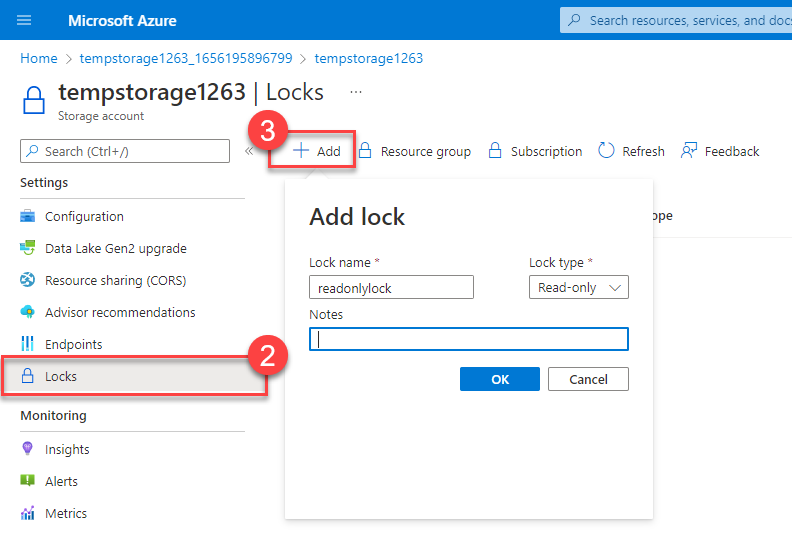
- Enter a Lock name.
- Verify the Lock type is set to Read-only.
- Select OK.
Task 4: Add a container to the storage account
In this task, you add a container to the storage account. This container is where you can store your blobs.
- Scroll up until you find the Data storage section of the blade on the left of the screen.
- Select Containers.
-
Select + Container.
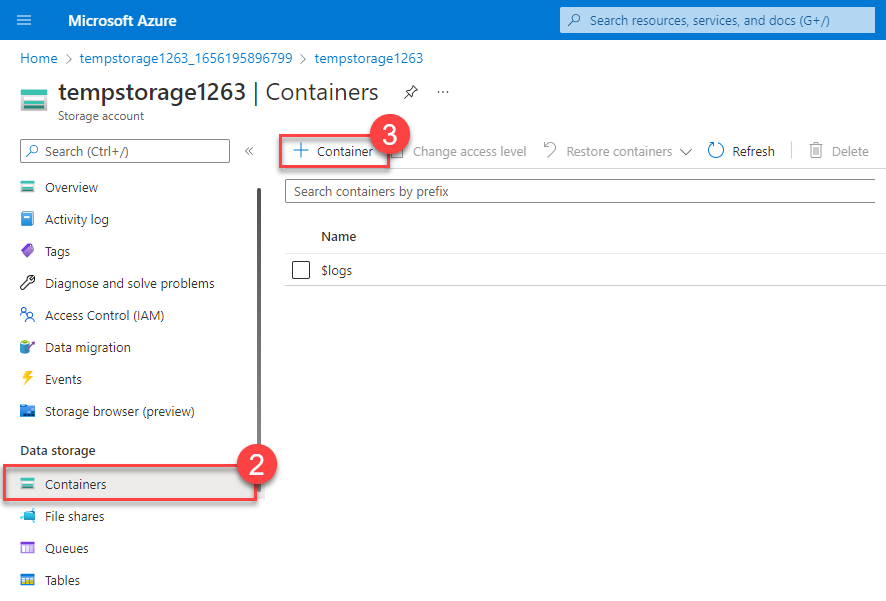
- Enter a container name and select Create.
- You should receive an error message: Failed to create storage container.
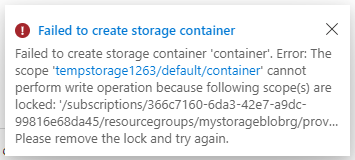
[!NOTE] The error message lets you know that you couldn’t create a storage container because a lock is in place. The read-only lock prevents any create or update operations on the storage account, so you’re unable to create a storage container.
Task 5: Modify the resource lock and create a storage container
- Scroll down until you find the Settings section of the blade on the left of the screen.
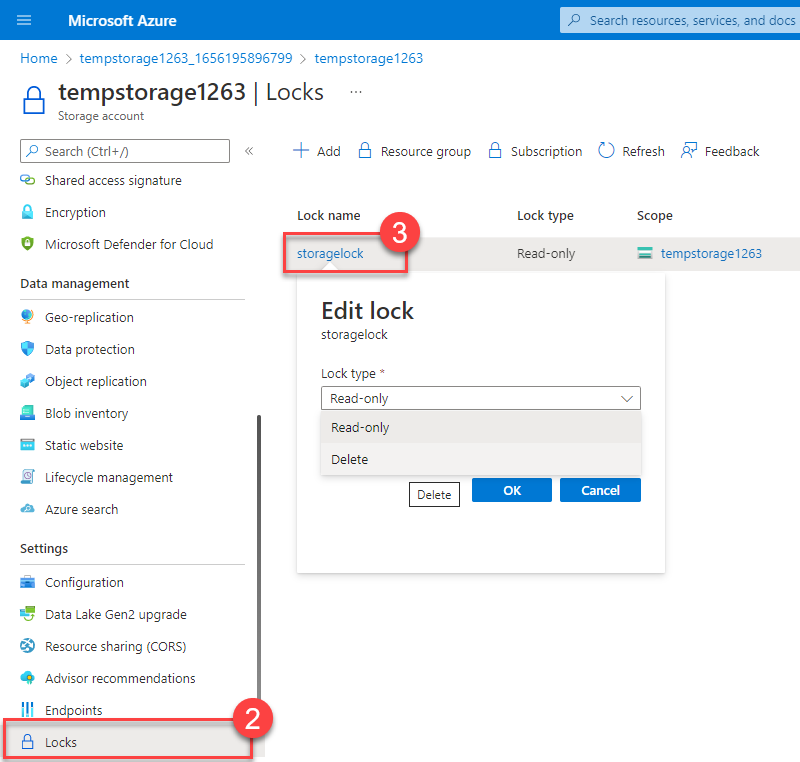
- Select Locks.
- Select the read-only resource lock you created.
- Change the Lock type to Delete and select OK.
- Scroll up until you find the Data storage section of the blade on the left of the screen.
- Select Containers.
- Select + Container.
- Enter a container name and select Create.
- Your storage container should appear in your list of containers.
You can now understand how the read-only lock prevented you from adding a container to your storage account. Once the lock type was changed (you could have removed it instead), you were able to add a container.
Task 6: Delete the storage account
You’ll actually do this last task twice. Remember that there’s a delete lock on the storage account, so you won’t actually be able to delete the storage account yet.
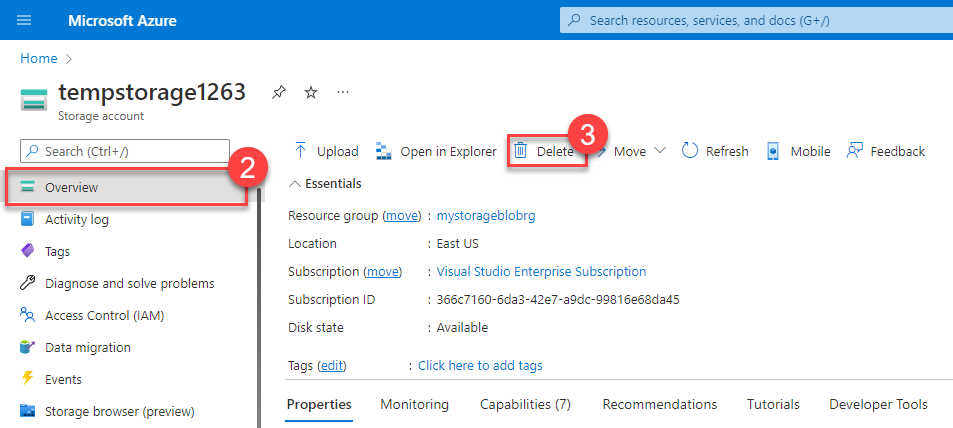
- Scroll up until you find Overview at the top of the blade on the left of the screen.
- Select Overview.
- Select Delete.
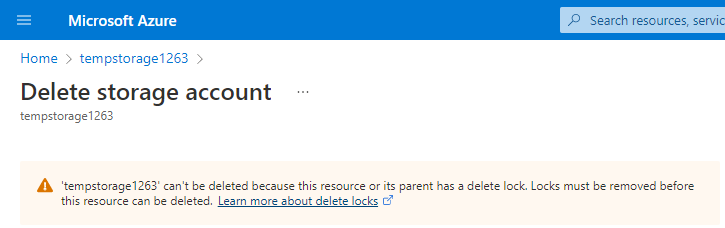
You should get a notification letting you know you can’t delete the resource because it has a delete lock. In order to delete the storage account, you need to remove the delete lock.
Task 7: Remove the delete lock and delete the storage account
In the final task, you remove the resource lock and delete the storage account from your Azure account. This step is important. You want to make sure you don’t have any idle resource just sitting in your account.
- Select your storage account name in the breadcrumb at the top of the screen.
- Scroll down until you find the Settings section of the blade on the left of the screen.
- Select Locks.
- Select Delete.
- Select Home in the breadcrumb at the top of the screen.
- Select Storage accounts.
- Select the storage account you used for this exercise.
- Select Delete.
- To prevent accidental deletion, Azure prompts you to enter the name of the storage account you want to delete. Enter the name of the storage account and select Delete.
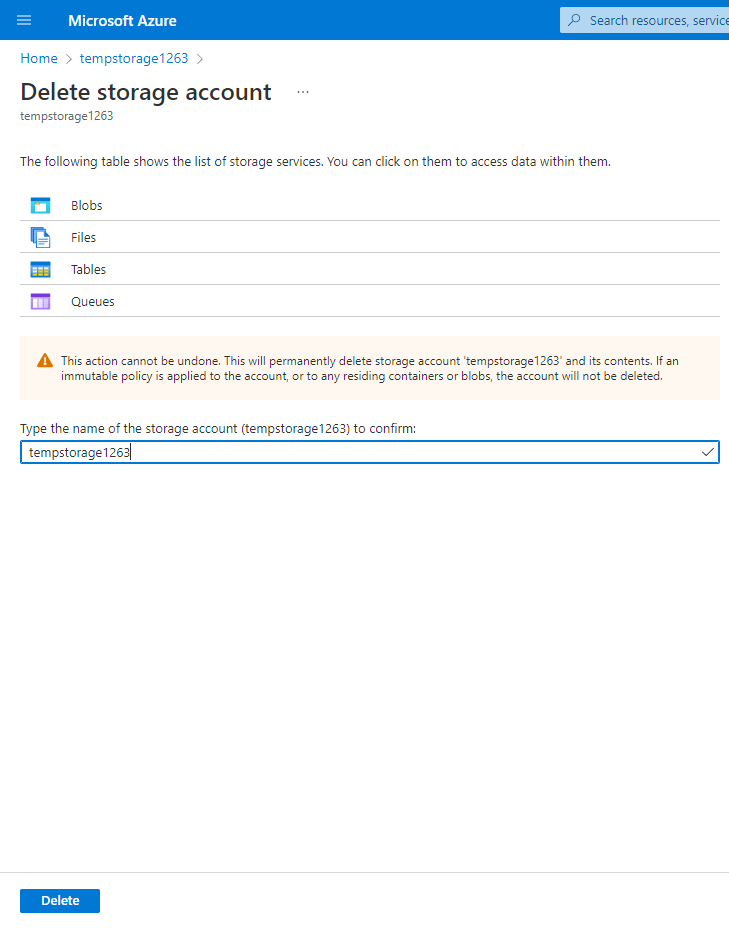
- You should receive a message that the storage account was deleted. If you go Home > Storage accounts, you should see that the storage account you created for this exercise is gone.
Task 8: Clean up
To clean up the assets created in this exercise and avoid unnecessary costs, delete the resource group (and all associated resources).
- From the Azure home page, under Azure services, select Resource groups.
- Select the IntroAzureRG resource group.
- Select Delete resource group.
- Enter
IntroAzureRGto confirm deletion of the resource group and select Delete. - Select Delete on the confirmation window.
Congratulations! You’ve completed configuring, updating, and removing a resource lock on an Azure resource.