Create an virtual machine and configure as a web host
In this exercise, you create an Azure virtual machine (VM), install a web server, and upate the network configuration to allow access from the internet.
This exercise should take approximately 20 minutes to complete.
[!IMPORTANT] You’ll need access to an Azure subscription with sufficient permissions to create a resource group, virtual machine, and networking resources to complete this exercise.
You could use the Azure portal, the Azure CLI, or an Azure Resource Manager (ARM) template to complete the steps in this exercise.
In this instance, you’ll use the Azure portal to deploy the VM, and Azure CLI in Cloud Shell for configuration and networking tasks.
Task 1: Create a resource group
The very first task has you create a resource group. Everything else created during this exercise will be created within that resource group.
- Log into the Azure portal.
- Select Resource groups.
- Select Create.
- Select the subscription you’ll use for this exercise.
- Enter IntroAzureRG for the resource group name.
- For Region, select a region available to your subscription where D-series Linux VM sizes are available.
- Select Review + create, and then select Create.
Task 2: Create a Linux virtual machine
In this task, you use the Azure portal to create a Linux VM in the resource group from Task 1.
- Select Home.
- Select Create a resource.
- Under Categories, select Infrastructure services.
- Under Virtual machine, select Create.
-
On the Basics tab, use the following values and leave other settings at their defaults unless specified.
Setting Value Subscription Select the subscription you selected in Task 1. Resource group IntroAzureRG Virtual machine name my-vmRegion Same as IntroAzureRG Zone options Leave default Availability zone Leave default Security type Leave default Image Leave default VM architecture Leave default Run with Azure Spot discount Unchecked Size Leave default Authentication Password Username azureuserPassword Enter a custom password Confirm password Reenter the custom password Public inbound ports Leave default Select inbound ports Leave default - Select Review + create, then select Create.
- Wait for the VM deployment to complete.
Your VM may take a few moments to provision. You named the VM my-vm, and will refer to the VM later based on that name.
Wait until Deployment is in progress. is replaced by Your deployment is complete. before continuing.
Task 3: Install Nginx
After your VM is created, you’ll use a Custom Script Extension to install Nginx. The Custom Script Extension is an easy way to download and run scripts on your Azure VMs. It’s just one of the many ways you can configure the system after your VM is up and running.
- Select the Azure Cloudshell icon to bring up Azure cloudshell.
-
Verify that you are in BASH mode instead of PowerShell mode. If you’re unsure, enter
bashon the Azure Cloudshell commandline. -
Run the following
az vm extension setcommand to configure Nginx on your VM:az vm extension set \ --resource-group "IntroAzureRG" \ --vm-name my-vm \ --name customScript \ --publisher Microsoft.Azure.Extensions \ --version 2.1 \ --settings '{"fileUris":["https://raw.githubusercontent.com/MicrosoftDocs/mslearn-welcome-to-azure/master/configure-nginx.sh"]}' \ --protected-settings '{"commandToExecute": "./configure-nginx.sh"}'This command uses the Custom Script Extension to run a Bash script on your VM. The script is stored on GitHub. While the command runs, you can choose to examine the Bash script from a separate browser tab. To summarize, the script:
- Runs
apt-get updateto download the latest package information from the internet. This step helps ensure that the next command can locate the latest version of the Nginx package. - Installs Nginx.
- Sets the home page, /var/www/html/index.html, to print a welcome message that includes your VM’s host name.
- Runs
Right now, the VM you created and installed Nginx on during the previous exercise isn’t accessible from the internet. In the next few steps, you’ll create a network security group that changes that by allowing inbound HTTP access on port 80.
[!NOTE] It’s important that you’re in the BASH version of Cloud Shell for some of the commands in this exercise. You can use the Switch to… button if you’re currently in PowerShell mode.
Task 4: Access your web server
In this procedure, you get the IP address for your VM and attempt to access your web server’s home page.
-
Run the following
az vm list-ip-addressescommand to get your VM’s IP address and store the result as a Bash variable:IPADDRESS="$(az vm list-ip-addresses \ --resource-group "IntroAzureRG" \ --name my-vm \ --query "[].virtualMachine.network.publicIpAddresses[*].ipAddress" \ --output tsv)" -
Run the following
curlcommand to download the home page:curl --connect-timeout 5 http://$IPADDRESSThe
--connect-timeoutargument specifies to allow up to five seconds for the connection to occur. After five seconds, you see an error message that states that the connection timed out:curl: (28) Connection timed out after 5001 millisecondsThis message means that the VM wasn’t accessible within the timeout period.
-
As an optional step, try to access the web server from a browser:
-
Run the following to print your VM’s IP address to the console:
echo $IPADDRESSYou see an IP address, for example, 23.102.42.235.
- Copy the IP address that you see to the clipboard.
-
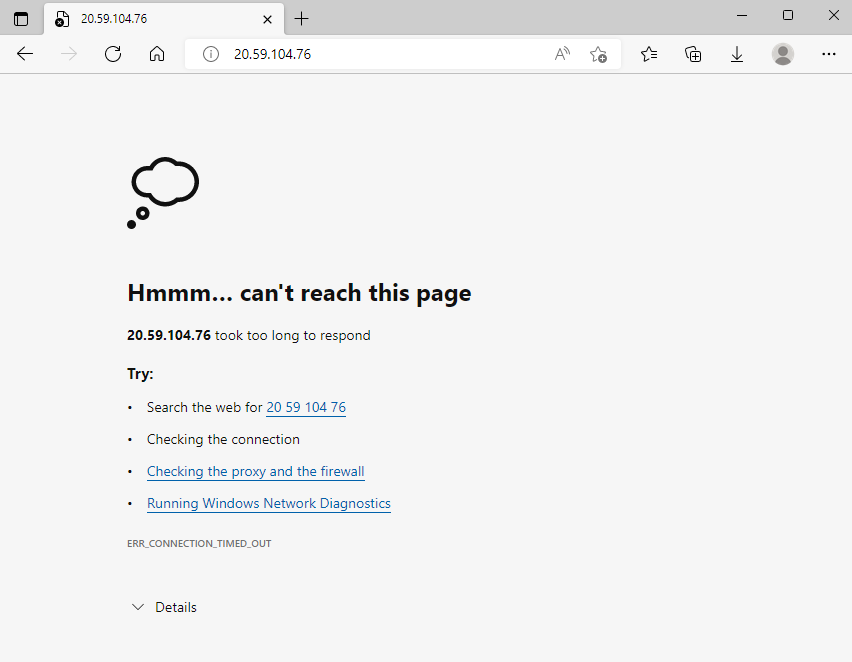
Open a new browser tab and go to your web server. After a few moments, you see that the connection isn’t happening. If you wait for the browser to time out, you see something like this:
- Keep this browser tab open for later.
-
Task 5: List the current network security group rules
Your web server wasn’t accessible. To find out why, let’s examine your current NSG rules.
-
Run the following commands to find the NSG associated with my-vm and store the NSG name in a Bash variable:
NSGID="$(az network nic list \
  --resource-group "IntroAzureRG" \
  --query "[?virtualMachine.id && contains(virtualMachine.id, '/my-vm')].networkSecurityGroup.id | [0]" \
  --output tsv)"

NSGNAME="${NSGID##*/}"
echo $NSGNAME
You see an NSG name in the output, for example my-vmNSG or my-vm-nsg.
-
Run the following
az network nsg rule listcommand to list the rules associated with the NSG named in$NSGNAME:az network nsg rule list \ --resource-group "IntroAzureRG" \ --nsg-name "$NSGNAME"You see a large block of text in JSON format in the output. In the next step, you’ll run a similar command that makes this output easier to read.
-
Run the
az network nsg rule listcommand a second time. This time, use the--queryargument to retrieve only the name, priority, affected ports, and access (Allow or Deny) for each rule. The--outputargument formats the output as a table so that it’s easy to read.az network nsg rule list \ --resource-group "IntroAzureRG" \ --nsg-name "$NSGNAME" \ --query '[].{Name:name, Priority:priority, Port:destinationPortRange, Access:access}' \ --output tableYou receive an output similar to this:
Name              Priority    Port    Access
-----------------  ----------  ------  --------
SSH                300         22      Allow
You see the default rule, SSH. This rule allows inbound connections over port 22 (SSH). SSH (Secure Shell) is a protocol that’s used on Linux to allow administrators to access the system remotely. The priority of this rule is 300. Rules are processed in priority order, with lower numbers processed before higher numbers.
By default, a Linux VM’s NSG allows network access only on port 22. This port enables administrators to access the system. You need to also allow inbound connections on port 80, which allows access over HTTP.
Task 6: Create the network security rule
Here, you create a network security rule that allows inbound access on port 80 (HTTP).
-
Run the following
az network nsg rule createcommand to create a rule called allow-http that allows inbound access on port 80:az network nsg rule create \ --resource-group "IntroAzureRG" \ --nsg-name "$NSGNAME" \ --name allow-http \ --protocol tcp \ --priority 100 \ --destination-port-range 80 \ --access AllowFor learning purposes, here you set the priority to 100. In this case, the priority doesn’t matter. You would need to consider the priority if you had overlapping port ranges.
-
To verify the configuration, run
az network nsg rule listto see the updated list of rules:az network nsg rule list \ --resource-group "IntroAzureRG" \ --nsg-name "$NSGNAME" \ --query '[].{Name:name, Priority:priority, Port:destinationPortRange, Access:access}' \ --output tableYou see both the default-allow-ssh rule and your new rule, allow-http:
Name              Priority    Port    Access
-----------------  ----------  ------  --------
SSH                300         22      Allow
allow-http         100         80      Allow
Task 7: Access your web server again
Now that you configured network access to port 80, let’s try to access the web server a second time.
[!NOTE] After you update the NSG, it may take a few moments before the updated rules propagate. Retry the next step, with pauses between attempts, until you get the desired results.
-
Run the same
curlcommand that you ran earlier:curl --connect-timeout 5 http://$IPADDRESSYou see this response:
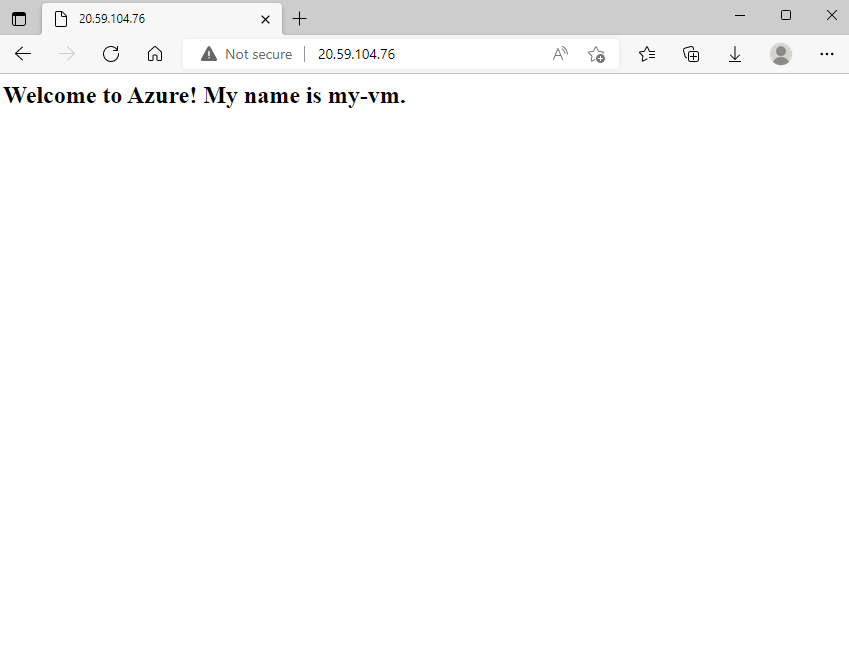
<html><body><h2>Welcome to Azure! My name is my-vm.</h2></body></html> -
As an optional step, refresh your browser tab that points to your web server. You see the home page:
Nice work. In practice, you can create a standalone network security group that includes the inbound and outbound network access rules you need. If you have multiple VMs that serve the same purpose, you can assign that NSG to each VM at the time you create it. This technique enables you to control network access to multiple VMs under a single, central set of rules.
You’ve completed this exercise and all of the exercises for this module. To clean up your Azure environment and avoid leaving VMs running when not in use, delete the IntroAzureRG resource group.
Clean up
- From the Azure home page, under Azure services, select Resource groups.
- Select the IntroAzureRG resource group.
- Select Delete resource group.
- If present, ensure the Apply force delete for selected Virtal machines and Virtual machine scale sets box is checked.
- Enter
IntroAzureRGto confirm deletion of the resource group - On the confirmation window, select Delete.